


I assume you have some web hosting names in mind for starting your website.
Choosing one from a list of hundreds can seem almost impossible.
Beginners need to consider cost-effectiveness, ease of use, performance, eCommerce support, and many other factors.
Fortunately, after days of research & comparison, I have filtered down to 5 web hosts that you can consider for different use cases.
| Best Web Hosting Services | Details | Pricing Starts At |
|---|---|---|
| Hostinger: | Best For: Money Value Highlights: 90% OFF, Free domain, 100 sites, Extra SSD storage. | $1.99/month |
| ChemiCloud: | Best For: Wider Reach Highlights: 18 Data Centers, Free Domain, Good Performance | $2.49/month |
| Cloudways: | Best For: Real Time Billing & Scalability Highlights: Scalable Servers, Google Servers, High End Security & Performance | $11/month |
| WPX: | Best For: Mid Range Traffic & High End Performance Highlights: High Performance, Free Site Optimization, Enterprise level security | $6.30/month |
| Namecheap: | Best For: Domain Registration Highlights: Up to 99% Discount, Free Domain Privacy | 99 Cents |
5 Best Web Hosting For Beginners [Compared & Reviewed]
If you are looking for quick answers, I would suggest Hostinger as it offers the highest value for money on an affordable budget. You can always increase your budget and pick WPX hosting for ultra-level performance and security features.
1. Hostinger: Best for Money Value

| Uptime | 99.998% (Last 11 Months) |
| Average Speed | 2.014 Seconds |
| Money-Back Guarantee | 30 Days |
Hostinger is a 2-decade-old web hosting service that has successfully established its place in the market. Its primary audience is small traffic sites or individuals who are just starting their websites in the online world.
Here, you get entry-level plans for every hosting type: Shared, Cloud, WordPress, VPS, WooCommerce, and more.
When I look closely at the “beginners hosting providers” category, it becomes clear that Hostinger offers many features free of cost that other players do not.
For example, Hostinger provides daily backups for free, whereas other providers do not.
The only problem with Hostinger is its support. While they are responsive, you can only get help in 11 languages through live chat or email, not phone support.
Being connected with Hostinger for a long time, I realized that they continuously launch new features.
Key Features:
- 99.9% uptime guarantee
- One click apps & cms installers including WordPress
- One click store setup using WooCommerce
- 7 Global Data centers
- Free Migration
- SSD NVMe storage & unlimited bandwidth
- AI website builder with pre-built templates
- Free email (up to 200)
- Security Features: Unlimited SSL, Daily & On-Demand Backups, Malware Scanner, Domain Privacy, WAF, DDoS protection, IP Blocking, etc.
Pricing:
Hostinger hosting plans range from $1.99/month to $6.99/month. These plans allow you to install 25-100 websites and provide up to 100 GB of NVMe storage.
While the Hostinger Premium plan includes most features, the Hostinger Business plan is recommended if your audience is global. It includes a free CDN option, enhancing your site’s reach worldwide.
All entry-level plans come with a complimentary free domain name.
Pros & Cons:
| Pros | Cons |
| For small businesses, resources such as 25-100 websites, 100-200 NVMe storage, and unlimited bandwidth are sufficient. | Phone support is missing |
| In case of extra requirements, you can always upscale or downscale your plans on Hostinger. | |
| Because of the many freebies (domain, migration, email, backups, etc.), you can save a lot of money on your first hosting bill. | |
| No hidden or upselling issues | |
| AI Website builder is perfect for setup new websites and stores easily | |
| WordPress one click installer is a great help for newbies |
Why Should You Choose Hostinger?
Upon review, you can consider Hostinger if you want to set up a personal blog or online store and have no coding knowledge.
Their AI website builder is perfect for newbies who want to avoid website designing and get their site live as quickly as possible without coding.

Other important things they offer include 200 email accounts, unlimited bandwidth, and 25-100 website installations with one license.
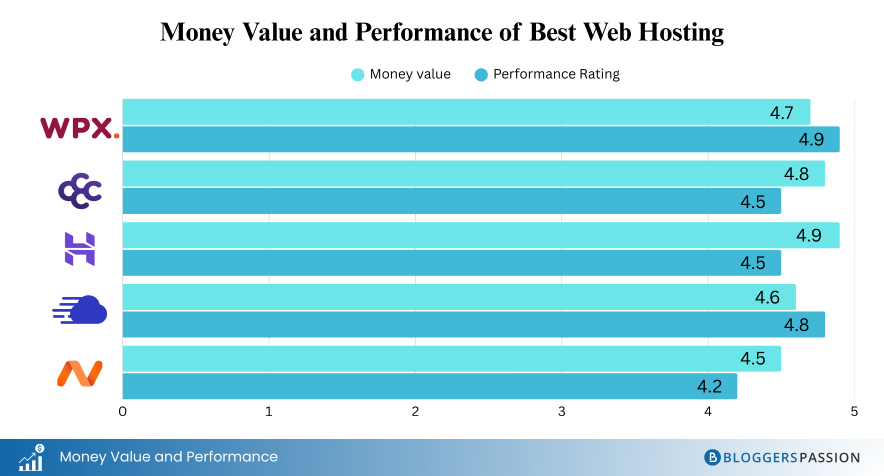
Performance-wise, Hostinger stands in the first position. You can see the comparison below:

When I review their entry-level plan, I find its performance quite good for low-traffic sites. You can’t expect ultra-level performance, but the performance Hostinger delivers in its segment is far better than others. That’s why I give it 2nd position in the list of fastest web hosting services.
7 data centers plus Cloudflare CDN integration help Hostinger achieve this performance.
Hostinger user interface is another highlight. Their hPanel is user-friendly, with well-organized tools and features (Backups, File Manager) and a convenient “Search Box” to easily access settings or tools.
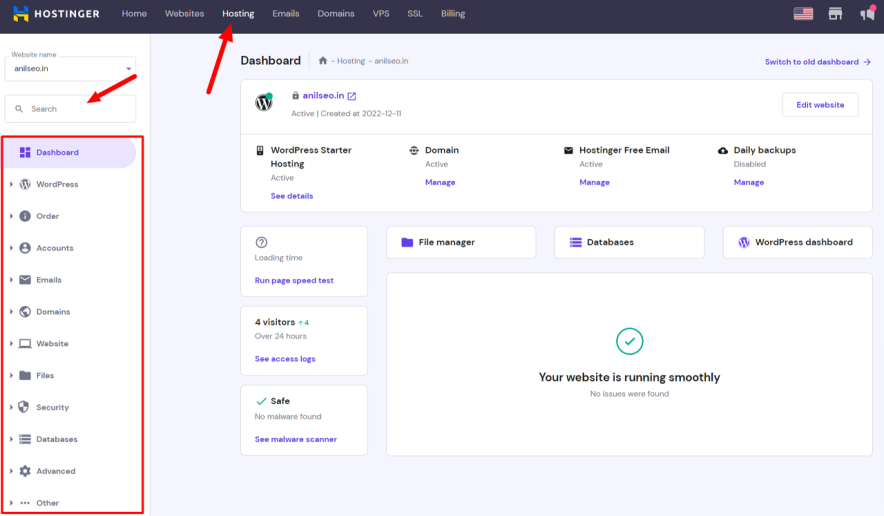
For first-time web hosting users, their detailed step-by-step wizard with inbuilt instructions ensures a smooth onboarding process.

2. ChemiCloud: Best For Wider Reach

| Uptime | 100% (Last 30 Days) |
| Average Speed | 2.5 Seconds |
| Money-Back Guarantee | 45 Days |
ChemiCloud is an underrated WordPress hosting provider that new users often overlook. However, I encourage you to explore this service because it offers affordability without compromising performance.
Compared to other services in a similar price range, ChemiCloud stands out by providing a 99.99% uptime guarantee. And when I tested ChemiCloud, I personally found their uptime good.
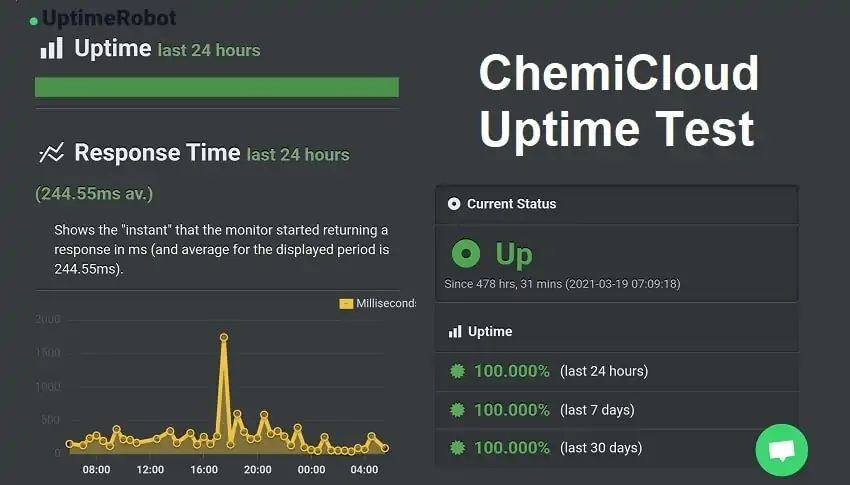
To work with ChemiCloud, you need to know a bit about WordPress, web designing, and other technical aspects, as there is no AI website builder available. You will also need to set up your WooCommerce store yourself.
If you enjoy a DIY approach, then ChemiCloud could be a good option for you.
Key Features:
- 18 Data Centers worldwide
- Free domain for 1 year
- User friendly cPanel
- Softaculous 1-Click Installer
- Supported apps auto updates
- Unlimited Email Accounts
- Free automated migration
- Free CDN
- Unlimited bandwidth
- Free daily backups with 10-30 days retention
- 24*7 Live WordPress chat support
- Advanced firewall
- Malware detection
- Proactive server monitoring
- WordPress staging site
Pricing:
ChemiCloud’s WordPress plans range from $2.49 to $4.49. These plans offer the advantage of 1 to unlimited website installations and up to 40 GB of optimized SSD storage. It’s best to get a 3-year plan upfront because ChemiCloud’s renewal charges are quite high.
Pros & Cons:
| Pros | Cons |
| Performance is top-notch in the entry level hosting segment | AI Website builder is not available |
| Quick smooth WordPress setup | Scalability is limited to 40 GB SSD storage |
Why Should You Choose ChemiCloud?
ChemiCloud’s main highlight is its wider reach, with 18 data centers worldwide (USA – 7, UK – 7, AU – 1, Asia – 3). If your primary audience is in these locations, you won’t experience slow loading speeds.
If your WordPress site’s monthly traffic ranges from 5k to 100k, you should definitely consider ChemiCloud.
If you need extra RAM and CPU, you can enable them through special add-ons. This option to add extra resources helps you avoid high initial expenses while ensuring your site performs well as traffic grows.
3. Cloudways: Best For Real Time Billing & Scalability

| Uptime | 100% (Last 30 Days) |
| Average Speed | 0.5 Seconds |
| Money-Back Guarantee | Not Available |
Cloudways is one of the best web hosting providers of 2026, meaning your site is hosted on a global cloud network instead of a physical server.
This ensures better reach and eliminates downtime issues. This service is different from any shared hosting options you have encountered before.
The best aspects of Cloudways are scalability and real-time billing. If you host a small website, you only pay for the resources your site consumes.
For example, one of my websites is hosted on Cloudways $15/month plan, but my monthly billing can be lower due to real-time billing.
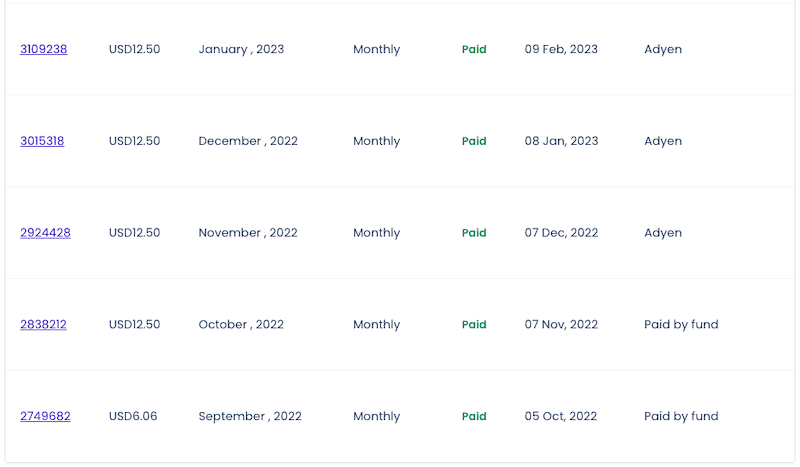
Since Cloudways is a premium cloud hosting service, you get excellent performance and security features. My last 30 days of Cloudways hosted uptime is 100%.

The only thing to worry about with Cloudways is the pricing. Yes, it is a premium service, so its monthly plans might seem a bit expensive compared to shared hosting providers.
Key Features:
- Uptime guarantee: 99.9%
- Scalable servers
- 1 Server – unlimited websites
- One click WordPress Installer
- Daily & Hourly automated backups
- Free migration (only 1 site)
- Free SSL
- 24*7 real time monitoring
- Dedicated firewall
- Staging environment
- Regular security patches & updates
- 3&4 Layer DDoS protection
Pricing:
Cloudways plans start at $11, providing 1 GB RAM, 25 GB storage, 1 TB bandwidth, and the option to install unlimited applications/websites. Their plans go up to $1500, offering scalability beyond 3 TB of storage.
Pros & Cons:
| Pros | Cons |
| Save money because of real time billing | Some features are paid for example premium support, email accounts, backups, etc. |
| High end security features | Money back policy is not applicable as they offer a 3 days trial for testing purposes. |
| 9 Data centers across the globe | |
| 24*7 live chat support |
Why should you choose Cloudways?
Cloudways offers the perfect blend of high security and performance in hosting.
Here, you can choose your server from the top 5 cloud providers: Digital Ocean, Vultr, Linode, AWS, and Google Cloud.
Cloudways features a custom beginner-friendly dashboard, allowing you to get your website live quickly. All you need to do is select WordPress, choose a cloud server, pick a data center, and you’re good to go.
If you are starting an eCommerce store or your site experiences sudden bulk traffic, Cloudways is a great option. With auto-scaling, it automatically meets urgent resource demands.
During my stress test on Cloudways servers, even under heavy traffic, the server showed an impressive average response time of 31ms.
4. WPX Hosting: Best For Mid Range Traffic Sites & High End Performance

| Uptime | 99.998% |
| Average Speed | 0.6 Seconds |
| Money-Back Guarantee | 30 Days |
WPX WordPress Hosting is not ideal for total beginners.
Instead, it is perfect for websites that are in a growing stage and for those who are considering moving away from entry-level hosting to improve performance and security.
In fact, we have been using WPX Hosting for over 8 years. We switched to this hosting after our beginner phase ended.

WPX might be a bit pricey, but they provide real value in terms of performance and security. Their support is excellent because if your site encounters any hacking issues, they fix it for you.
Another great thing about WPX is that they offer a free site optimization service. If your site’s performance is lacking for any reason, they manually take over and optimize it themselves.
Key Features:
- Enterprise level DDoS protection
- 99.95% Uptime guarantee
- Free Malware removal
- 28 Days automated daily backup
- Inbuilt Custom CDN with 37 XDN Points
- One click WordPress Installer
- WordPress Auto Updates
- Free site optimization
- 24*7 live chat customer support
- 3 Data centers: US, UK, & AU
- Daily Malware scanning
- Unlimited SSL & 2FA
- Staging Area
Pricing:
WPX hosting offers both monthly and annual plans. The pricing starts from $6.30 and goes upto $21/month. 5-35 websites, and 15-60 GB storage are the available resources.
Pros & Cons:
| Pros | Cons |
| Best performance for mid-high traffic sites | Free domain is missing |
| Highly secure | AI Website builder for quick website setup is not available |
| Great customer support response time (average is 40 seconds) | |
| Free Unlimited Sites Migration |
Why Should You Choose WPX Hosting?
With WPX Hosting one can directly avoid low performance, cheap support, and less secure web hosting providers.
WPX has a dedicated WooCommerce plan, which is ideal for those planning to start a large eCommerce site.
If your budget allows, it is better to go with WPX because, in the future, you will likely need to switch to a better web hosting service that can provide excellent performance, unlike services like Hostinger, Bluehost, GoDaddy, and others.
During tests, I found WPX’s average loading time to be much better than entry-level hosting services: WPX (0.6 seconds), Hostinger (2.014 seconds), GoDaddy (2.94 seconds), and Bluehost (3.0 seconds).
5. Namecheap Hosting: Best For Domain Registration

| Uptime | 99.832% |
| Average Speed | 3.2 Seconds |
| Money-Back Guarantee | 30 Days |
Why should you choose Namecheap Hosting?
Namecheap is perfect if you are looking for a new domain registrar for your site. Yes, I am only recommending Namecheap for domain registration.
Here, you can get up to a 99% discount, meaning domains start from just 99 cents.
When it comes to web hosting, plans start at just $1.48/month, but Namecheap’s performance is quite poor. I’ve seen many bad reviews about Namecheap in terms of hosting performance. Most users only consider it for domain registration.
Key Features:
- Free Domain transfer & Domain Registration (1 year)
- 1 Click WordPress install
- Free SSL
- Free CDN
- Automated Backups
- Basic website builder
- 24*7 Live chat support
- cPanel based hosting interface
Pricing:
In Namecheap, you can get your WordPress website live for just $1.43. You have the option to choose a monthly, yearly, or 24 months based tenure. The renewal costs start from $4.48/month.
Pros & Cons:
| Pros | Cons |
| Domain privacy is absolutely free for 1 year. | Namecheap entry level server performance is poor. |
| The plans are cheaper in the market (starting from $1.43/month). | Extra $1/month if you choose a UK Datacenter |
| Only USA & EU data centers are available to choose from. | |
| Extra $1/month if you choose a UK Data center |
How to Choose the Best Web Hosting for Beginners?
Here is a checklist of features that you should definitely review before finalizing a web host:
1.) The UI Should be cleaner & easy to operate.
2.) It should offer managed WordPress features for beginners like 1 Click WordPress installer, AI website builder, Automated backups, 1 Click WooCommerce install, Automatic Migration, and Auto app updates.
3.) The support should be 24*7*365 (Live Chat is mandatory but phone support is the cherry on the top)
4.) There would be no restriction on bandwidth.
5.) The web host must offer free email accounts to newbies
6.) The host with less uptime issues should be preferred. The average loading time should be less than 2 seconds.
7.) There would be an option to choose a data center as per user preference.
8.) Web hosts with more than 3-5 data centers and support of global CDN should be considered.
9.) Basic security features like Malware scanning, IP Blocking, WAF, and DDoS protection should be available free of cost.
Bottom Line:
As we said earlier in the post, picking the right web hosting is a hard choice.
Our simple tip is to focus on your website needs. Find out how much traffic you might get in the long run, then decide on the most useful hosting choice that serves your needs. Also, focus on the pricing option if you are under a low budget.
The hosts mentioned in today’s beginners list can easily handle traffic ranging from 5k to 50k per month.
If you have budget concerns but still want the best performance, Hostinger should be your first preference. For a quick online store setup with eCommerce features, Bluehost is the ideal choice.
Finally, if you have a good budget, you can choose between WPX or Cloudways for the best performance and security.
FAQs:
Which web hosting is best for beginners?
Shared hosting is typically the best choice for beginners. It’s affordable, easy to set up, and suitable for small websites. As you gain experience, you can consider more advanced hosting options like VPS or dedicated hosting. The best option in this segment is Hostinger.
Which site is best for web hosting?
Hostinger, Elementor Hosting, and ChemiCloud are the best choices for entry-level web hosting, while WPX and Cloudways are ideal for high-traffic sites.
What is the minimum cost to host a website?
You need at least $35 in your first year to host a single website. Hostinger costs $2.65/month. Additionally, from the second year onwards, you might have to pay domain registration fees ($10-$15/year) since most beginner web hosting plans offer free domain registration for the first year.
What is the best reliable web hosting service?
Cloud based web hosting like Cloudways is more reliable because this type of hosting connects the user’s site to a cloud-based global network, where power dependency is not just on one physical server but on the entire network. In other words, on cloud servers, you experience fewer downtime issues.
Is GoDaddy good for website hosting?
No, GoDaddy hosting plans are affordable, but according to the majority of users, their customer support quality and performance are a disaster.
Is it worth self hosting a website?
Creating and maintaining a self-hosted website isn’t free and can be quite costly. Additionally, the process of setting up and managing a self-hosted site can be quite complex.
Can I upgrade my hosting plan as my website grows?
Yes, most hosting providers allow you to upgrade your plan as your website’s traffic and requirements increase. Starting with a basic plan and upgrading when needed is a common approach for new website owners.
Do I need technical knowledge to use web hosting?
No, you don’t need advanced technical knowledge. Most beginner-friendly hosting providers offer intuitive interfaces and one-click installations, making it easy to set up and manage your website without technical expertise.
![18 Best Web Hosting Deals & Offers of 2026 for All Kinds of Budgets [Up to 90% OFF]](https://bloggerspassion.com/wp-content/uploads/2021/10/best-web-hosting-deals-300x157.jpg)

![List of 9 Best First Month Free Hosting Providers [No Credit Card Required] – Reviewed](https://bloggerspassion.com/wp-content/uploads/2019/10/Free-Hosting-300x157.jpg.webp)

![6 Best WordPress Hosting in India for 2026 [Expert Picks]](https://bloggerspassion.com/wp-content/uploads/2022/10/best-wordpress-hosting-in-India-300x157.jpg)



Leave a Comment
Your email address will not be published. Required fields are marked *