

Looking for the best WordPress plugins to improve your website in 2026?
Whether you want to boost your SEO rankings, speed up your website, improve security, generate more leads, or increase affiliate revenue, the right plugins can make all the difference.
The challenge is that WordPress offers thousands of plugins, making it difficult to know which ones are actually worth installing.
To make things easier, we’ve handpicked the most essential WordPress plugins that can help you improve your site’s performance, user experience, security, and search engine visibility. These plugins are trusted by millions of WordPress users and work well for blogs, business websites, affiliate sites, and online stores alike.
Let’s dive into the best WordPress plugins you should consider using this year.
15 Essential WordPress Plugins for Bloggers 2026
| Plugin | Best For | Free Version |
|---|---|---|
| Akismet Anti-Spam | Blocking Spam Comments | Yes |
| Rank Math SEO | SEO Optimization | Yes |
| Deals and Coupons Lite | Coupon & Affiliate Websites | Yes |
| AMP | Improving Page Speed & Core Web Vitals | Yes |
| Broken Link Checker | Finding & Fixing Broken Links | Yes |
| Contextual Related Posts | Displaying Related Content | Yes |
| WPForms | Creating Contact & Payment Forms | Yes |
| Easy Affiliate Links | Managing Affiliate Links | Yes |
| Kadence Security | Website Security & Login Protection | Yes |
| Schema | Adding Structured Data Markup | Yes |
| ShortPixel Image Optimizer | Image Compression & Optimization | Yes |
| TablePress | Creating Tables in WordPress | Yes |
| WP Review Pro | Product & Service Reviews | No |
| WP Rocket | Speed Optimization & Caching | No |
| Social Snap | Social Sharing & Social Traffic | Yes |
1. Akismet Anti-Spam
| Detail | Information |
|---|---|
| Plugin Name | Akismet Anti-Spam: Spam Protection |
| Best For | Blocking spam comments and contact form spam |
| Active Installations | 6+ million |
| WordPress Rating | 4.7/5 |
| Pricing | Free for personal sites, paid plans for commercial websites |
| Free Version Available | Yes |
| WordPress.org Listing | Yes |

The Akismet Anti-Spam plugin is one of the most downloaded plugins, with over 6+ million downloads, and it checks your comments and contact form submissions against its global spam database to prevent your site from receiving spam comments.
As the popularity of your blog increases, it will become difficult to manage spam comments manually. Here’s where a plugin like Akismet comes in handy.
Just make sure to check your comments spam folder regularly because the Akismet plugin sometimes sends even genuine comments there.
If you’re still seeing a lot of spam comments even after installing this plugin, you can consider giving the Antispam Bee plugin a try, which effectively blocks spam comments and trackbacks without CAPTCHAs.
Key Features of Akismet Anti-spam: Spam Protection
- Automatically filters spam comments and form submissions
- Protects contact forms from spam and abuse
- Maintains a status history for each comment
- Blocks malicious links and suspicious content
- Reduces manual moderation workload by filtering spam automatically
2. Rank Math SEO Plugin
| Detail | Information |
|---|---|
| Plugin Name | Rank Math SEO |
| Best For | SEO Optimization |
| Active Installations | 4+ million |
| WordPress Rating | 4.9/5 |
| Pricing | Free & Premium |
| Free Version Available | Yes |
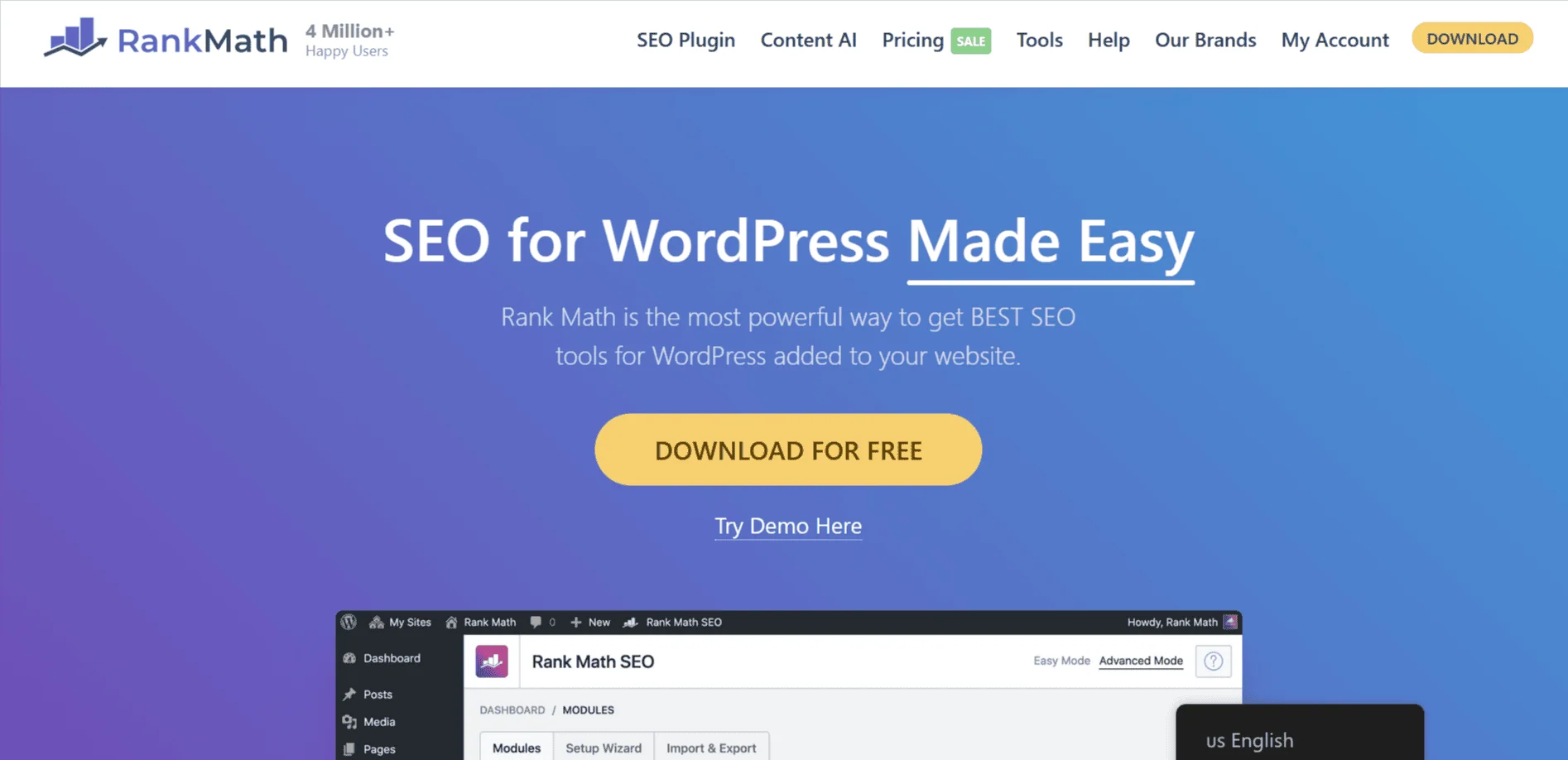
We recently started using the Rank Math SEO plugin. Previously, we used the Yoast SEO premium version. So why did we ditch Yoast SEO? The reason is simple: Rank Math is completely free to use and offers a ton of extra features.
If you’re already using other WordPress SEO plugins like Yoast SEO, AIO plugin, SEOPressor, etc you can easily import all your settings to Rank Math with just 1 click. It also offers you an easy-to-set-up wizard which helps you get started with the plugin really fast.
A ton of professional bloggers like Matthew Woodward, Ryan Robinson (including me) have started using Rank Math because of its amazing features.

It offers you incredible features like;
- the ability to optimize your content for up to 5 keywords
- track your keyword positions in the search results
- lets you automatically add ALT and title tags to your images
- offers a redirection manager
- offers you a 404 monitor that helps you fix your 404 error pages
- and the list goes on
All in all, the Rank Math SEO plugin is one of the most essential WordPress plugins for all kinds of bloggers and SEOs.
3. Deals and Coupons Lite
| Detail | Information |
|---|---|
| Plugin Name | Deals and Coupons Lite |
| Best For | Coupon & Deal Websites |
| Active Installations | 70+ |
| WordPress Rating | 5.0/5 |
| Pricing | Free |

The Deals and Coupons Lite plugin is developed by WP Coupons, run by Anil Agarwal of BloggersPassion.
The plugin was initially created by WordPress expert brothers Brian and Brett Jackson. In January 2025, Anil Agarwal acquired WP Coupons to strengthen it.
The benefit of using this plugin is that it helps you promote your product deals, affiliate coupons, and discount codes while increasing CTR and conversions.
Here’s an example of what it looks like;

The best part? Currently, the plugin is 100% FREE to use on UNLIMITED sites.
The plugin’s key features include;
- Quick styling options to match your site’s branding
- Sidebar coupon widget with scroll-on-read behavior
- Set expiration dates for coupons
- Click-to-copy code functionality
- Click-to-reveal option, like RetailMeNot
- Customize your coupon link’s behavior (direct, new tab, nofollow, etc.)
- Lightweight, fast, and easy to manage
- Multiple shortcodes for flexible use
Here’s a list of top WordPress coupon code plugins.
4. AMP WordPress Plugin
| Detail | Information |
|---|---|
| Plugin Name | AMP |
| Best For | Improving Page Speed & Core Web Vitals |
| Active Installations | 400,000+ |
| WordPress Rating | 4.4/5 |
| Pricing | Free |

AMP (i.e Accelerated Mobile Pages) is designed as an open standard for any publisher to have pages load really quickly on mobile devices.
In simple terms, AMP speeds up your website page loading times by as much as a second of total load speed by enabling AMP caching and here’s how it looks like on mobile devices;

Although there are a ton of plugins available to enable the AMP feature for your sites, this is the official AMP plugin for WordPress that supports fully integrated AMP publishing for WordPress sites.
This plugin also offers you granular publisher controls and automatically removes the majority of unused CSS to keep the total under AMP’s 50KB limit.
That being said, this plugin doesn’t offer you a mobile version for your website; instead, the AMP version is served to visitors who are visiting your site from their mobile devices and who are using platforms such as Twitter, Google search, etc.
Key Features
- Automatically generates AMP-compatible pages
- Helps improve Core Web Vitals and page speed
- Includes AMP validation and error detection tools
- Supports AMP for both mobile and desktop users
- Works with many popular WordPress themes and plugins
5. Broken Link Checker
| Detail | Information |
|---|---|
| Plugin Name | Broken Link Checker |
| Best For | Finding & Fixing Broken Links |
| Active Installations | 500,000+ |
| WordPress Rating | 4.1/5 |
| Pricing | Free & Premium |
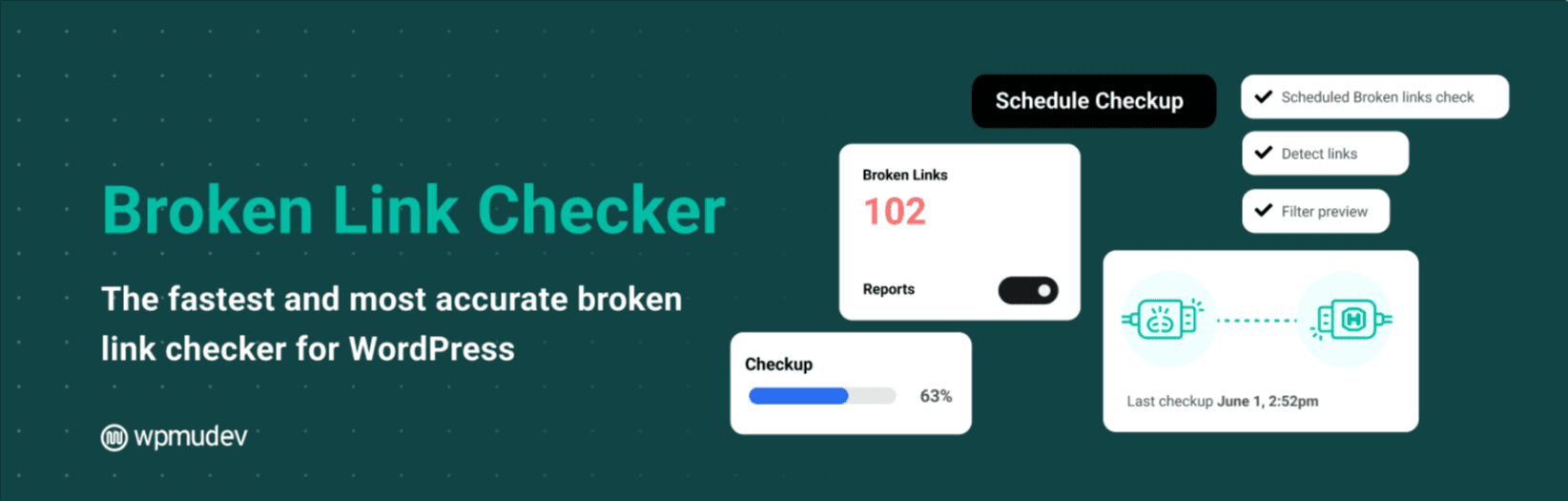
Broken links create a poor user experience and can negatively impact your site’s SEO if left unchecked. Most blogs often suffer with broken links which are dangerous and can negatively impact your overall website’s SEO – that’s why you always need to keep an eye on fixing them.
Here’s where a simple yet powerful plugin like Broken Link Checker comes in handy for WordPress blogs.
Once you install and activate this plugin, it monitors all the links in your posts, pages, comments and detects links that don’t work or missing images and redirects. It also notifies you either via WordPress dashboard or by email so you can fix them as soon as you find them.
Key Features
- Automatically scans for broken links and missing images
- Email alerts and dashboard notifications
- Fix broken links from a central dashboard
- Cloud-based and local scanning options
- Supports WordPress multisite networks
6. Contextual Related Posts
| Detail | Information |
|---|---|
| Plugin Name | Contextual Related Posts |
| Best For | Displaying Related Posts |
| Active Installations | 50,000+ |
| WordPress Rating | 4.8/5 |
| Pricing | Free & Premium |
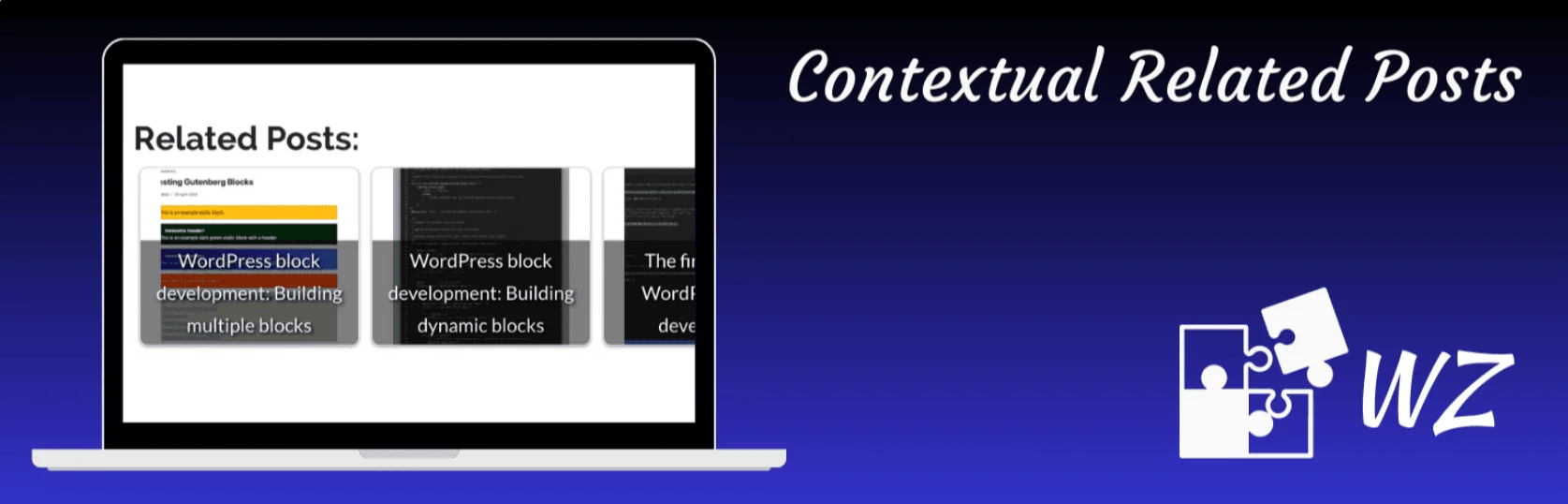
Want to reduce your bounce rates? Then, start showing relevant blog posts under every post you publish.
This WordPress plugin allows you to display a list of related posts on your website, based on the titles and content of the posts, making them more relevant.
Contextually related posts try to improve relevance by matching posts. For text-only related posts, it works out of the box and has a simpler settings page. It uses an image from a post as the thumbnail when no featured image or post thumbnail is found.
To display thumbnails, the plugin does not include a template. Instead, it just displays thumbnail images in a bulleted list. You can add your own CSS to style it (if you want).
Key Features
- Automatically displays related posts based on content relevance
- Supports widgets, shortcodes, and Gutenberg blocks
- Includes built-in caching for faster performance
- Displays related posts with thumbnails and excerpts
- Works with custom post types and taxonomies
7. Contact Form by WPForms
| Detail | Information |
|---|---|
| Plugin Name | WPForms |
| Best For | Creating Contact & Payment Forms |
| Active Installations | 6+ million |
| WordPress Rating | 4.8/5 |
| Pricing | Free & Premium |
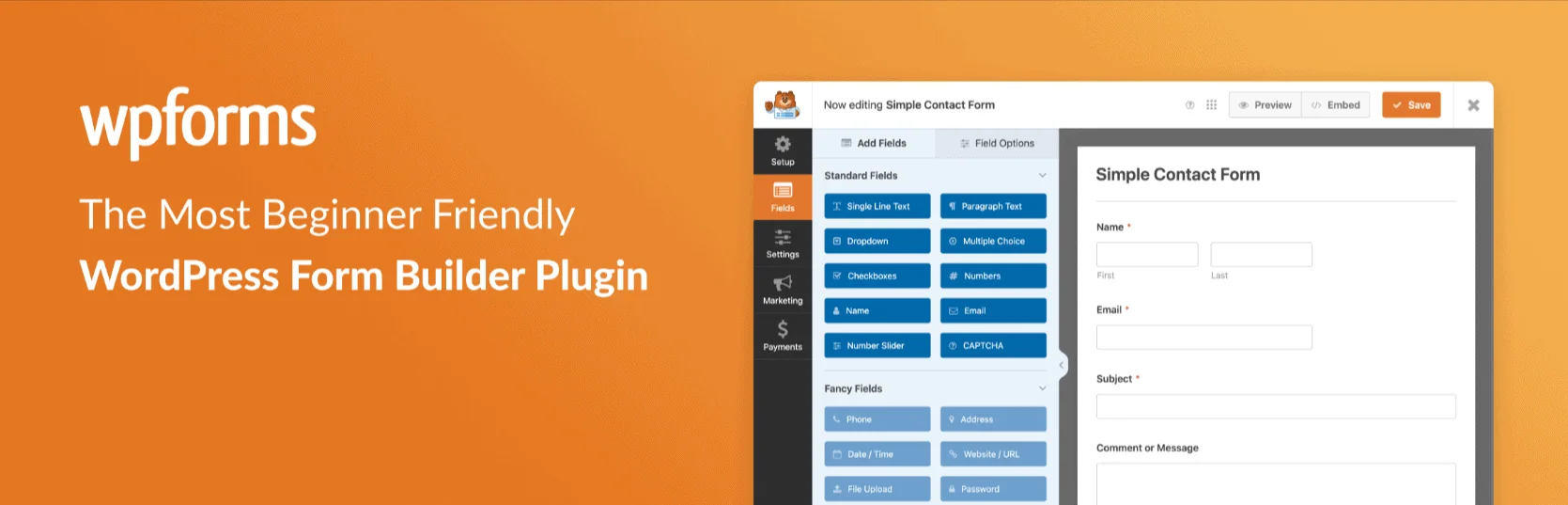
If you want to create a contact form on your WordPress blog, this plugin is just for you, offering a drag-and-drop WordPress form builder. It’s also the most downloaded contact form plugin in the WordPress directory with over 6 million downloads.
It allows you not only to create contact forms but also feedback, subscription, and payment forms effortlessly using this plugin.
The great thing about this plugin is that it offers a 100% mobile-responsive contact form solution, so your forms will work well on all devices, including mobile, tablet, laptop, and desktop.
Key Features
- Drag-and-drop form builder
- 2,100+ ready-made form templates
- Accept payments via Stripe, PayPal, and Square
- Built-in spam protection with reCAPTCHA support
- Create surveys, polls, registration, and contact forms easily
8. Easy Affiliate Links
| Detail | Information |
|---|---|
| Plugin Name | Easy Affiliate Links |
| Best For | Managing Affiliate Links |
| Active Installations | 8,000+ |
| WordPress Rating | 4.7/5 |
| Pricing | Free & Premium |
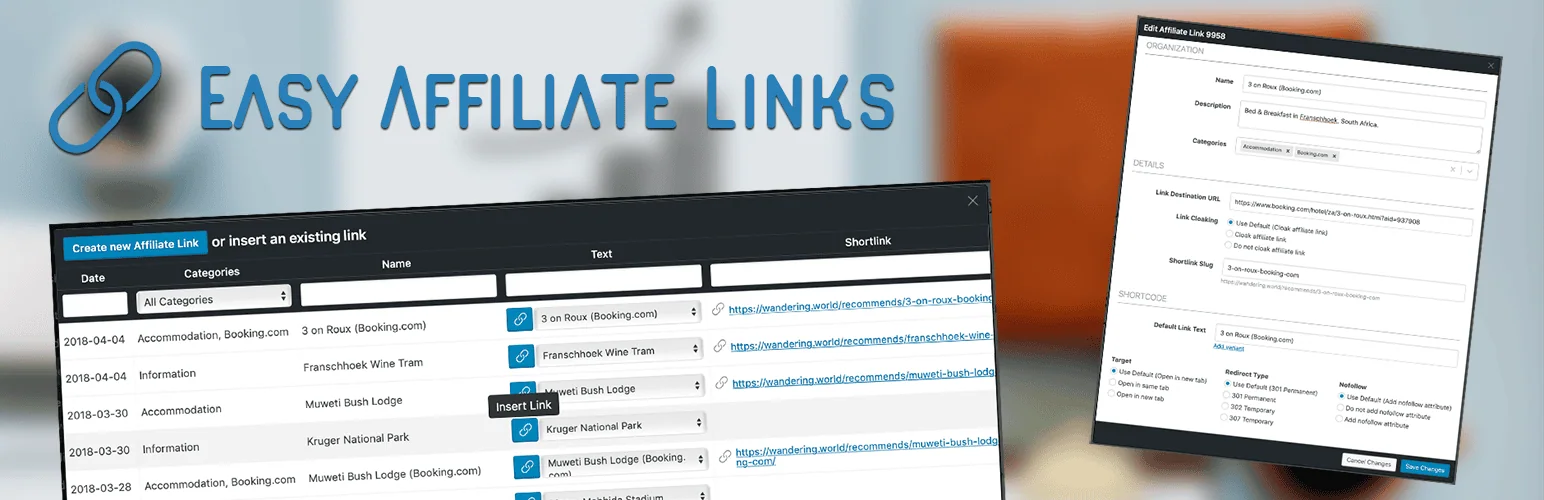
The majority of BloggersPassion’s income comes from selling affiliate products, and we ensure our affiliate links are optimized for a better user experience. We’re currently using the Easy Affiliate Links plugin, which helps you easily cloak your affiliate links.
This plugin is compatible with both the Classic Editor and the new Gutenberg Block Editor, and you can also shorten and shrink your affiliate links (if you want).
Another benefit is that you can track all the monthly and lifetime clicks for your affiliate products, which gives you a ton of insights on what links are performing well.
Key Features
- Create and manage affiliate links from one dashboard
- Cloak affiliate links with custom short URLs
- Track monthly and lifetime link clicks
- Organize links using categories
- Import and export affiliate links via CSV and XML files
9. Kadence Security
| Detail | Information |
|---|---|
| Plugin Name | Kadence Security |
| Best For | WordPress Security & Login Protection |
| Active Installations | 700,000+ |
| WordPress Rating | 4.7/5 |
| Pricing | Free & Premium |

Although we’re NOT using any security plugins on our site, BloggersPassion, we’re already using a secure web host like WPX hosting, which fixes our site if it gets hacked.
Click here to start your blog with WPX hosting (Apply BloggersPassion coupon to get 60% OFF for first month)
But if you’re using any other web host that doesn’t offer such exceptional security features, you can install the widely used security plugin Kadence Security.
This is the ultimate security plugin which helps your site in over 30 different ways, including locking down WordPress, fixing common holes, stopping automated attacks, and strengthening user credentials.
Key Features
- Two-factor authentication (2FA) for secure logins
- Brute force attack protection and user lockouts
- Malware and vulnerability scanning
- Hide and customize the WordPress login URL
- File change detection and security monitoring
Optimize your WordPress site with essential plugins and the best hosting. Find more recommendations in the best web hosting post.
10. Schema Pro
| Detail | Information |
|---|---|
| Plugin Name | Schema Pro |
| Best For | Adding Structured Data Markup |
| Active Installations | 40,000+ |
| WordPress Rating | 4.4/5 |
| Pricing | Free & Premium |

If you’re looking to create reviews for your products and rank them in search engines like Google, you need to show rich snippets such as star ratings.
To get rich snippets, you need to integrate schema, and it ultimately improves your overall organic traffic by increasing your CTR (click-through rates) organically. Here’s what it looks like:

We’re currently using the Schema Pro premium WordPress plugin, which helps review a product where you can add a product description along with the review date, star rating for the product, along with the reviewer name.
Even if you don’t know coding, this plugin helps you easily automate schema markup on your WordPress sites.
Key Features
- Automatically adds Schema.org markup in JSON-LD format
- Supports articles, breadcrumbs, author pages, and archives
- Improves rich snippets and search result appearance
- Works with popular SEO plugins and themes
- Easy setup with minimal configuration required
11. ShortPixel Image Optimizer
| Detail | Information |
|---|---|
| Plugin Name | ShortPixel Image Optimizer |
| Best For | Image Compression & Optimization |
| Active Installations | 300,000+ |
| WordPress Rating | 4.5/5 |
| Pricing | Free & Premium |

Are you using a ton of images on your blog posts? If you’re using images on your blog without shrinking their image sizes, you’re actually slowing down your page loading times, which can negatively impact your search rankings.
That’s why you always need to shrink your image sizes for better SEO for images. Although there are a ton of plugins and tools out there that you can use to optimize image sizes, ShortPixel image optimizer is definitely one of the ultimate plugins for image optimization.
We’re using the same plugin for shrinking image sizes here at BloggersPassion because it offers both lossy and lossless compression for all types of images, including JPG, PNG, GIF, and WebP, as well as PDF files, and so on.
Not only that, but this plugin also offers another incredible feature called glossy JPEG compression, a very high-quality lossy optimization algorithm that lets you compress images with a lossless option (that is, without losing image quality).
Key Features
- Compresses JPG, PNG, GIF, WebP, AVIF, and PDF files
- Converts images to WebP and AVIF formats
- Bulk image optimization with background processing
- Automatic image resizing and lazy loading support
- AI-powered image SEO and image enhancement tools
12. TablePress
| Detail | Information |
|---|---|
| Plugin Name | TablePress |
| Best For | Creating Tables in WordPress |
| Active Installations | 700,000+ |
| WordPress Rating | 5/5 |
| Pricing | Free & Premium |
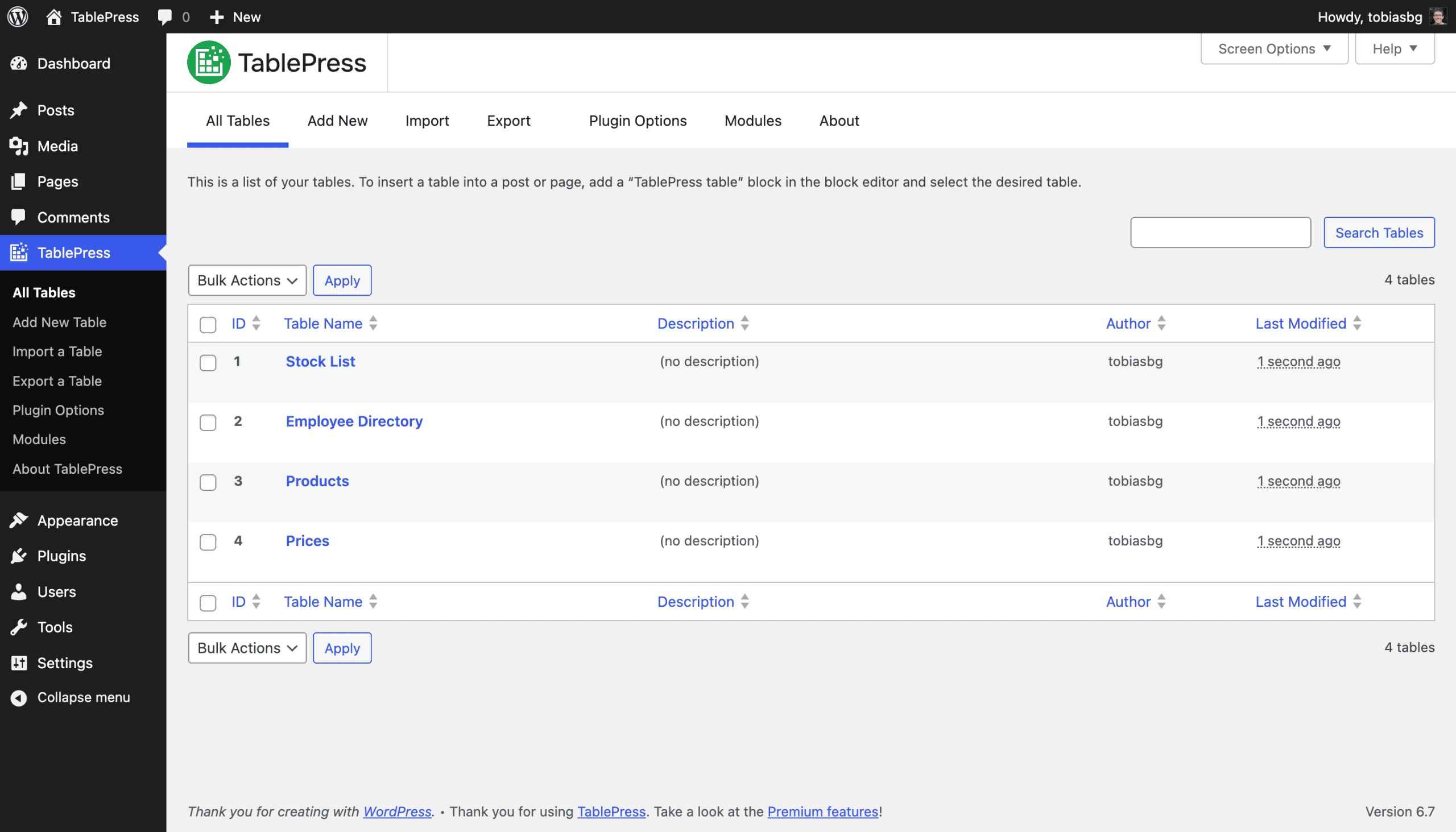
TablePress is one of the most downloaded table plugin for WordPress sites. If you’re someone who writes lots of product reviews, you need tables to provide a better experience and quick access to the products on your website for your website visitors.
Here’s where a simple yet most effective plugin like TablePress comes in handy. This is the same plugin that we’re using at BloggersPassion, and it enables you to create and manage tables on your site effortlessly.
You don’t need any HTML knowledge as it offers you an easy-to-use interface where you can edit table data and embed the tables into posts, pages, or text widgets. It offers you a simple shortcode that you can use anywhere you want to display tables.
Key Features
- Create and manage tables without coding
- Import and export tables via Excel, CSV, HTML, and JSON
- Supports sorting, searching, and pagination
- Embed tables using blocks, Elementor, or shortcodes
- Add images, links, and formulas inside tables
13. WP Review Pro
| Detail | Information |
|---|---|
| Plugin Name | WP Review Pro |
| Best For | Creating Product & Service Reviews |
| Active Installations | N/A |
| WordPress Rating | N/A |
| Pricing | Premium |
If you’re monetizing your site with product reviews, you need to install this plugin.
All in all, this is a great plugin, especially if you’re looking to increase your affiliate product sales by creating product reviews.
It also offers you a 30-day money-back guarantee so you can ask for a refund if it’s not working well for you or if you’re not happy with their product or features.
Here’s what it looks like;

Key Features
- Implementing rich snippets of 14 types (ranging from books to movies to games and so on)
- Multiple star ratings including star, point, percentage
- User comment rating
- Google places review integration
- Helps you create product comparison table
- And the list goes on
14. WP Rocket
| Detail | Information |
|---|---|
| Plugin Name | WP Rocket |
| Best For | WordPress Speed Optimization & Caching |
| Active Installations | N/A |
| WordPress Rating | N/A |
| Pricing | Premium |

If you’re looking for a premium caching plugin to accelerate your site’s speed and performance, WP Rocket is just for you.
We’ve been using this #1 premium caching plugin at BloggersPassion for more than a year now, and we’re extremely happy with the results, as it offers exclusive features like lazy loading of images, deferred loading of JavaScript, minification of HTML code, minification of CSS and JavaScript files, and so on.
It also offers a 14-day refund policy, so if you’re not happy, you can request a refund within that period.
Explore its coupons and save 20% on WP Rocket.
Important: If you’re looking for free alternatives to WP Rocket, you can consider other caching plugins like W3 Total Cache and WP Super Cache, which are completely free to use and also widely used (but they don’t offer as many features as WP Rocket offers for speed optimization).
Key Features
- Page caching for faster website loading
- Cache preloading to improve performance
- Lazy loading for images and videos
- CSS and JavaScript file optimization
- Database cleanup and optimization tools
15. Social Snap
| Detail | Information |
|---|---|
| Plugin Name | Social Snap |
| Best For | Social Sharing & Social Media Traffic |
| Active Installations | 10,000+ |
| WordPress Rating | 4.8/5 |
| Pricing | Free & Premium |

If you’re running a blog, you need to start displaying social media buttons on your posts to increase your social shares (as it also helps you with better rankings).
Over the years, we’ve tried and tested a ton of social sharing plugins. In fact, recently, we even bought a premium plugin called Social Warfare but it had a ton of security vulnerabilities so we decided to move to another great social share plugin called Social Snap.
Social Snap is the ultimate social sharing plugin for WordPress blogs, which includes over 30 social networks and apps to choose from, including Facebook, Twitter, Telegram, WhatsApp, and so on.
Above all, if you risk losing your social sharing counts after changing permalinks, domain updates, HTTP to HTTPS changes, and so on, this plugin can recover your precious share counts in just a few clicks.
Key Features
- Social share buttons for Facebook, X (Twitter), LinkedIn, Email, and more
- Floating sidebar and inline share buttons
- Click-to-Tweet boxes with multiple styles
- Social follow buttons with follower counters
- Share count and total share count display
Final Thoughts
Choosing the right WordPress plugins can make a huge difference to your website’s growth. From improving SEO and site speed to enhancing security and user experience, the plugins listed above can help you build a faster, safer, and more effective website.
That said, don’t install plugins just because they’re popular. Use only the ones that solve a specific problem or add real value to your site. Keeping your plugin stack lean will help maintain better performance and reduce potential conflicts.
Whether you’re a blogger, affiliate marketer, business owner, or eCommerce store operator, these essential WordPress plugins can help you save time, improve your site’s functionality, and create a better experience for your visitors.
FAQs
Here’s a list of some of the interesting questions around must-have plugins for WordPress blogs to install in 2026 and beyond.
There is no fixed limit. Focus on using well-coded plugins and remove plugins you don’t need.
There are a ton of security plugins available for WordPress, and some of them include;
→ Wordfence Security
→ Kadence Security
→ Sucuri Security
→ All In One WP Security & Firewall
→ BulletProof Security
There’s a difference between plugIns and widgets on WordPress. Basically, plugins are extensions that you need to install and activate if you want to use them, whereas widgets are drag-and-drop content areas that you can add to your site when their corresponding plugins are activated.
here’s a list of some of the best plugins you can install to run your online stores smoothly.
→ WooCommerce
→ Cart66 Cloud
→ WP eCommerce
→ Ecwid Ecommerce Shopping Cart
→ Easy Digital Downloads
No, you cannot install plugins on WordPress.com unless you upgrade to the business plan.





![GeneratePress Review 2026 [Pros, Cons, Theme Features, Pricing & Verdict] – Why I Use it For My Site Design](https://bloggerspassion.com/wp-content/uploads/2022/05/generatepress-review-2022-300x157.jpg)

I have all the plugins you mentioned in your post except Accelerated Mobile Pages which I believe could be a boost to my website's rankings and SERPs. Thank you for sharing such useful info. Keep it up!