


Key takeaways:
- Use one H1 per page
- Include your target keyword naturally
- Keep it under 70 characters
- Match search intent
An H1 tag is the main heading of a webpage. It tells both readers and search engines what the page is about.
Here’s what the H1 tag can look like on a web page:
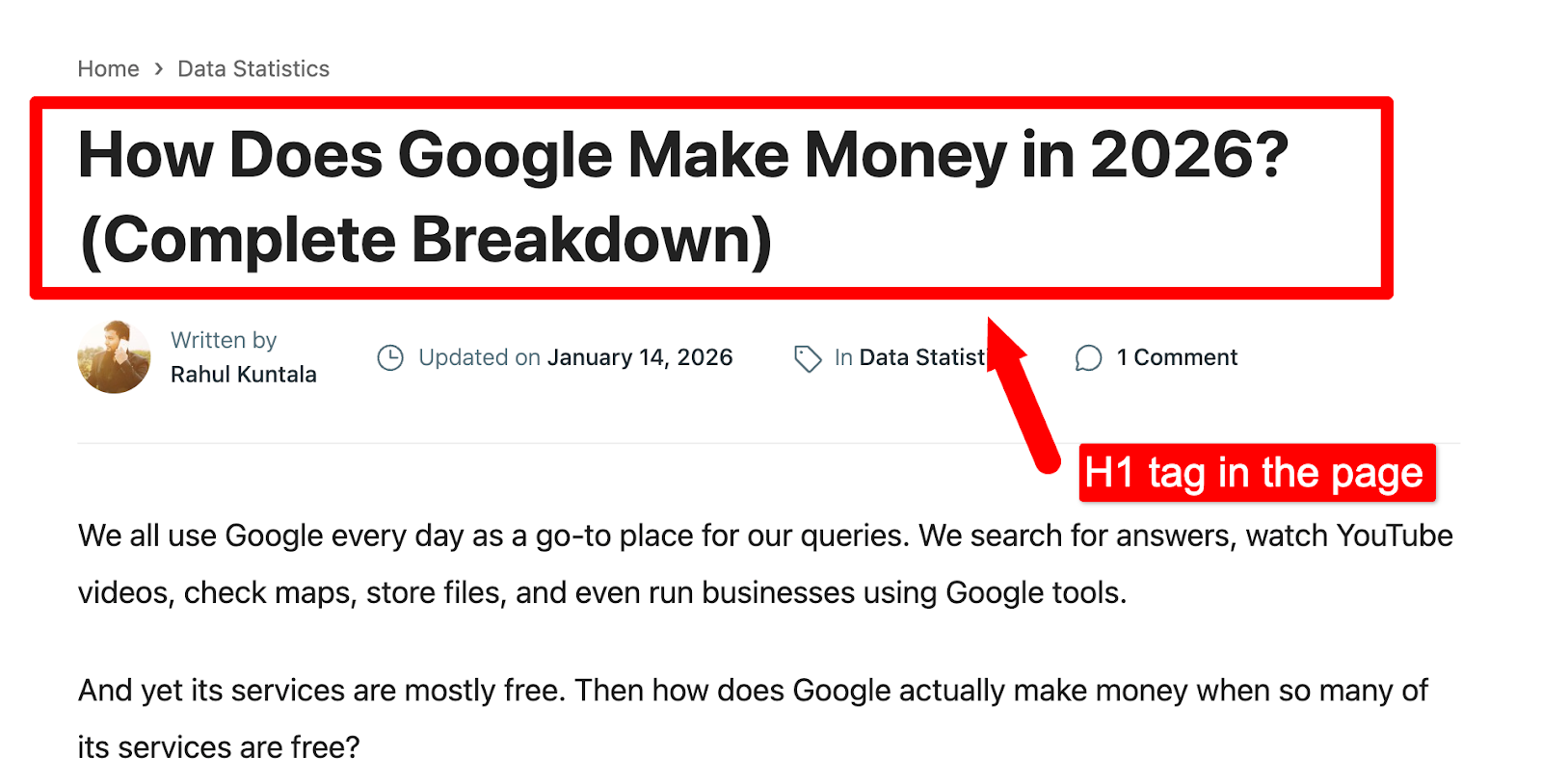
And here’s how it looks in the form of an HTML code:
<h1>How Does Google Make Money in 2026? (Complete Breakdown)</h1>
Why does the H1 tag matter? How do you add one to your page? And what are the best practices to follow?
Let’s break it all down in this guide.
What Is an H1 Tag?
An H1 tag is an HTML element that defines the main subject of a webpage. It is the most important heading on the page.
Here’s what it looks like in HTML:
<h1>What Is an H1 Tag?</h1>
H1 tags help Google understand what your page is about.
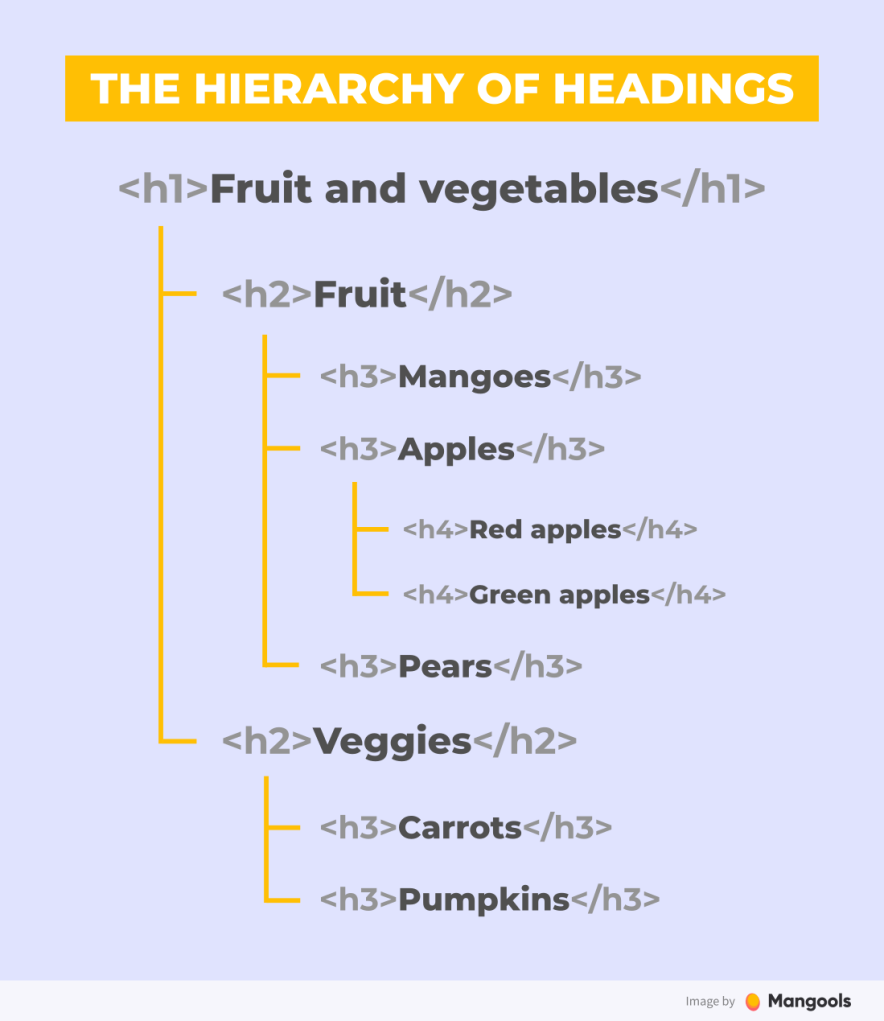
Every page can have multiple heading levels: H1, H2, H3, all the way to H6. They work like an outline:
- H1 = Main title (what the whole page is about)
- H2 = Major sections
- H3 = Subsections under H2s
- H4 to H6 = Deeper sublevels (you’ll rarely need these)
Why H1 Tags Matter for SEO?

Google uses your H1 to understand your page
Google’s John Mueller has confirmed that H1 tags help Google understand page structure.
A clear H1 makes Google’s job easier, which improves your chances of ranking for the right keyword.
Example: A page with the H1 “Beginner’s Guide to Email Marketing” clearly tells Google what the page is about. But a vague H1 like “Welcome to Our Blog” tells Google nothing.
Improves User Experience
Your H1 is usually the first thing people see after they land on your page.
If there’s no H1 or it’s confusing, visitors may feel they’re on the wrong page and leave quickly. That hurts your search rankings.
It Gives your Page Structure
The H1 is the foundation of your page’s heading hierarchy. It works together with H2s and H3s to create a structure readers can skim and understand.
Here’s what a simple heading hierarchy can look like:
Read this step-by-step guide to build a proper SEO silo structure.
H1 Tag Examples (Real Page Examples)
Here are real-world examples of H1 tags used across different page types.
Blog Post H1:
Moz uses H1 tags that clearly explain what a post covers and who it’s for.
Example: “Informational Keywords: What They Are and How to Use Them.”
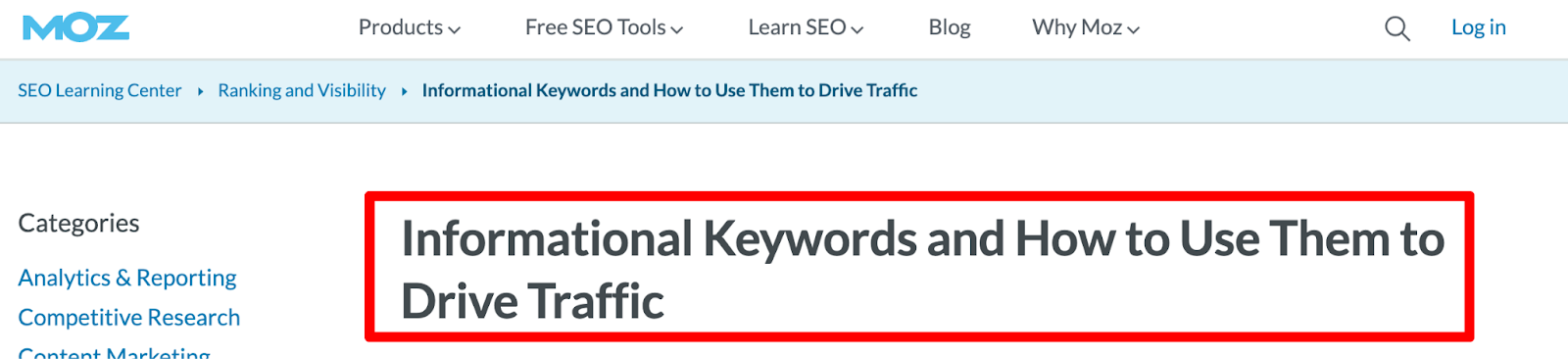
Works because it clearly describes the page topic and matches what users expect to learn from the content.
Ecommerce Product Page H1:
The H1 tag on a Runner’s World guide about running shoes is “The 10 Best Running Shoes for Men.”
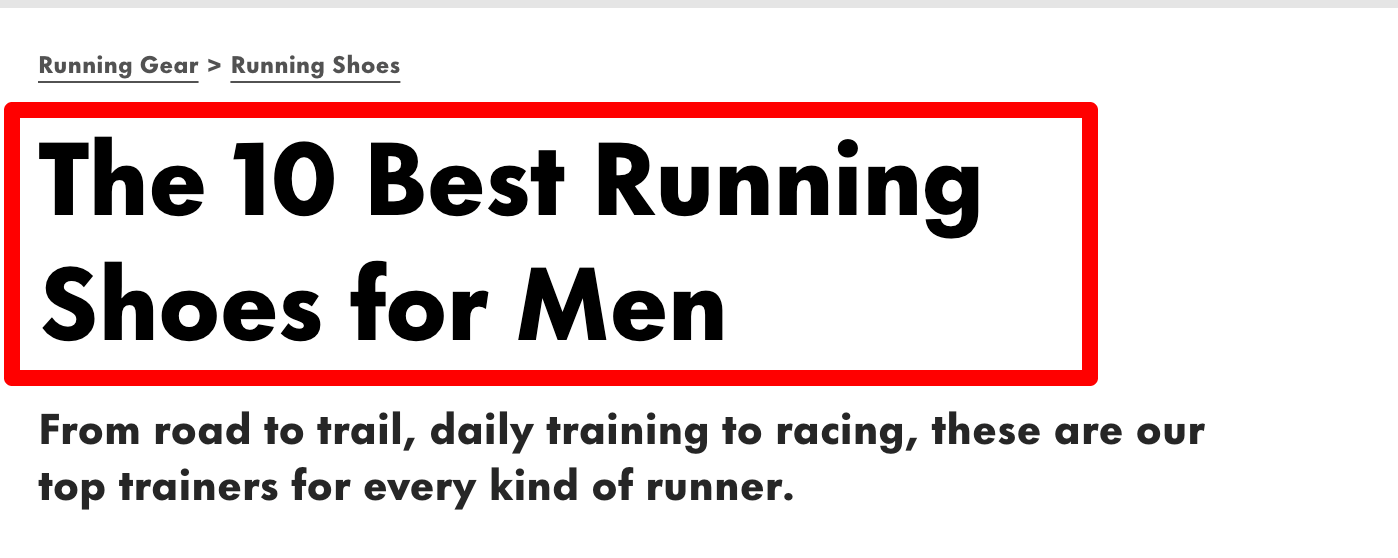
It’s clear, specific, and perfectly tells the shopper exactly what they’ll find.
Landing Page H1:
The H1 tag on a HubSpot guide on email list building is “49 simple ways to grow your email list.”
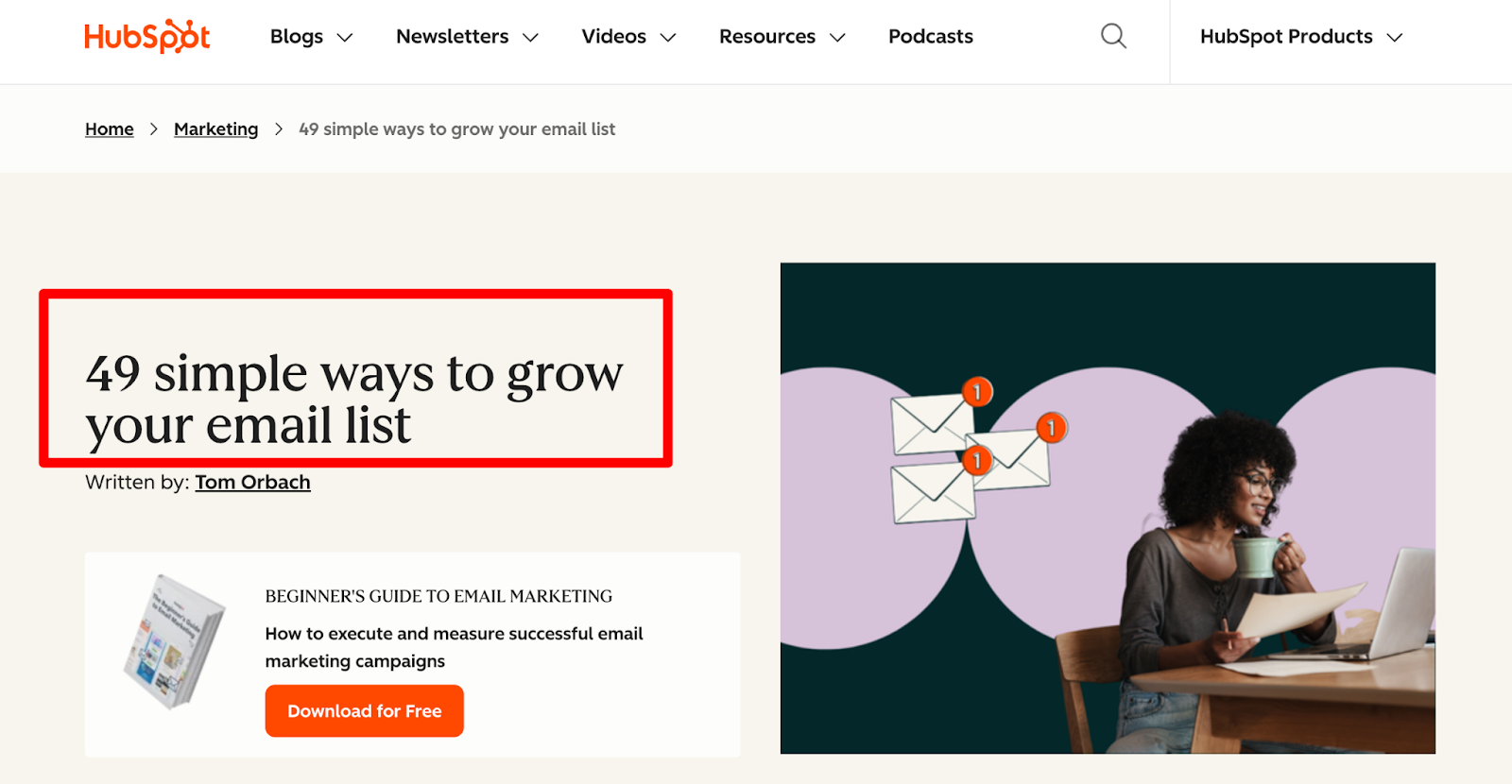
It is benefit-driven and action-oriented. Works well for landing pages where the goal is conversion, not ranking for a definition keyword.
Bad H1 Example:
“Welcome to Our Website”
It tells Google nothing. Gives readers no reason to stay.
H1 Tag vs. Title Tag
These two get mixed up all the time. Here’s the difference:
| H1 Tag | Title Tag | |
| Where it appears | On the webpage itself | In Google search results & browser tabs |
| What it does | Main page heading for readers | SEO page title for search engines |
| Purpose | Explains the page topic | Drives clicks from search results |
| Visible to visitors? | Yes | Only in the browser tab |
Read our free guide to learn how to write SEO-friendly title tags that improve rankings and get more clicks.
How Many H1 Tags Should a Page Have?
One. Always one.
Using multiple H1 tags confuses search engines about what the page is actually about.
Here’s what NOT to do:
<h1>What Is SEO?</h1>
<h1>SEO Best Practices</h1>
<h1>How to Do SEO</h1>
And here’s the right way:
<h1>What Is SEO? A Beginner’s Complete Guide</h1>
<h2>Why SEO Matters</h2>
<h2>SEO Best Practices</h2>
<h2>How to Do SEO Step by Step</h2>
One H1, but you can use multiple H2s and H3s.
Note: Google’s John Mueller has said multiple H1s won’t break your site. But it’s still not best practice, so stick to one.
H1 Tag Best Practices for SEO
Follow these simple H1 tag best practices to make your content more helpful for readers and easier for search engines to understand.
1. Use Only One H1 Tag
Covered above, but worth repeating. One page, one H1, one main topic.
2. Include Your Primary Keyword
Your H1 should include the keyword you’re trying to rank for, naturally.
If your target keyword is “email marketing for beginners,” a good H1 would be:
“Email Marketing for Beginners: How to Get Started in 2026”
You don’t need an exact match. You can add a keyword that’s relevant to your topic.
3. Keep It Clear and Descriptive
Your H1 should tell readers exactly what they’ll get from the page.
- Vague: “Everything You Ever Wanted to Know”
- Clear: “How to Start a Blog: Step-by-Step Guide for Beginners”
4. Match Search Intent
Look at the top-ranking pages for your keyword. How are they crafting their headlines? What tone and format are they using?
For the topic “How to learn SEO,” the top results are beginner-friendly how-to posts. That means your H1 should also be a simple tutorial, not a sales pitch.
5. Keep It Under ~70 Characters
Most CMS platforms use your H1 as the title tag. Google cuts off titles above 60-70 characters in search results.
The ideal length: 50-60 characters
If your H1 is too long, Google will truncate it, and that hurts your CTR.
Too long:
“10 Powerful and Proven Strategies You Can Use Today to Grow Your Email List Faster Than Ever Before”
Just right:
“10 Ways to Grow Your Email List FAST In 2026”
How to Add an H1 Tag in WordPress, Wix & Squarespace?
Learn how to easily add an H1 tag in WordPress, Wix, and Squarespace with these simple steps.
WordPress
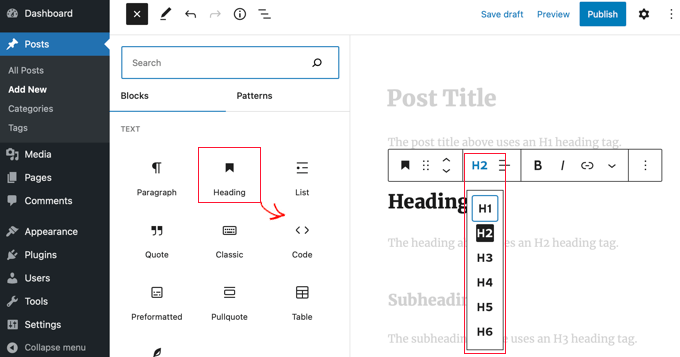
Your post title in WordPress is automatically the H1. You don’t need to touch anything.
To set a heading as H1 inside your content manually:
- Open the post editor
- Click on a Heading block
- In the block toolbar, click the heading level dropdown
- Select H1
- Type your heading and publish
Wix
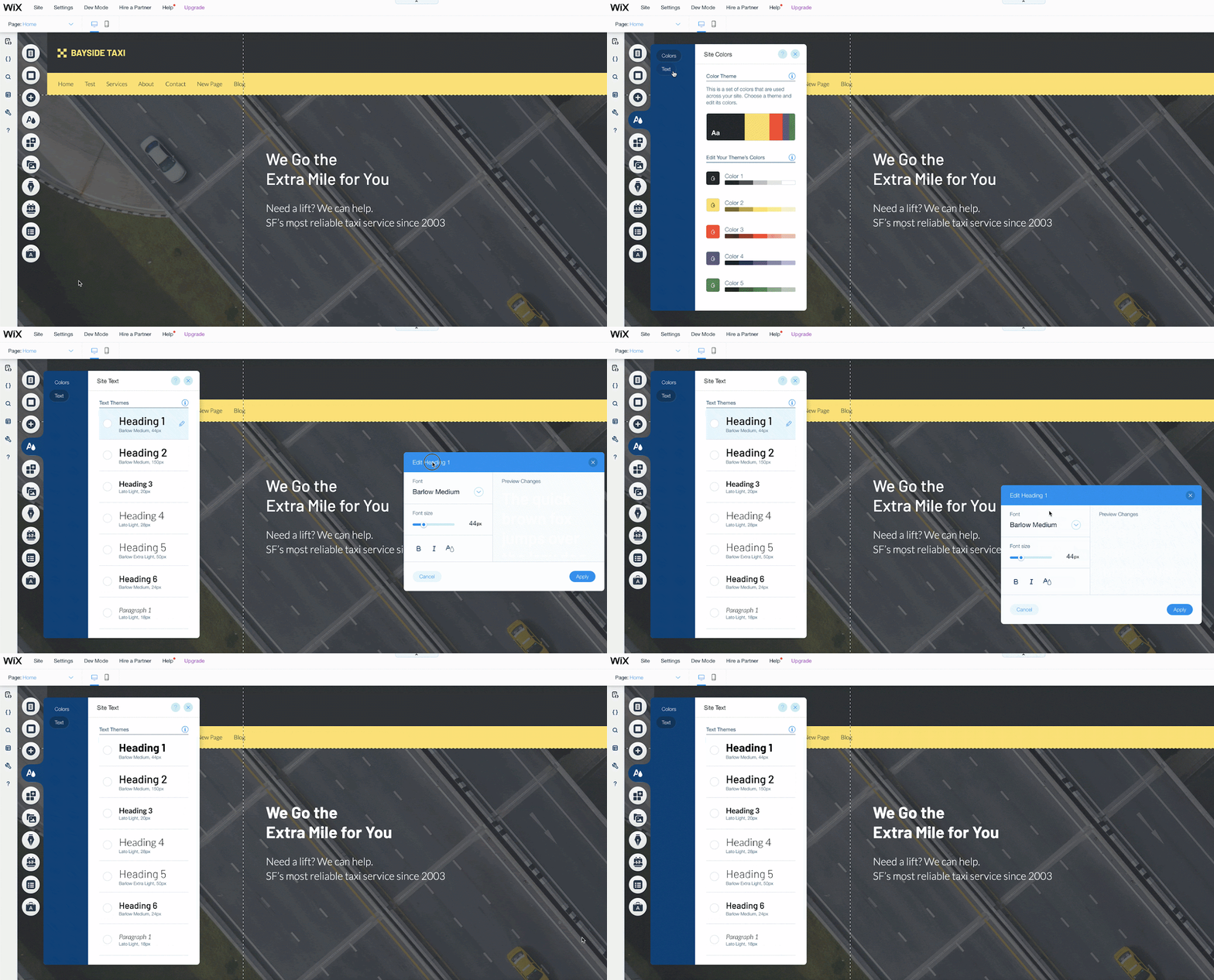
Wix automatically uses your blog post title as the H1 tag. Unlike WordPress, you can’t assign the H1 to other text, as it’s fixed to the post title.
Squarespace
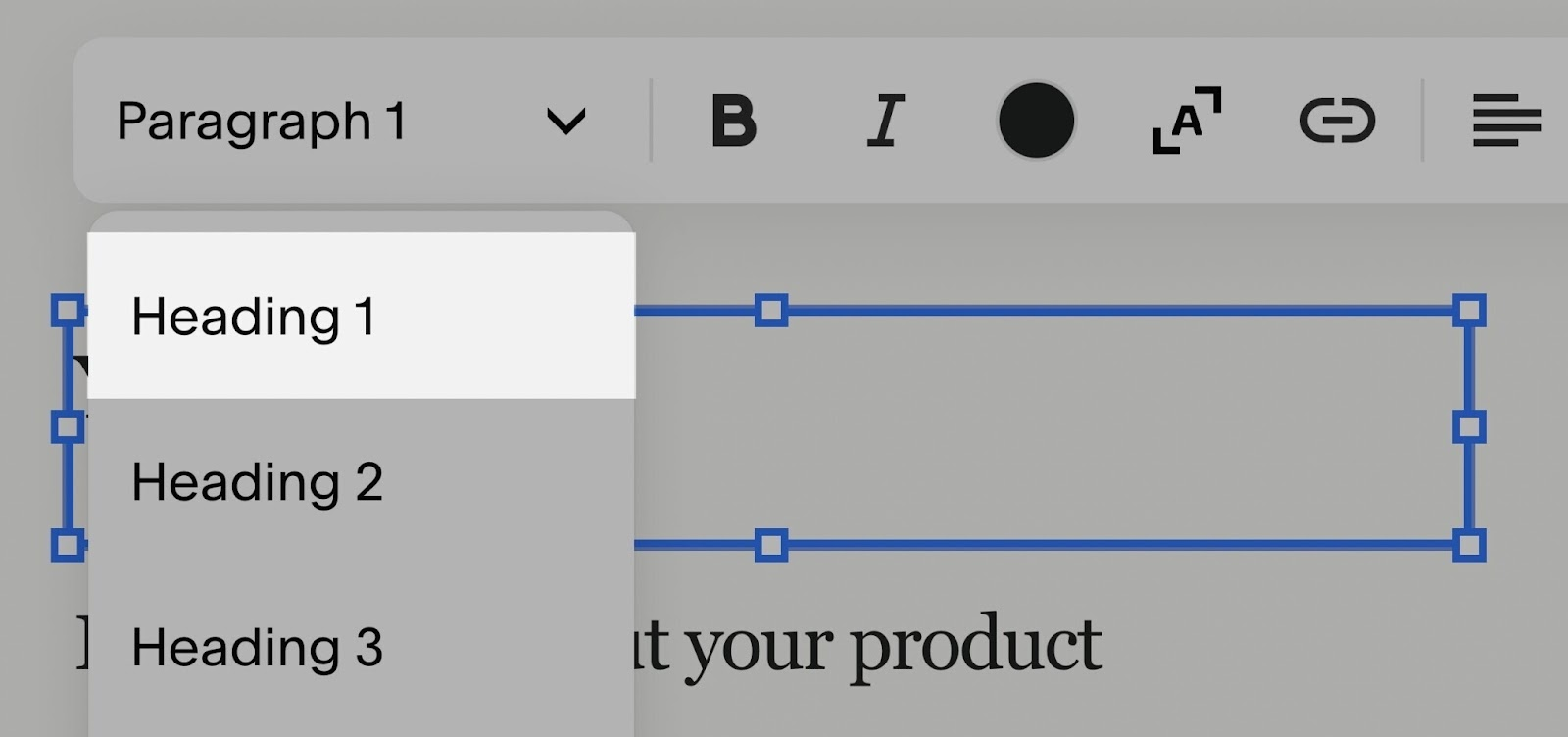
Just like on Wix, your blog post title in Squarespace is automatically set as the H1.
To change a heading on a page manually:
- Click the text block you want to change
- Select the text
- Click the formatting button in the toolbar
- Choose Heading 1
Raw HTML
If you’re coding directly in HTML:
<h1>Your Page Title Goes Here</h1>
Place it once, near the top of your <body> section.
How to Check H1 Tags on Your Website?
There are three quick ways:
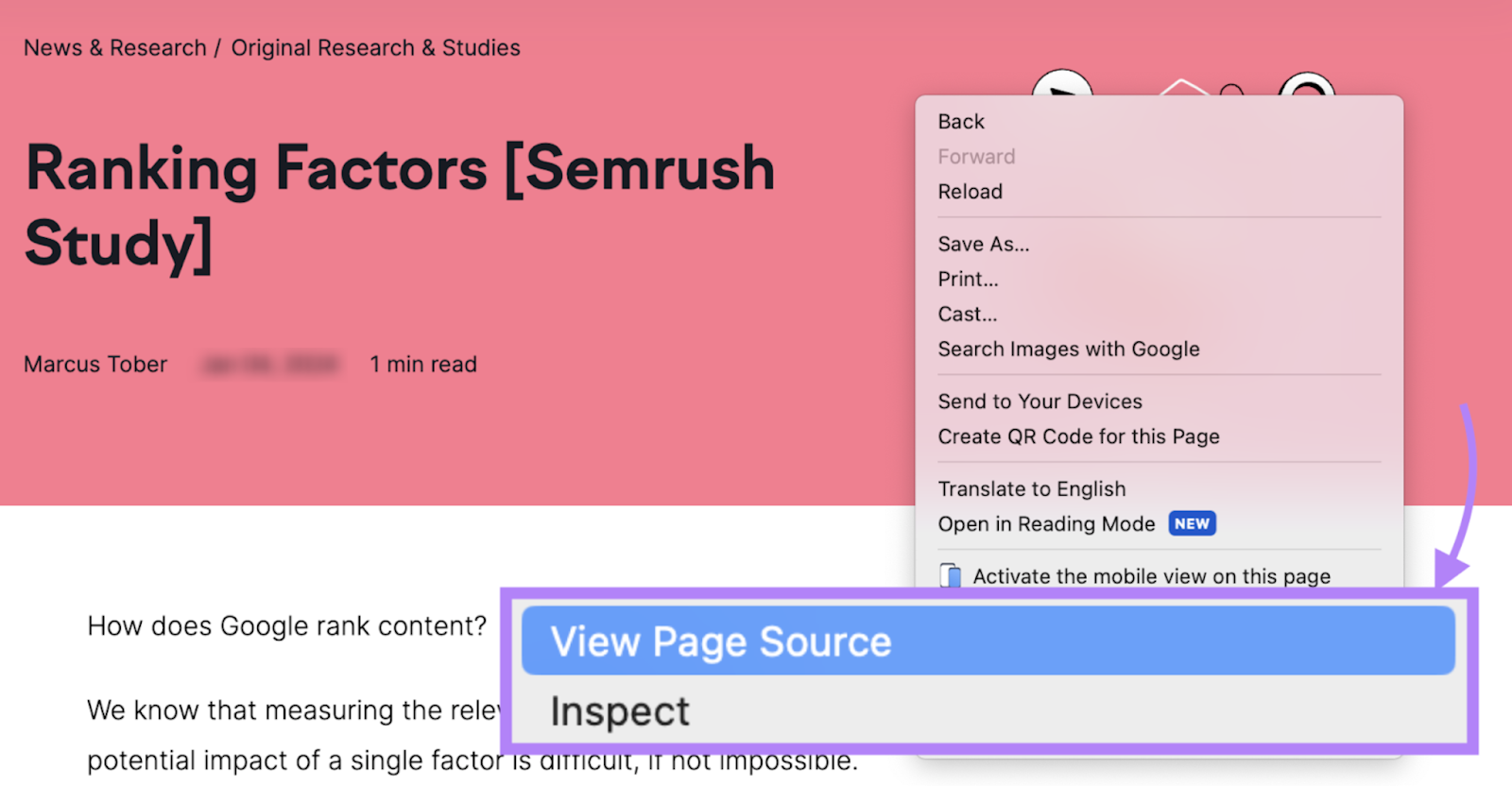
#1. View Page Source
Right-click anywhere on the page, select “View Page Source,” press Ctrl+F (Cmd+F on Mac), and search for <h1>.
#2. Inspect Element
Right-click directly on the heading, select “Inspect,” and look for text wrapped in <h1> tags.
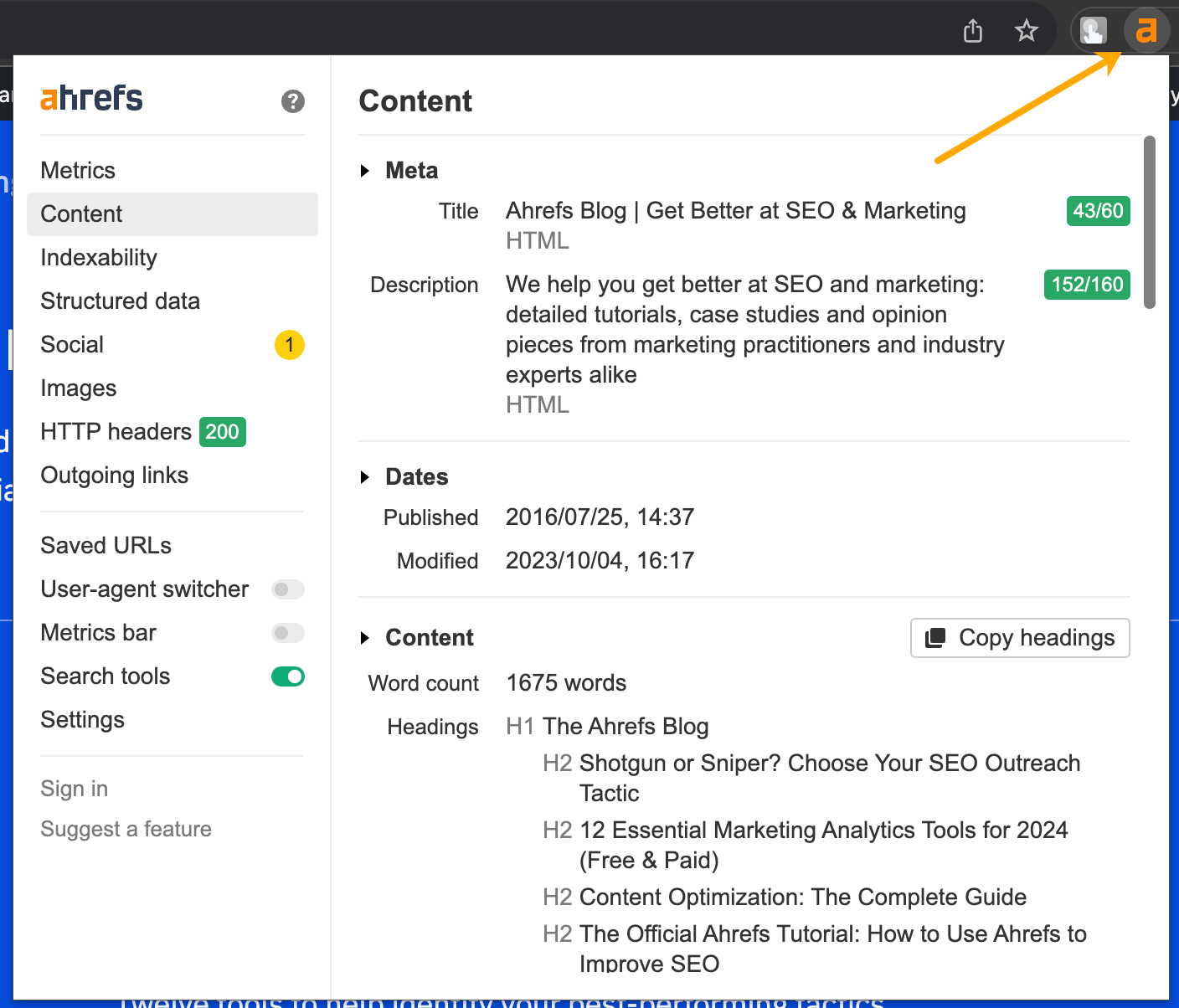
#3. Browser extension
Install the free Ahrefs SEO Toolbar or Detailed SEO Extension. Both show all heading tags on any page instantly.
H1 Tag Optimization Checklist
Before you publish any page, check this:
- You use only one H1 on the page
- The H1 includes your primary keyword naturally (or a closely related keyword)
- It stays under 70 characters (ideally 50–60)
- It matches the search intent of your target keyword
- It clearly describes the page content
- It’s unique and not copied from another page on your site
Frequently Asked Questions on H1 SEO
Here are some frequently asked questions about H1 tags.
The H1 tag tells search engines and users the page’s main topic. It is also the highest-level heading tag, as heading tags range from h1 to h6.
Yes, technically. Google won’t penalize you. But it’s not recommended because multiple H1s can confuse search engines about the page’s main topic. So it’s best to use only one H1.
They don’t have to be an exact match, but they should be highly relevant. A completely different keyword in the H1 and title tag confuses both users and search engines.
It’s not a direct ranking factor. But it helps Google understand your page topic and improves user experience.
Yes. Every page you want to rank should have a clear H1. Pages without an H1 tag are harder for Google to understand.
Yes, you should DEFINITELY include your target keyword in your H1 tag, as it will help search engines understand your page’s content.
Here are some common H1 tag mistakes to avoid in 2026;
– Using multiple H1 tags within one page (or blog post)
– Not using any H1 tags on a page
– Using H1 tags that are NOT relevant to the content of the page
– Using lengthy H1 tags
Aim for 50 to 60 characters if possible.
Use an SEO plugin like RankMath or Yoast SEO. Both plugins let you write a custom title tag that’s separate from your H1.
Final Thoughts
H1 tags aren’t complicated. Use one per page, include your keyword, and keep it short.
User experience should always be your TOP priority when optimizing your pages. As long as you’re creating a better user experience with h1 tags and other on-page SEO elements, you’ll be fine.
Follow these, and you’re already ahead of most bloggers who never think about it.
Start simple. Audit your five most important pages today using the free Ahrefs toolbar. Fix any H1 issues you find. It literally takes 5 minutes, and it’s worth it.
So what are your thoughts on H1 tags? Do you use one H1 per page, or have you been using multiple H1 tags by mistake? Let us know in the comments below.







Leave a Comment
Your email address will not be published. Required fields are marked *