


I have been reviewing hosting platforms for almost like 10+ years.
I recently noticed a flaw in VPS hosting servers.
I feel like you are forced to choose between a cheap unmanaged VPS and learning Linux or paying a huge amount for a managed plan just to wait hours for support help.
So what’s the solution?
Well, the AI Managed VPS is a new way to get things done. In other words, you will be on unmanaged VPS but all your linux related technical tasks done by the AI. Yes, that’s something revolutionary.
Let’s learn more about it…
![hostinger ai-managed vps [new way setup]](https://bloggerspassion.com/wp-content/uploads/2026/09/hostinger-ai-managed-vps-new-way-setup.webp)
Disclosure: We get a commission when you buy a product via our affiliate link at no additional cost.
What Actually is an AI-Managed VPS?
Keep it simple. It is Hostinger’s regular high-speed VPS hardware but it comes with a built-in AI assistant named “Hostinger Agent”.
Instead of Googling terminal commands for hours you just type what you want in plain English and the AI does it. The Model Context Protocol (MCP) securely connects the AI to your server to execute administrative tasks natively.
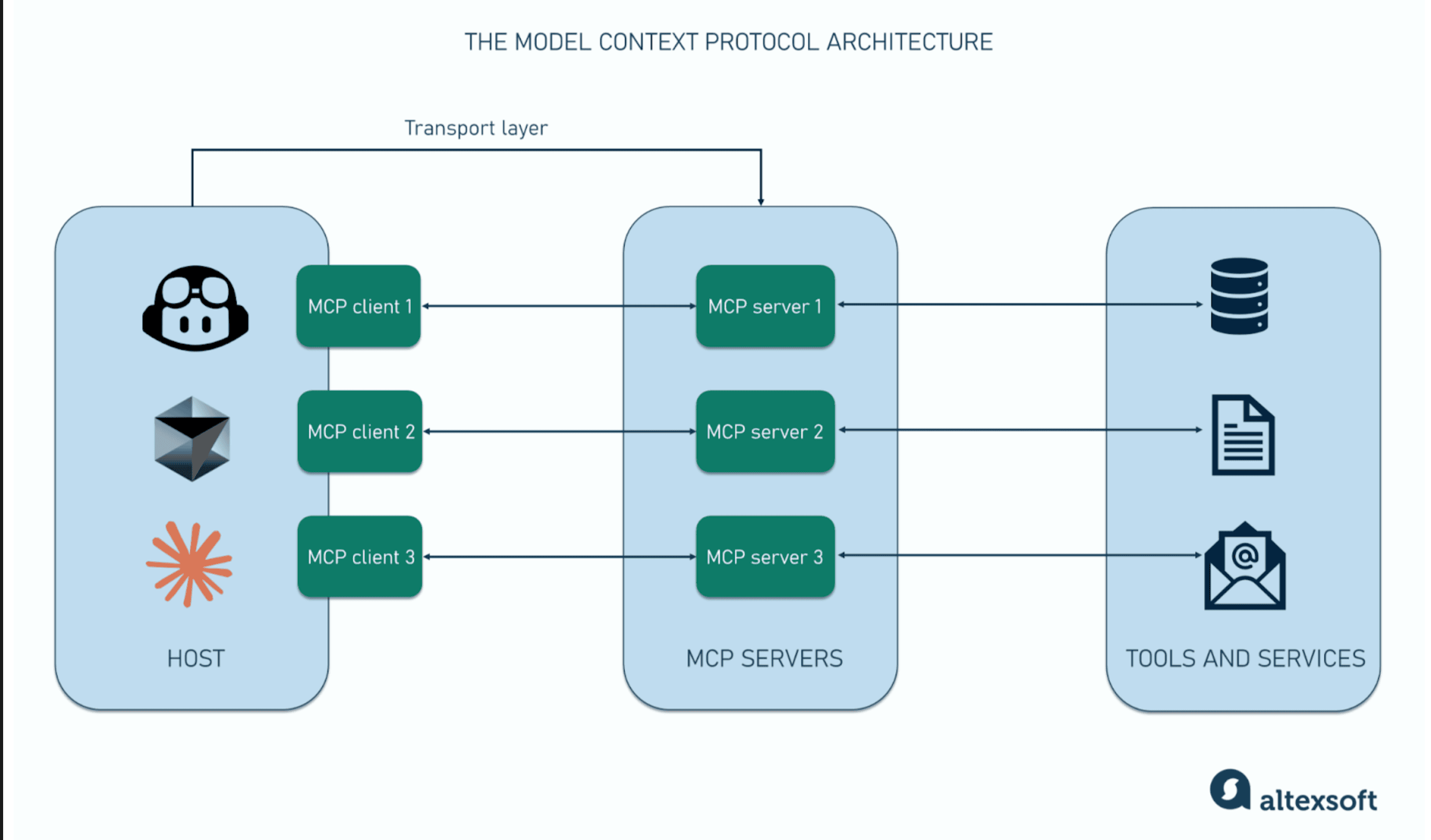
Hostinger’s implementation is fundamentally different because it relies on the Model Context Protocol (MCP).
MCP is an open standard that acts as a secure bridge between AI models and your server environments. In the past, if you wanted an AI to manage your server, you had to build custom integrations or copy-paste terminal outputs back and forth.
With MCP, the AI assistant natively connects to your VPS infrastructure.
This allows the AI to securely read your real-time server logs, monitor disk usage, update DNS records, and execute administrative tasks directly. It essentially turns a standard language model into a fully integrated sysadmin.
How the AI Helps You Manage the VPS Server
The AI Web Terminal (Your New Best Friend)
This tool works right in your browser. It gives you live command recommendations and checks your syntax as you type.
Fixing Errors Without Manual Work
If a VPS hosted site loads slowly or a deployment fails you do not need to dig through logs manually.
The AI reads your real-time server logs and figures out the root cause before applying the fix automatically. It also monitors your system health continuously to catch issues before they cause downtime.
1-Click App Installs
Want to run WordPress, n8n, or even your own AI tools?
You do not need to be a developer. There are over 1,000 Docker based apps you can install without touching a single line of configuration code. For example you can deploy a Plex Media Server simply by asking Hostinger Agent to handle the ports and dependencies.
Step-by-Step: How to Set Up Your Hostinger AI-Managed VPS (It Takes 5 Minutes)
Note: This section bridges the gap between buying the VPS server and using the AI. It shows how easy the foundation is to build.
Step 1: Pick Your OS.
Once you grab a plan you will choose an Operating System. The KVM 1 plan is a great starting point for resources. Ubuntu 24.04 LTS is the go-to standard that supports almost every type of app.
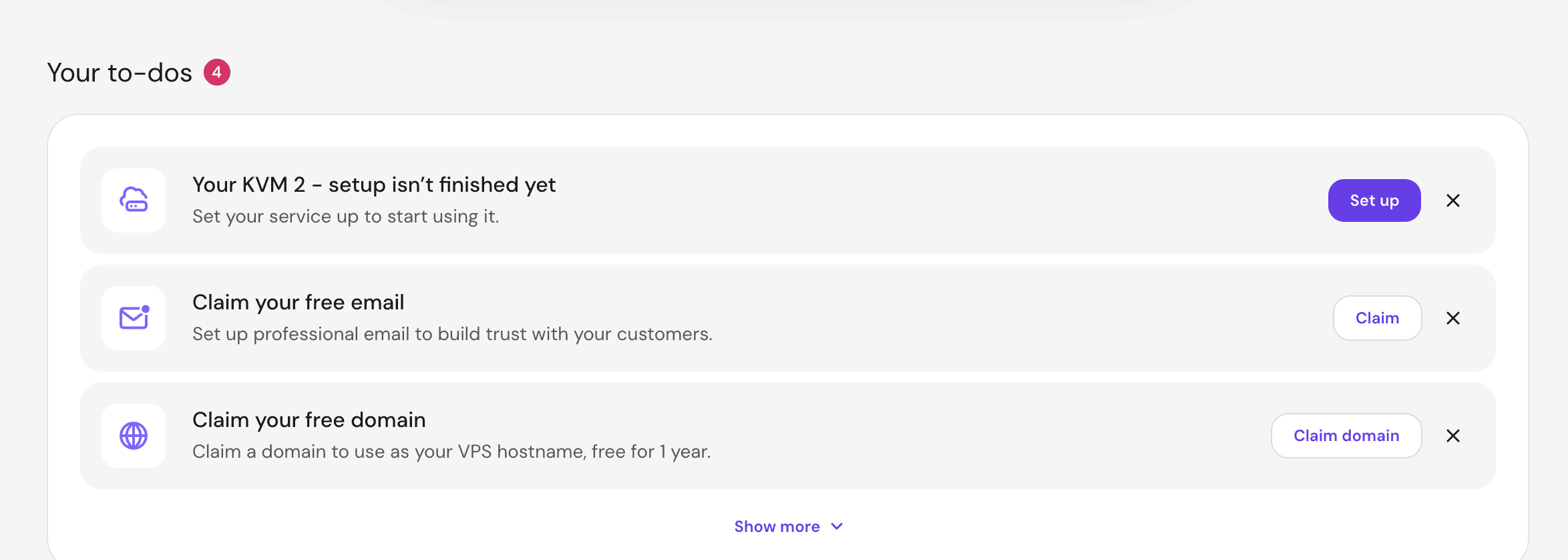
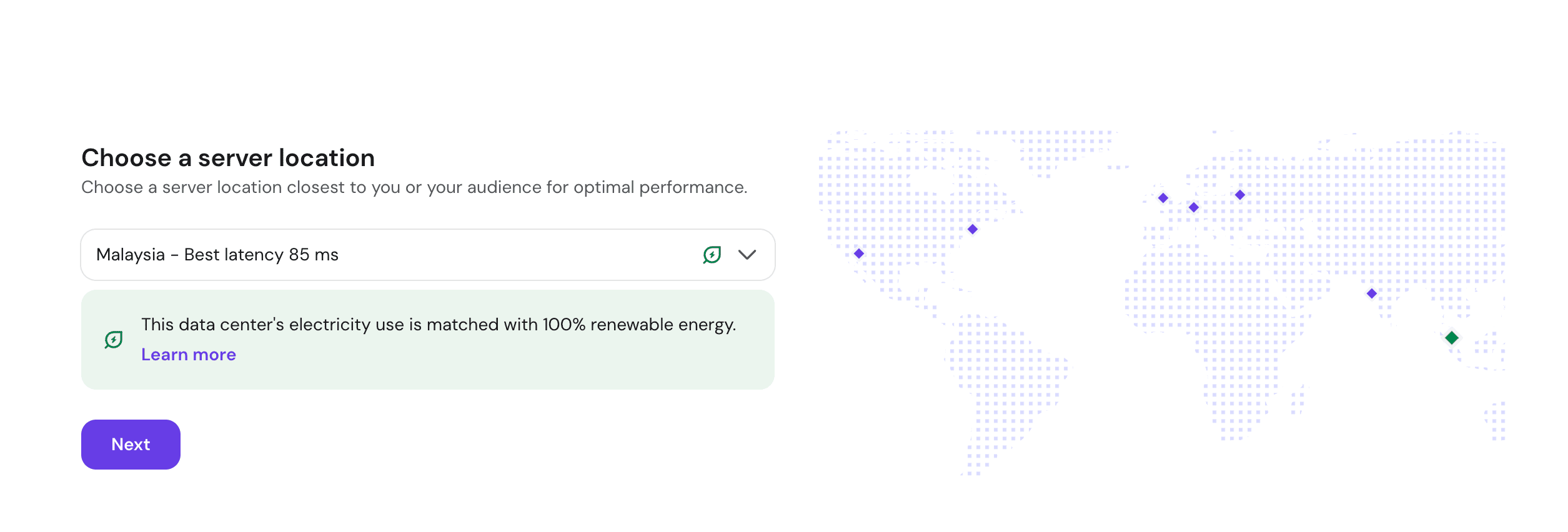
Next you have to select your server location. Hostinger offers 12 data centers for VPS servers.
Step 2: Choose What to Install (OS, Control Panel, or App)
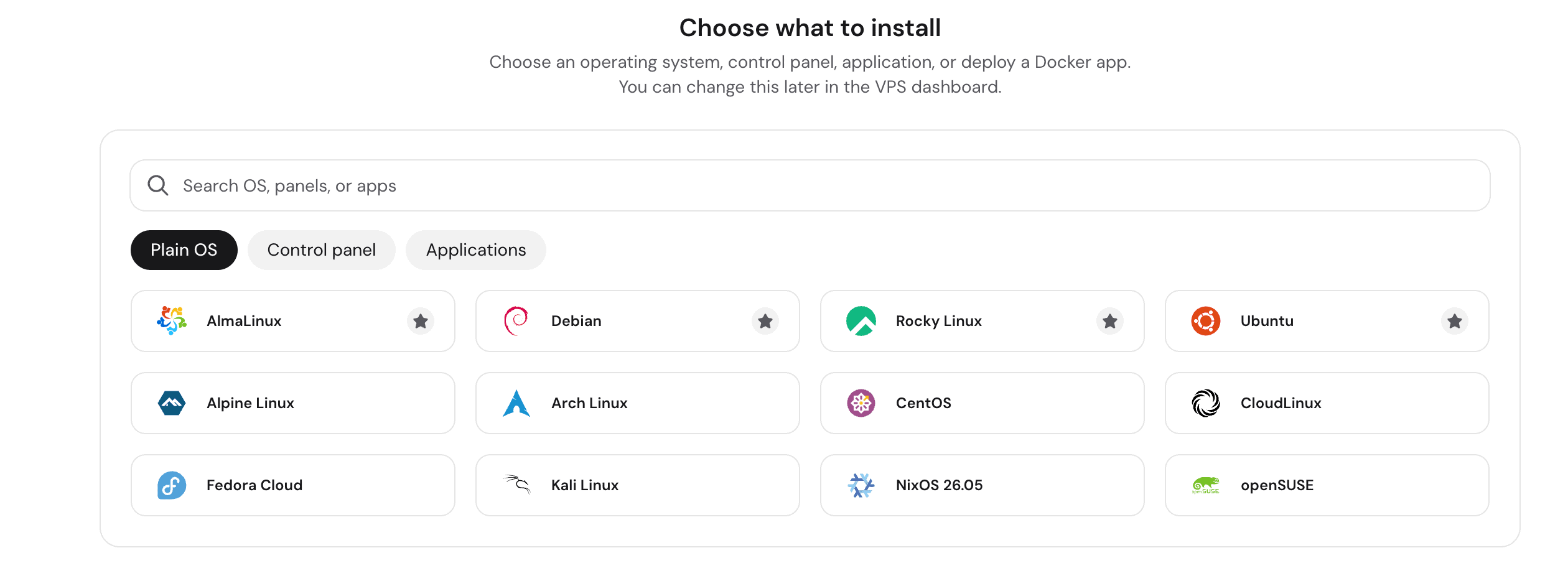
Next, you will arrive at the “Choose what to install” screen. Hostinger gives you three flexible setup paths right from the start:
- Plain OS: Select a Linux operating system like Ubuntu 24.04 LTS (the go-to standard for maximum app compatibility).
- Control Panel: Install a free visual management panel like CloudPanel in one click if you want an easy web dashboard from day one.
- Applications: Deploy pre-built docker based apps directly from Hostinger’s catalog of 1,000+ ready-to-use apps (including WordPress, n8n, and AI agents).
Step 3: Set Your Root Password:
This is the master key to your server. Generate a strong password and save it securely.
Step 4: Enable Docker & Security:
During the initial setup screen make sure to install Docker Manager and the Malware Scanner. You will need Docker to run 1-click apps later.
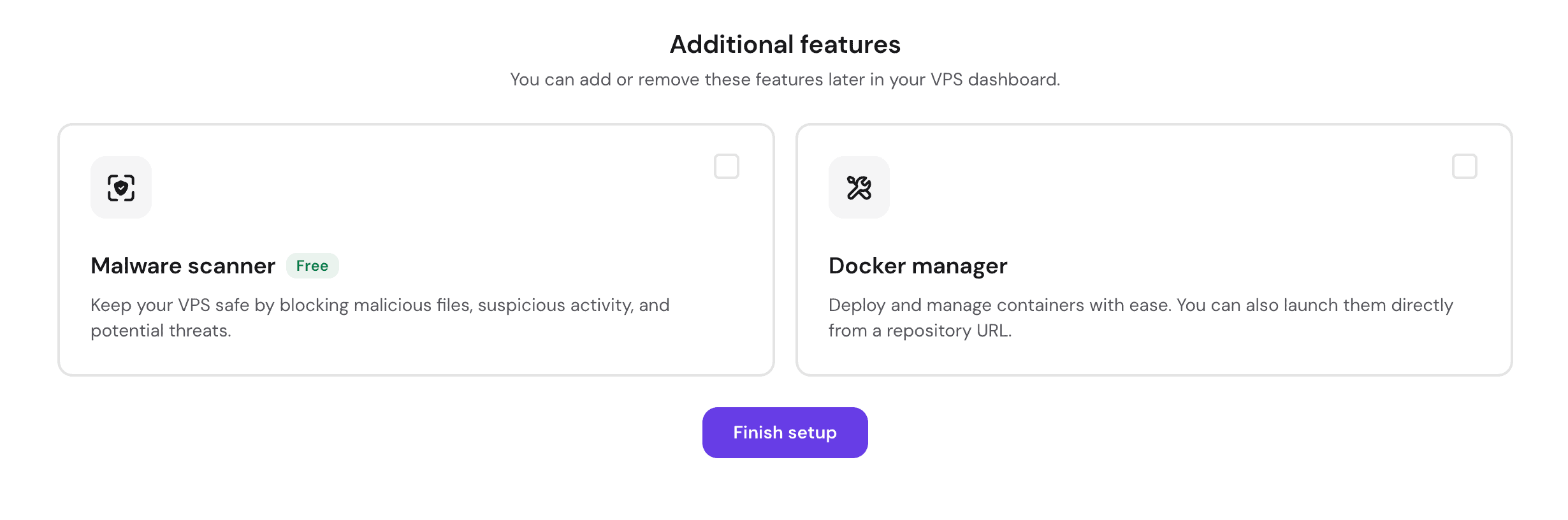
Once selected, click the purple “Finish setup” button to provision your server.
Now let’s wait a bit…
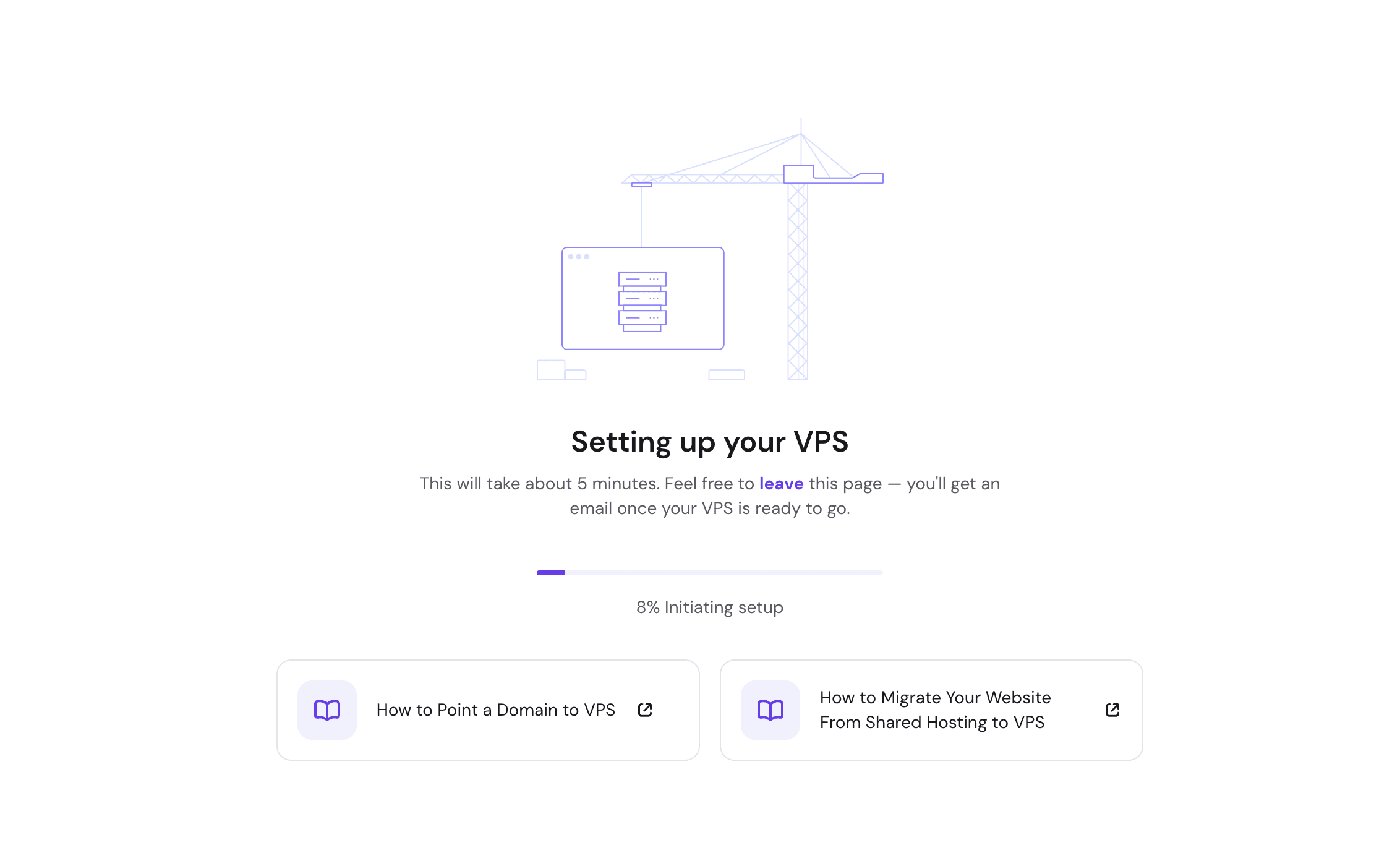
Step 5: Enter the Dashboard and Meet the AI Agent.
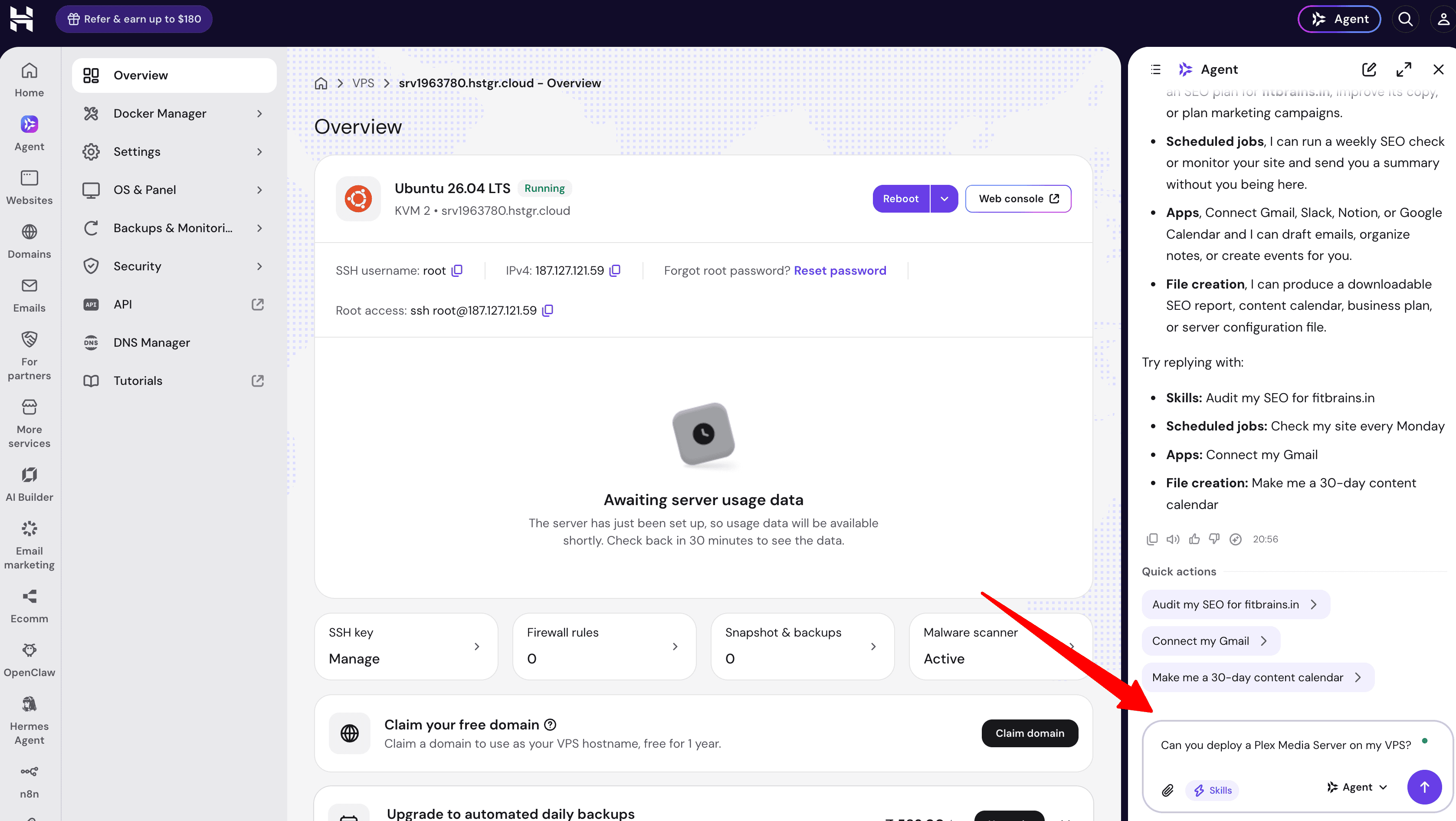
Click “Manage VPS” to load your main server overview.
The dashboard displays your server status, IP address, and root access details in the center.
On the right side of the screen, you will see the AI Agent chat interface. This conversational panel replaces the need to install a traditional visual control panel.
Step 6: Execute Server Tasks in Plain English
Instead of staring at a blank terminal or clicking through complex configuration menus, you just ask the AI to handle the work. The Agent interface provides quick action buttons, or you can type a custom request.
For example, if you type “Can you deploy a Plex Media Server on my VPS?” The AI reads the request, prepares the necessary dependencies and port configurations, and asks for your final confirmation before executing the installation.
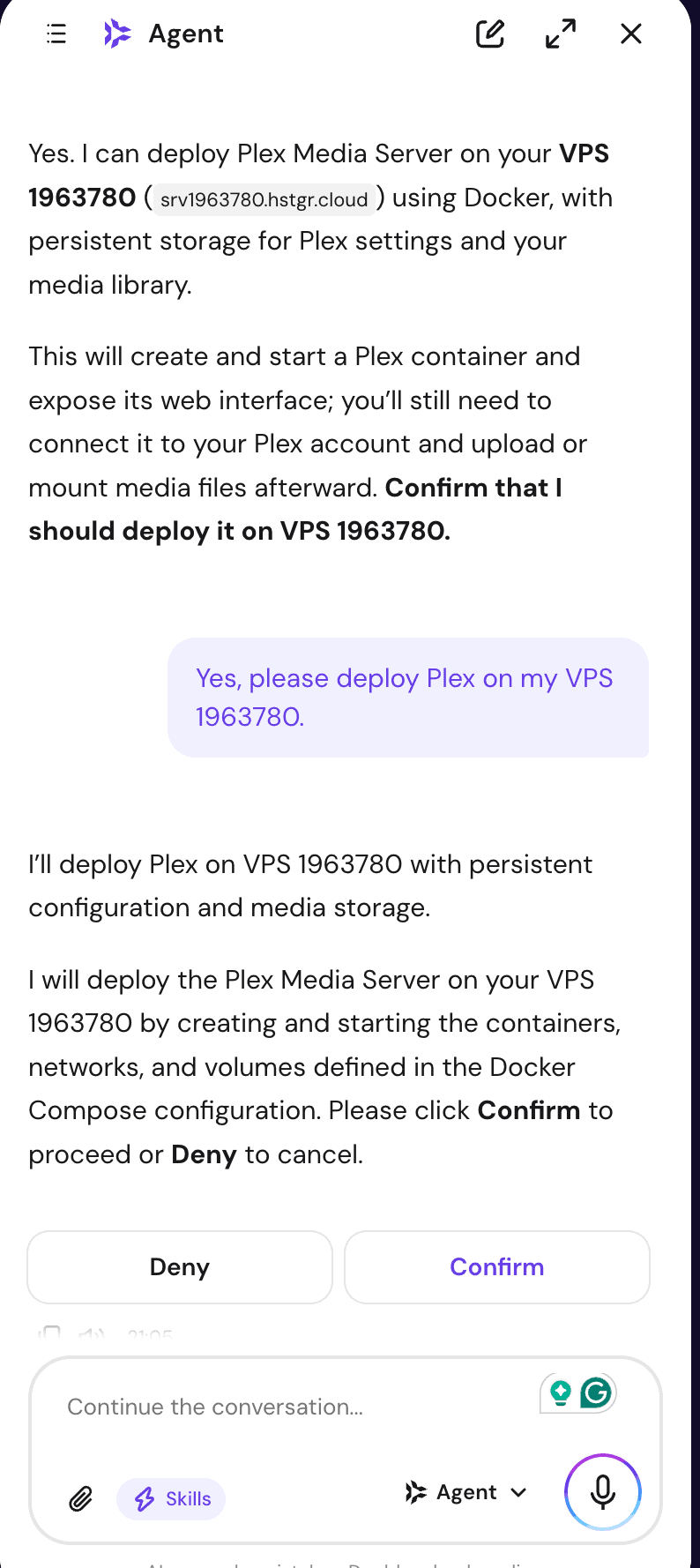
Step 7: Verify Deployment and Access Your App
After you confirm the request, the AI agent handles the entire background installation.
It notifies you the moment the application is running successfully. In this deployment test, the agent installed a Plex Media Server and immediately provided all the necessary connection details in the chat window.
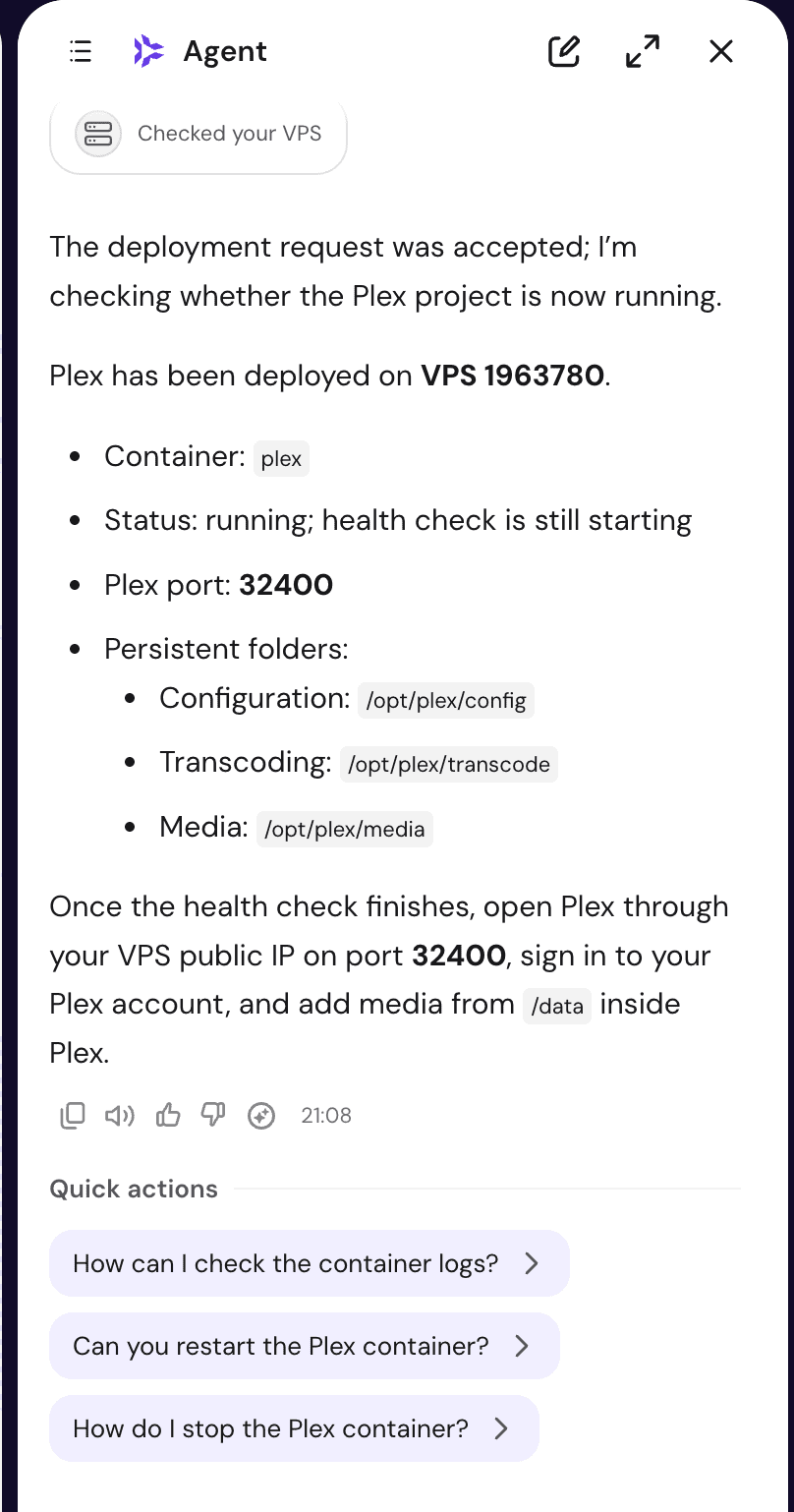
You never have to search through technical documentation to find this information.
It also generates custom quick actions at the bottom of the screen to help you manage the new app.
You can simply click these prompts to check container logs or restart the service. To use your newly launched application, you just type your VPS public IP address and the provided port into your web browser.
The Hostinger AI Managed Assistant outputs the container status, assigned ports (like 32400), and folder paths.
You never have to search through technical documentation to find this information.
It also generates custom quick actions at the bottom of the screen to help you manage the new app.
You can simply click these prompts to check container logs or restart the service. To use your newly launched application, you just type your VPS public IP address and the provided port into your web browser.
What Can You Actually Ask Hostinger Agent? (Real Prompt Examples)
The above test demonstrated a user deploying a VPS server smoothly.
Now what more can the AI Assistant do for you?
If you are used to Googling Linux commands then stop this, here is how your workflow changes with an AI-managed VPS.
You simply type these natural English prompts directly into the chat:
1. Server Security & Firewall Management
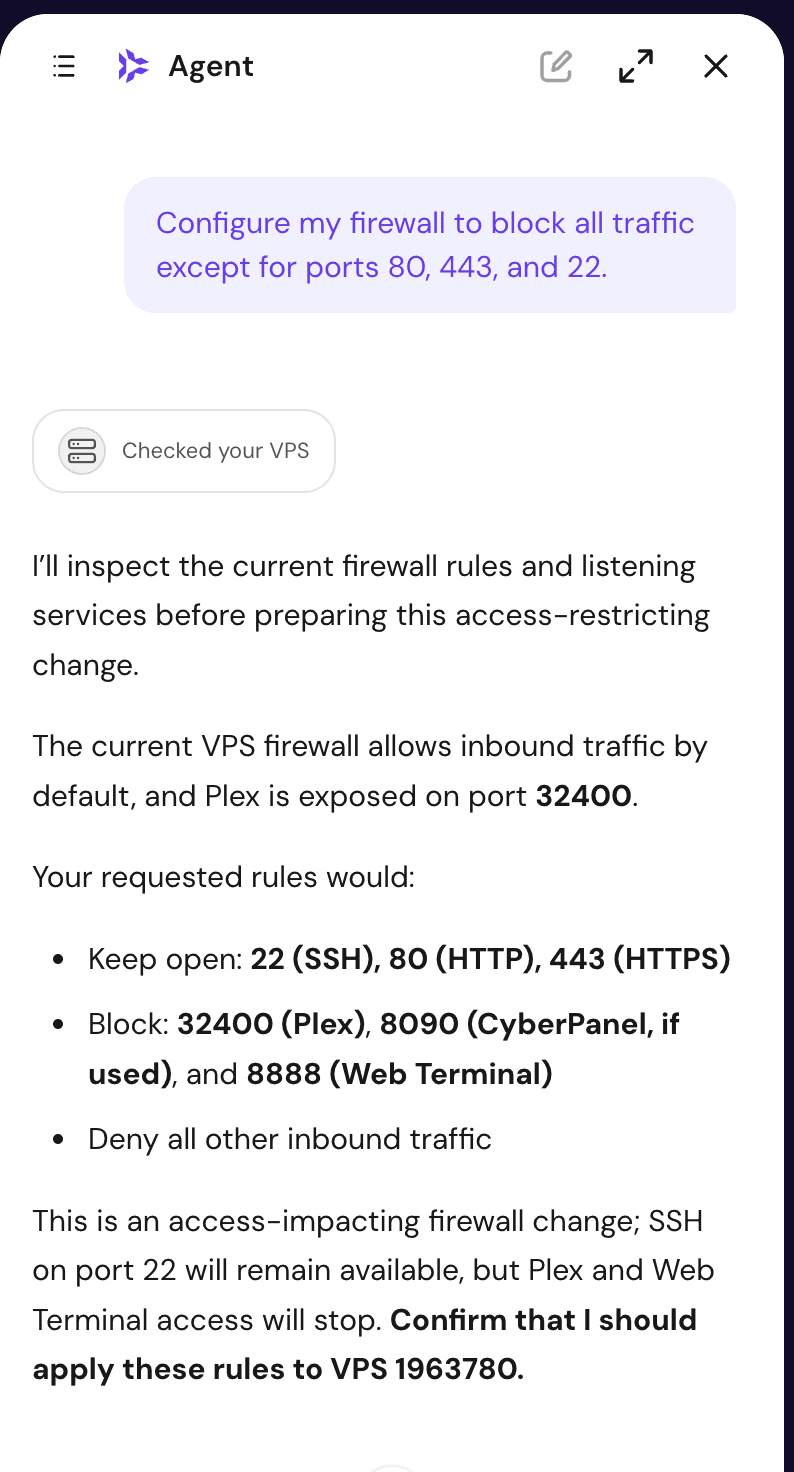
Instead of learning ufw or iptables syntax, you can secure your server in seconds.
- “Configure my firewall to block all traffic except for ports 80, 443, and 22.”
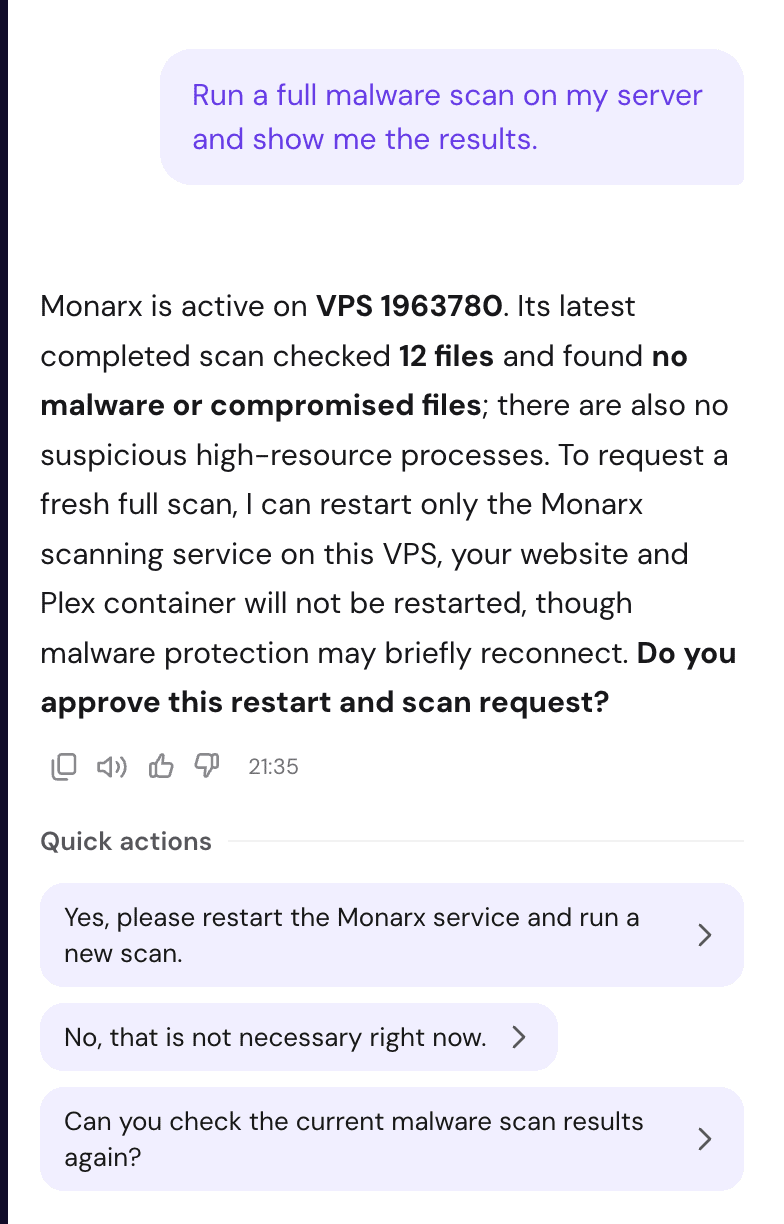
- “Run a full malware scan on my server and show me the results.”
- “Rotate my SSH keys and reset my root password.”
2. Troubleshooting & Error Fixing
- “Why is my server running so slow right now? Check what is consuming my RAM.”
- “My Docker container just crashed. Can you read the error logs and tell me how to fix it?”
- “Test my database connection and tell me why WordPress cannot connect.”
3. Application Deployment & Updates
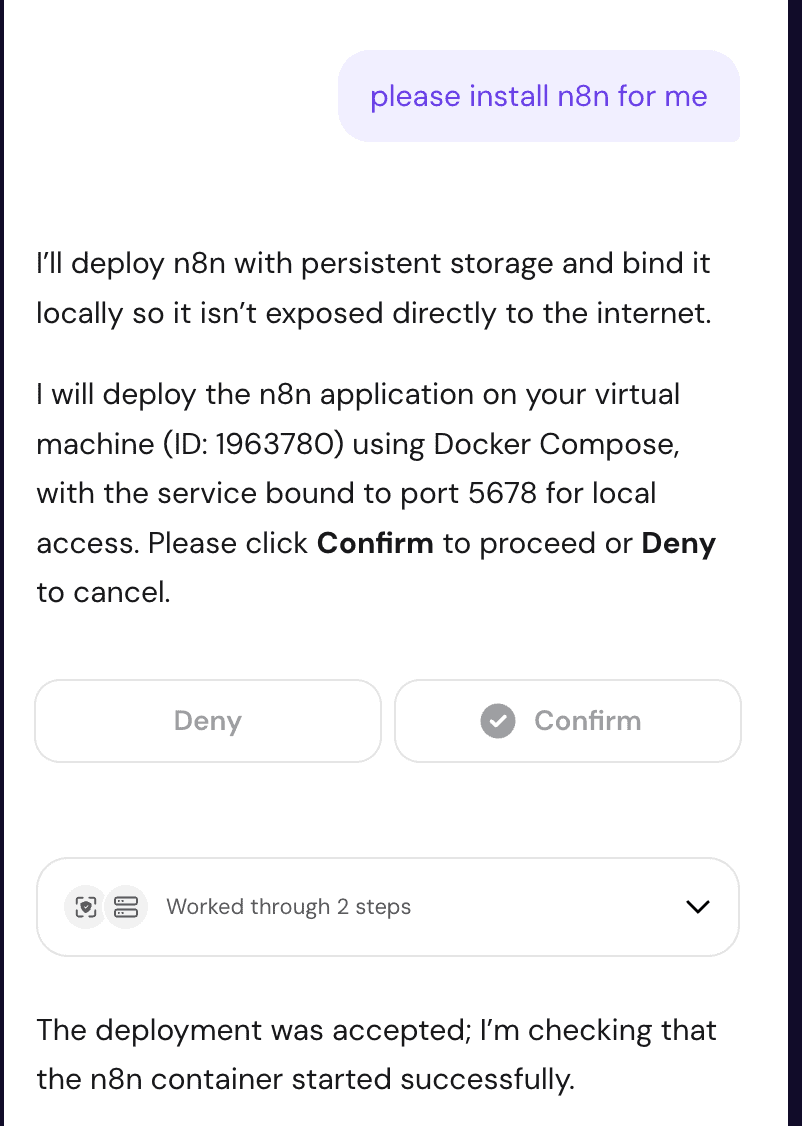
You can deploy over 1,000 applications without ever touching a configuration file. For example: Install n8n.
- “Install WordPress on my server and set up an SSL certificate for my domain.”
- “Can you update my n8n Docker container to the latest version safely?”
- “Deploy an instance of Ollama and confirm when the health check passes.”
4. Backups & Disaster Recovery
Never worry about losing data before making a major change.
- “Create a complete server snapshot right now before I install this new app.”
- “Restore my server from the backup taken yesterday morning.”
The possibilities are endless….
Performance Check: Does the AI Consume Your VPS Server Resources?
A major concern when moving to a VPS is resource bloat. If you are paying for 8 GB of RAM, you want that memory dedicated to your web applications, not eaten up by background management software.
Because the AI processing happens externally and communicates via the API, the assistant like “Hostinger Agent” does not drain your server’s CPU or RAM.
The KVM virtualization ensures that your allocated AMD EPYC processor cores and NVMe SSD storage are strictly reserved for your workloads. Your applications get exactly the hardware you are paying for, ensuring top-tier performance for high-traffic sites.
What Are You Actually Getting with AI-Managed VPS Plans?
Presently, there are only a few hosts which offer AI-Managed base VPS plans. I tested Hostinger and here the specs it usually offers in its VPS plans.
Hostinger AI-Managed VPS plans run on AMD EPYC processors and fast NVMe SSD storage. I always look at the core specs to see if the pricing aligns with the performance.
| Specification | Details |
| Price Range | $6.49 to $25.99 monthly |
| Renewals | $11.99 to $49.99 monthly |
| Computing Power | 1 to 8 vCPU cores |
| Memory | 4 to 32 GB RAM |
| Storage Capacity | 50 to 400 GB NVMe SSD |
| Network & Bandwidth | 1 Gbps speed with 4 to 32 TB bandwidth |
If you plan to build a heavy video streaming platform the top-tier KVM 8 plan easily supports it.
The packages come with weekly backups, DDoS protection, manual malware scanners, one-click snapshot restores, and a free domain (.cloud or .tech) for one year.
Who Should Actually Buy This?
- The Ideal Fit: Hostinger VPS is suited best for self-hosters beginners as it is pocket friendly and allows growing shared hosting sites to get their own resources and speed boost. You get full root control and there is no need to learn Linux tutorials as the AI agent handles all the tasks.
- Who Should Skip It: Hardcore Linux engineers. If you actually enjoy configuring everything from scratch using SSH and raw custom scripts this environment is not for you.
<< Visit Hostinger AI Managed VPS Official Page
If you’re comparing the cost of different Hostinger products, our Hostinger Black Friday sale page is also worth checking for available hosting offers and seasonal discounts.
Final Thoughts:
This update by Hostinger finally makes VPS servers accessible and risk-free. You get premium performance and automated management for the price of a standard unmanaged plan. Let me know if you any questions related with this Hostinger AI Managed VPS Review.
Frequently Asked Questions:
Does AI management mean I lose root access to my server?
No. You retain full root access to your VPS environment. You can still connect via standard SSH at any time and run manual commands. The AI assistant acts as a beginner friendly way to manage your VPS rather than restricting your administrative privileges.
What happens if the AI agent makes an incorrect command?
The assistant asks for confirmation before executing server configurations and tasks. If something still goes wrong during a custom setup, you can restore your server using free automated weekly backups or temporay 1-click snapshots that have a 1 day of expiry date.
Do I need prior Docker experience to install apps from the catalog?
No. Hostinger integrates Docker Manager directly into the control panel and AI Web Terminal. You can launch containerized applications like n8n, Ollama, or Immich directly from the interface or by describing your goal to Hostinger Agent in plain English.
How does AI-managed VPS differ from paid control panels like cPanel?
cPanel rely on visual forms and charge monthly licensing fees per user. AI-managed VPS uses plain-language prompts via a browser terminal to run diagnostics, apply fixes, and execute sysadmin tasks without additional management or software licensing fees.
Can I scale server resources if site traffic spikes?
Yes. You can upgrade between Hostinger KVM plans (from KVM 1 up to KVM 8) as your traffic grows. Upgrading grants additional vCPU cores, RAM, and NVMe SSD storage without requiring a manual server migration.
Explore More:
![VPS Hosting vs Cloud Hosting [Explanation, Benefits, Disadvantages, Comparison, and More]](https://bloggerspassion.com/wp-content/uploads/2025/05/vps-hosting-vs-cloud-hosting-300x162.jpg)

![VPS Hosting vs Shared Hosting [Benefits, Disadvantages, Which One Fits Your Website, and More]](https://bloggerspassion.com/wp-content/uploads/2025/05/vps-vs-shared-hosting-300x162.png)

![Kamatera Coupon & Discount Oct 2026 [Activate 30 Days Free VPS & Cloud Hosting Offer Now]](https://bloggerspassion.com/wp-content/uploads/2025/02/kamatera-coupon-300x162.png)


Leave a Comment
Your email address will not be published. Required fields are marked *