


This is my detailed WP Rocket review.
I’ve been using WP Rocket on a bunch of my sites for quite a few years now.
Let me put all my experiences, thoughts, and test results on the table. Yes, it improves the speed. But it is not for everyone.
WP Rocket in a Nutshell
Overall, WP Rocket is the best plugin for all WordPress website owners who want outstanding website loading speed. It enhances the WP site performance with the help of caching, lazy loading, and file or image compression. Surely a top choice for people who are looking for a paid WP optimization plugin. It can be expensive for new site owners but you can notice the page speed difference right away.
| WP Rocket Pros: | WP Rocket Cons: |
| Super easy to set up and use | Expensive plugin |
| Amazing improvements in Core web vitals scores | No free version is available |
| Advanced lazy loading options | Limited image optimization |
| Easy to customize for advanced usage | |
| Outstanding CSS and Javascript minification | |
| Compatibility with most plugins and themes |
WP Rocket – Before And After Test Performance Test Results
| Metric | Hostinger (Entry-Level) | Kinsta (Premium Managed) |
| Hosting Type | Shared (LiteSpeed) | Managed (Google Cloud) |
| Score WITHOUT WP Rocket | 81 (Yellow) | 60 (Orange) |
| Score WITH WP Rocket | 96 (Green) | 99 (Green) |
| FCP Improvement | 1.1 seconds faster | 0.4 seconds faster |
| LCP Improvement | 0.6 seconds faster | 0.6 seconds faster |
| Interaction Speed (TBT) | Halved tasks | 97% reduction (1,060ms saved) |
I’ve been using WP Rocket on my different sites for quite a few years now.
To give you live test results, I set up WP Rocket on 2 sites with different hosting providers. They both use different configurations.
Site 1 Configuration:
- CMS: WordPress
- Hosting: Hostinger (Uses LiteSpeed server)
- Theme – GeneratePress
Site 2 Configuration:
- CMS: WordPress
- Hosting: Kinsta (Uses Nginx server)
- Theme – GeneratePress
Test 1: WP Rocket & LiteSpeed Servers
Hostinger is a popular entry level host, and you’ll definitely need a good performance plugin to achieve a good pagespeed score.
Here’s the results
| Performance BEFORE WP Rocket (Hostinger): | Performance After WP Rocket (Hostinger): |
| Page Speed Score: 81 | Page Speed Score: 96 |
| FCP (First Contentful Paint): 2.4 seconds | FCP (First Contentful Paint): 1.3 seconds |
| LCP (Largest Contentful Paint): 3.2 seconds | LCP (Largest Contentful Paint): 2.6 seconds |
| CLS (Cumulative Layout Shift): 0 seconds | CLS (Cumulative Layout Shift): 0 seconds |
The Page Speed Scores on Hostinger Before WP Rocket:

The CWV (Core Web Vital) Scores:


The Page Speed Scores After Activating WP Rocket:


The before and after test results clearly highlight significant improvements in Page Speed scores, especially the Core Web Vital scores.
I used Google Page Speed Insights for this test, which is one of the best standard page speed testing tools.
Before activating the plugin, I had an 81 Score in the yellow range. Core Web Vital Scores were also bad.
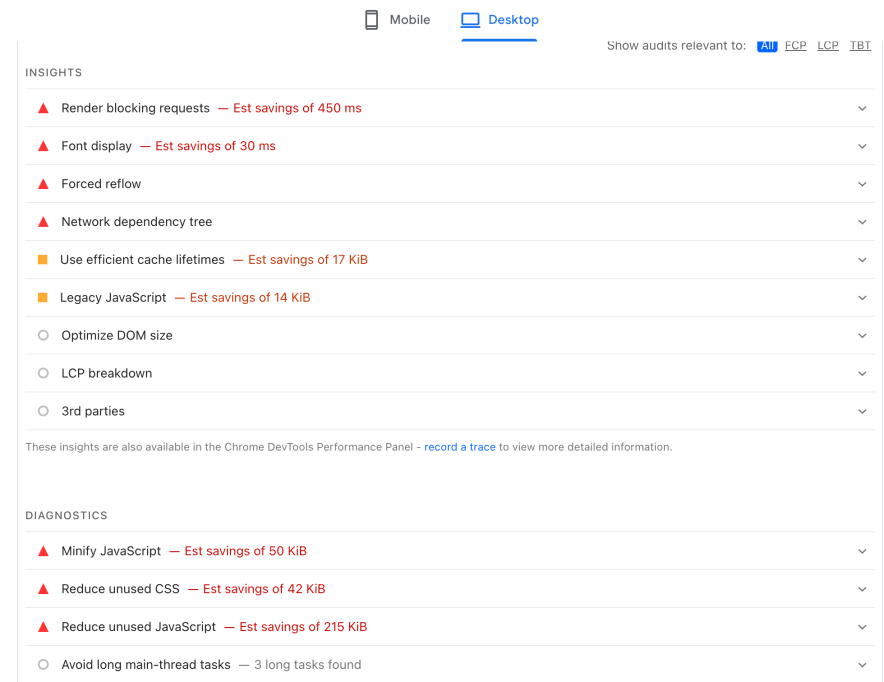
I also noticed a lot of fixing recommendations in the diagnostics report, like eliminating render-blocking resources, reducing unused CSS, improper image size, deferring offscreen images, and more.
JavaScript Execution time 0.8 seconds long and only 20 long main thread tasks BEFORE activating WP Rocket
But after activating, I got a straight 96 Score in the green range.!
Core Web Vitals also improved a LOT. All were green except LCP.
Plus, the diagnostics recommendations I got in page speed insights were halved.
All the render-blocking, unused CSS, and other recommendations for fixing were no longer present, which is awesome!

The site I tested had over 25 different plugins. I’m sure that with a bit of basic optimization, I could have received even better scores – yes, maybe I would have reached a 99 or 100 page speed score!
Test 2: WP Rocket & NGINX Servers
You might think: “I am paying for Kinsta, so my site is already fast. Why would I spend more on a plugin?”
I had the same question. Kinsta is famous for its speed and server-side caching. However, server caching only handles half the job. It does not fix your heavy JavaScript or unoptimized CSS.
To see if WP Rocket is still worth it on a high-end host, I ran the same test on Kinsta.
Here are the results:
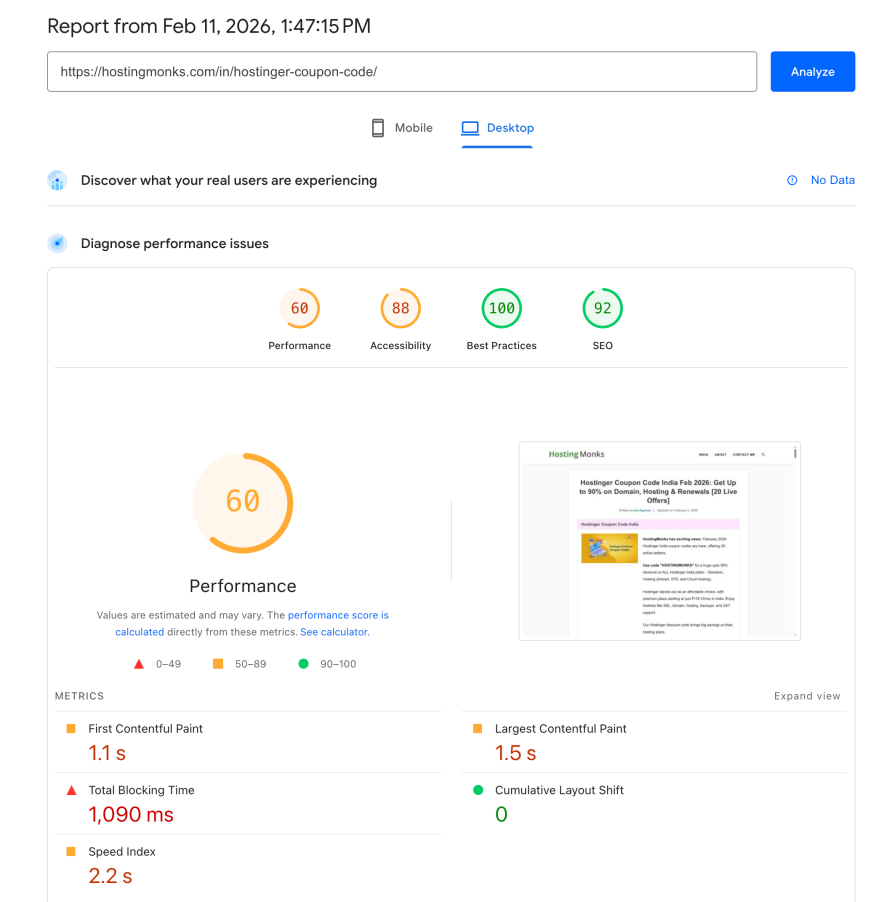
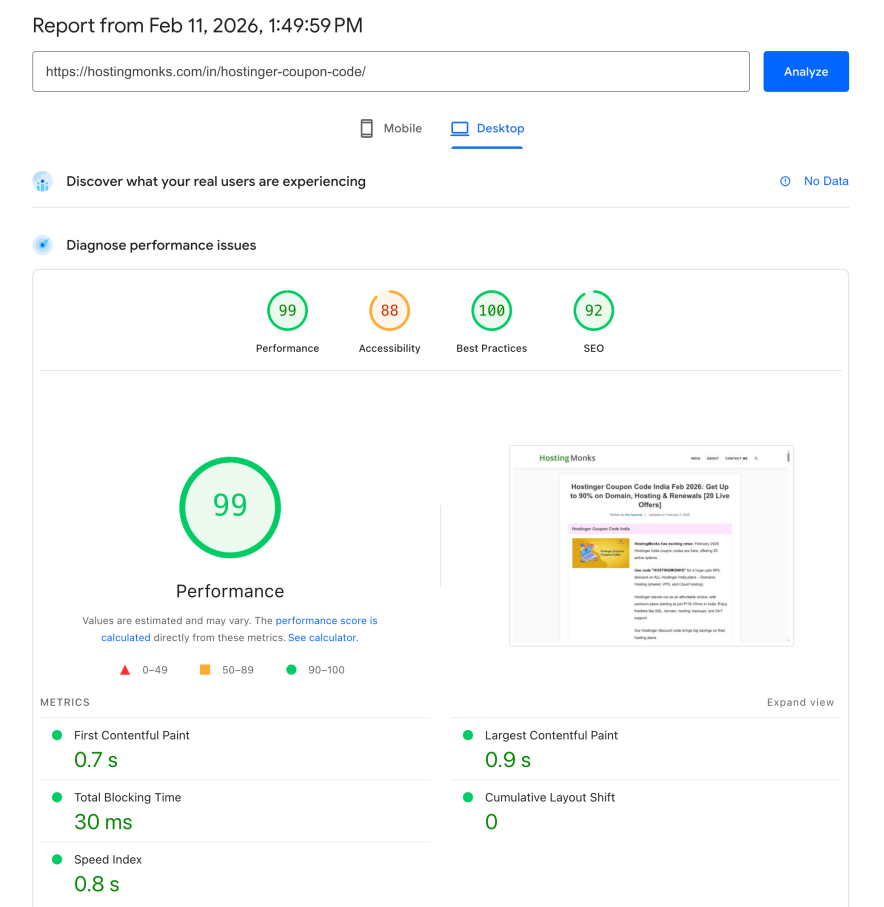
| Metric | Performance BEFORE WP Rocket (Kinsta) | Performance AFTER WP Rocket (Kinsta) |
| Page Speed Score | 60 | 99 |
| First Contentful Paint (FCP) | 1.1 seconds | 0.7 seconds |
| Largest Contentful Paint (LCP) | 1.5 seconds | 0.9 seconds |
| Total Blocking Time (TBT) | 1,090 ms | 30 ms |
| Speed Index | 2.2 seconds | 0.8 seconds |
| Cumulative Layout Shift (CLS) | 0 | 0 |
The Results Before Activating WP Rocket
Before I turned on the plugin, the site was in the orange zone with a score of 60. Kinsta is a powerful host but the front end was still struggling.
The biggest issue was the Total Blocking Time (TBT). It was over 1,000 ms. This means the browser was stuck processing code for a full second before the user could actually interact with the page.
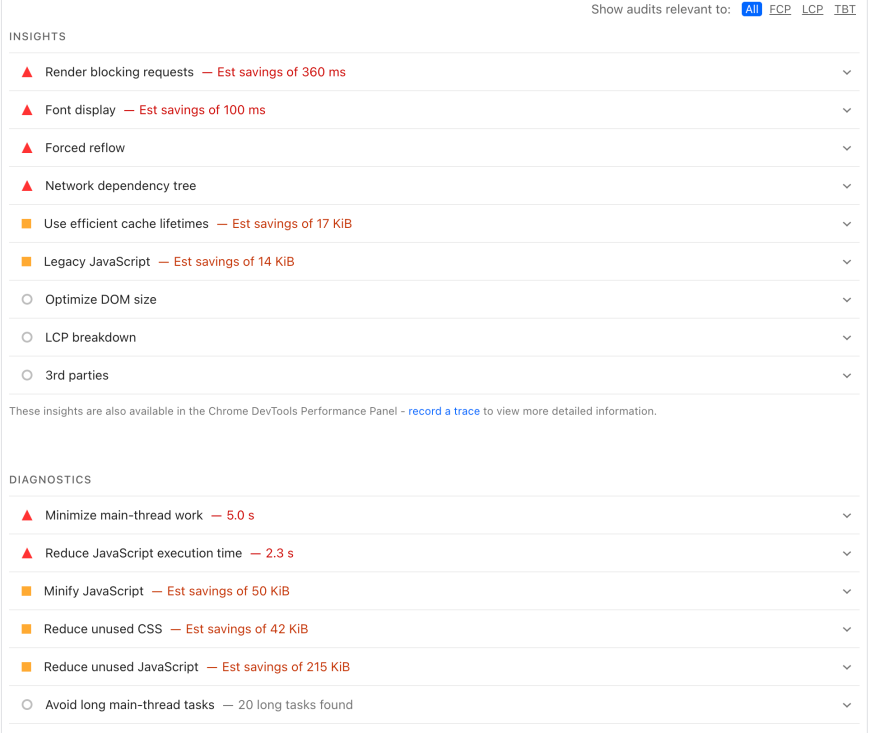
The diagnostic report showed that “Minimize main-thread work” was taking 5.0 seconds. There were also 20 long tasks found that were slowing everything down.
The Results After Activating WP Rocket:
The performance score jumped to a near-perfect 99. That is a massive difference.
The most impressive part? The Total Blocking Time dropped from 1,090 ms to just 30 ms.
How did it do this? It’s mostly thanks to the “Delay JavaScript Execution” feature.
Instead of loading every script at once, WP Rocket waits until the user actually interacts with the page. This keeps the browser main thread free and fast.
The “Avoid long main-thread tasks” audit showed only 3 long tasks remaining after the optimization.WP Rocket reduced the impact of unused CSS and JavaScript. It saved roughly 100 ms by optimizing how fonts load.
Pro-Tip: When it comes to speed optimization, just depending on a cache plugin is not enough. You also need a powerful host that provides enough server resources so that the cache plugin can work well.
How does WP Rocket manage to speed up WordPress websites?
WP Rocket is a premium caching plugin that was launched back in 2013.
Since then, it’s evolved into one of the most widely used caching plugins for WordPress sites.
The reason it’s so popular is that even if you don’t have any technical or coding skills, you can get AMAZING website loading speeds – just with a click of a few buttons.
Let’s dive and take a look at some of the essential performance optimization features this plugin offers.

1. Page Caching
When someone visits a page on your site, WP Rocket creates a static HTML version of that page and stores it on your server.
The next time someone visits that same page, WP Rocket serves up the cached version with the help of its Page Caching feature instead of generating the page from scratch.
This can seriously speed up your loading times. And that’s because it takes a lot less work for your server to deliver a premade page than to build it from the ground up every time.
2. GZIP Compression
This is another really important feature for speeding up your site.
GZIP compresses your website’s files so they take up less space and can be transferred faster.
It’s like putting your files in a zip folder before you send them – they take up less space and can be downloaded quickly.
WP Rocket automatically enables GZIP compression for your site, which can significantly reduce the size of your pages.
This means faster loading times for your visitors, especially on slower connections or mobile devices.
3. Cache Preloading
The cache preloading is a feature that takes standard caching a step further.
It automatically loads your cached pages in the background, so they’re ready to go when a visitor clicks on them.
But why does that matter?
Because when it comes to page speed, every second counts.
Did you know that even 1 second delay in page load can lead to 2.11% drop in conversion rates?
Now, WP Rocket does cache preloading in several ways:
1. Sitemap preloading:
With sitemap preloading, WP Rocket uses your website’s sitemap to figure out which pages to preload.
A sitemap is basically a list of all the pages on your website.
WP Rocket will preload all the pages in your sitemap whenever your cache expires.
This means that even if your cache gets cleared out, WP Rocket will automatically reload it with fresh versions of your pages based on your sitemap.
A really handy feature because you don’t have to manually reload your cache every time it expires. WP Rocket handles it for you.
2. Link Preloading:
Now, this is really interesting. Whenever a user hovers over a link on your site, WP Rocket will immediately start creating a cache in the backend.
As a result, when the user clicks, the page loads at an AMAZING Speed (because most of the page-related resources were downloaded already in the backend).
It does consume a bit of server resources, though.
But overall, it’s well worth it, considering the HUGE page speed improvement.
4. Browser Caching
When someone visits your site for the first time, their browser downloads all the necessary website-related files – things like images, CSS stylesheets, and JavaScript files.
With browser caching enabled, the visitor’s browser will store these files locally.
The next time that visitor comes to your site, their browser can load those files from the local cache instead of downloading them again.
This significantly speeds up loading times, especially for repeat visitors.
5. Ecommerce-Friendly
WP Rocket is fully compatible with popular Ecommerce plugins.
It automatically excludes important pages like your checkout and cart from caching, so you never have to worry about caching causing issues with your sales process.
But WP Rocket takes it a step further with eCommerce-specific optimizations.
For example, it can minify and combine your store’s scripts and styles, which can significantly speed up your pages.
It also has options to lazy load your product images and optimize your store’s database.
These are advanced features that can make a HUGE difference in your eCommerce store site speed.
WP Rocket Compatibility
WP Rocket is compatible with the most popular themes, page builders, and plugins.
Whether you’re using a popular theme like Divi, Astra, or GeneratePress or a powerful page builder like Elementor or Beaver Builder, WP Rocket just works.
You don’t have to worry about conflicts or compatibility issues.
The same goes for SEO plugins. Whether you’re a fan of Yoast SEO, RankMath, or SEOPress, WP Rocket integrates easily without breaking your site.
WP Rocket Pricing
Here’s a full pricing breakdown of WP Rocket:

- Single Plan at $59/year (for 1 site – helpful for beginner bloggers)
- Plus Plan at $119/year (for 3 sites – suitable for professional bloggers and businesses)
- Infinite Plan at $299/year (for 50-500 – best for agencies)
WP Rocket’s Single Site plan is on par with its closest competitor, FlyingPress, which starts at $60/year for a single site for the first year.
Sure, WP Rocket is definitely a bit expensive.
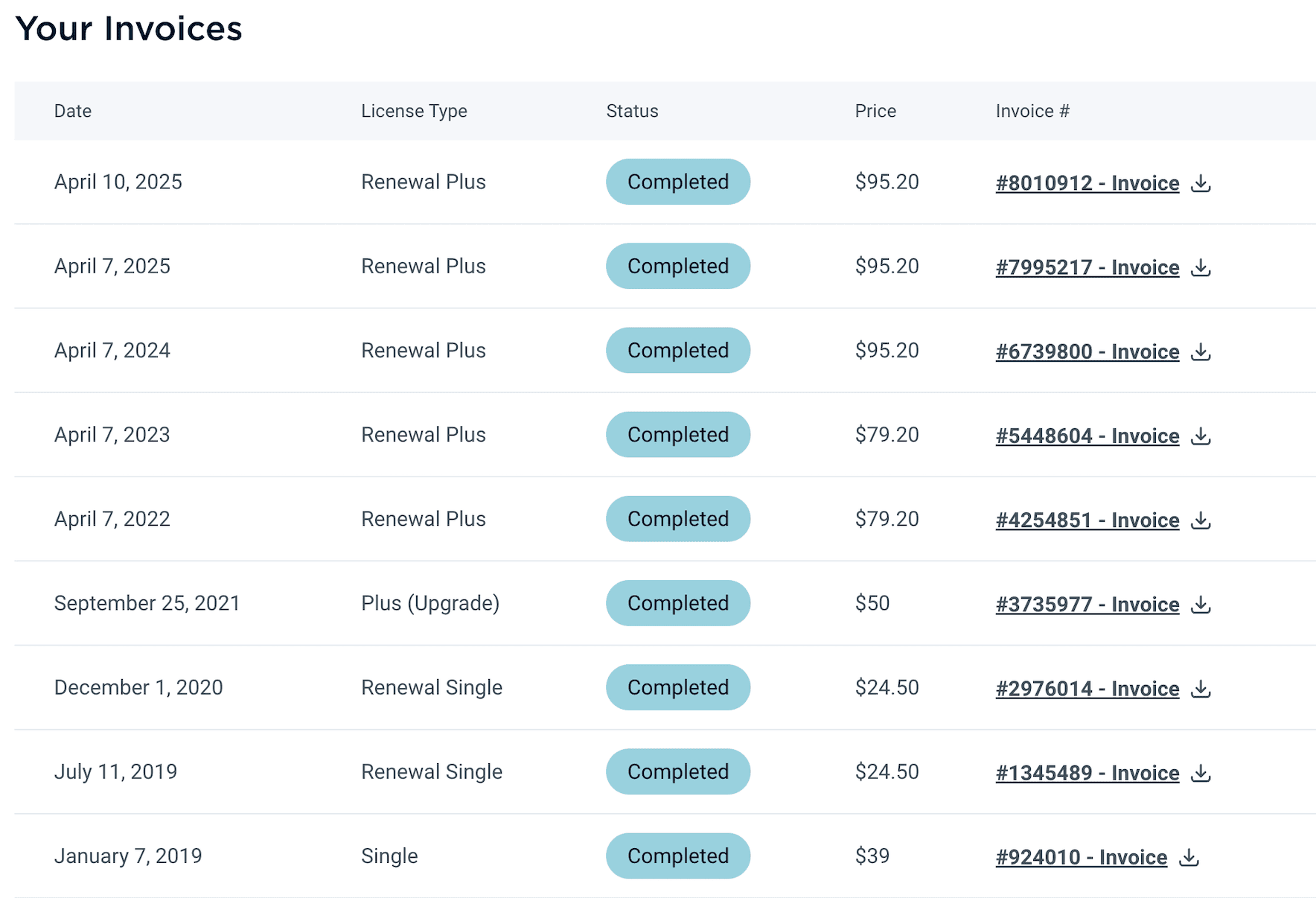
But guess what? They offer a 100% money-back guarantee for up to 14 days from the date of purchase.
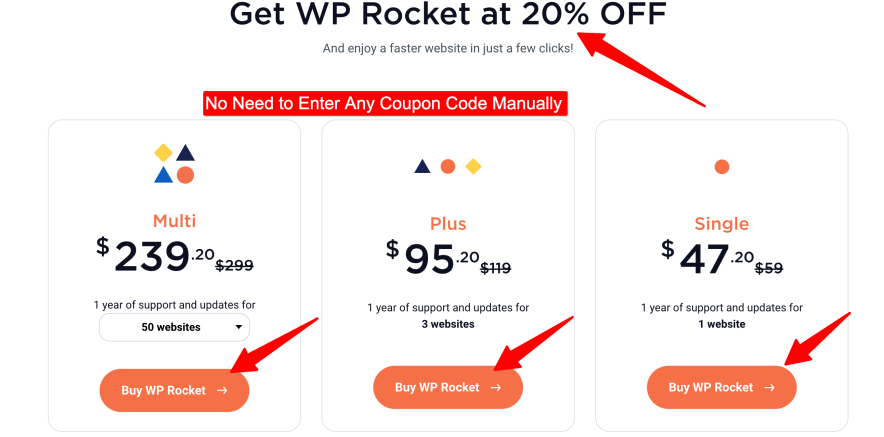
So that makes it a total risk-free deal. Definitely worth a try!
WP Rocket Support

Overall, it’s good. But it could be better.
There’s no option for live chat support.
Now, they do offer Facebook Group, a big knowledge base, and Video Tutorials. But the only main support option you get is through tickets.
So there’s a scope for improvement in terms of support.
Things I Don’t Like About WP Rocket
Now, no tool is perfect, and there are a few areas where I think WP Rocket could improve.
Firstly, their support system is limited to a ticket-based system.
While their support team is knowledgeable and helpful, sometimes you just need the immediate back-and-forth of a live chat to quickly resolve an issue.
Secondly, there’s the price.
I absolutely think that WP Rocket is worth every penny. The speed improvements it delivers can have a real impact on a website’s success.
But in my opinion, for beginner bloggers who are just starting out, the yearly subscription cost is more.
It would be nice to see a lower-tier option for smaller sites with tighter budgets.
Finally, while WP Rocket does include some basic image optimization features, it doesn’t quite match up to dedicated image optimization plugins.
Sure, it can resize images and even serve WebP versions if your server supports it.
But for truly optimized, compressed images, you’ll still need to use a plugin like Imagify or ShortPixel.
So, it would be great to see more advanced image optimization features built directly into WP Rocket.
Alternatives to WP Rocket: Can You Get the Same Results for Free?
When you look at the price tag of $59 a year, it is natural to wonder if you can get the same speed for free. The WordPress repository is full of free caching plugins that promise to speed up your site.
But are they actually enough to compete with a premium tool?
There are three main free players in the market:
- W3 Total Cache: The most powerful free option, but it has a very steep learning curve.
- WP Super Cache: A simple and reliable choice created by the team behind WordPress.com.
- Hyper Cache: A lightweight plugin that works well on low-resource hosting environments.
Out of these three, W3 Total Cache is generally the best option. However, even the best free versions often miss the modern features that help you pass Google’s Core Web Vitals.
The problem with free plugins is that they usually only handle “caching.” They often ignore the other factors that slow down your site, like heavy CSS or unoptimized images.
To match what WP Rocket does in one click, you would usually need to install four or five different free plugins. And this leads to working with huge technical configuration. That’s a mess for beginners.
| Feature | WP Rocket | Free Plugins (e.g., W3TC) |
| Page Caching | Included | Included |
| GZIP Compression | Included | Included |
| Lazy Loading | Built-in | Requires extra plugin |
| Database Cleaning | Built-in | Requires extra plugin |
| Delay JavaScript | Built-in | Rare or very limited |
| Remove Unused CSS | Built-in | Not available in free versions |
Getting Started With WP Rocket
Getting started with WP Rocket is super easy.
It is one of the most user-friendly WordPress cache plugins I’ve ever used.

Just download, upload the plugin to your WordPress dashboard, and activate it.
Then, WP Rocket would start working its magic right away!

After activating the plugin, you get this type of dashboard:

On the left sidebar, you find options like cache, file optimization, media, and more.
The setup process is pretty simple.
While no dedicated setup box opens up when you activate the plugin, each setting is neatly organized with helpful explanations for each option.
This makes it easy even for non-technical users to understand what each setting actually means.
AND yes, WP Rocket is compatible with the latest version of WordPress.
Even better.
If you’re an advanced user, you also get various options to fine-tune its caching behavior.
Plus, you can set custom caching rules for specific pages or posts – giving you a complete control over how the plugin works on your site!
Let’s take a quick look at all the settings we need to enable for the best performance.
WP Rocket Settings – Complete Overview
File Optimization:
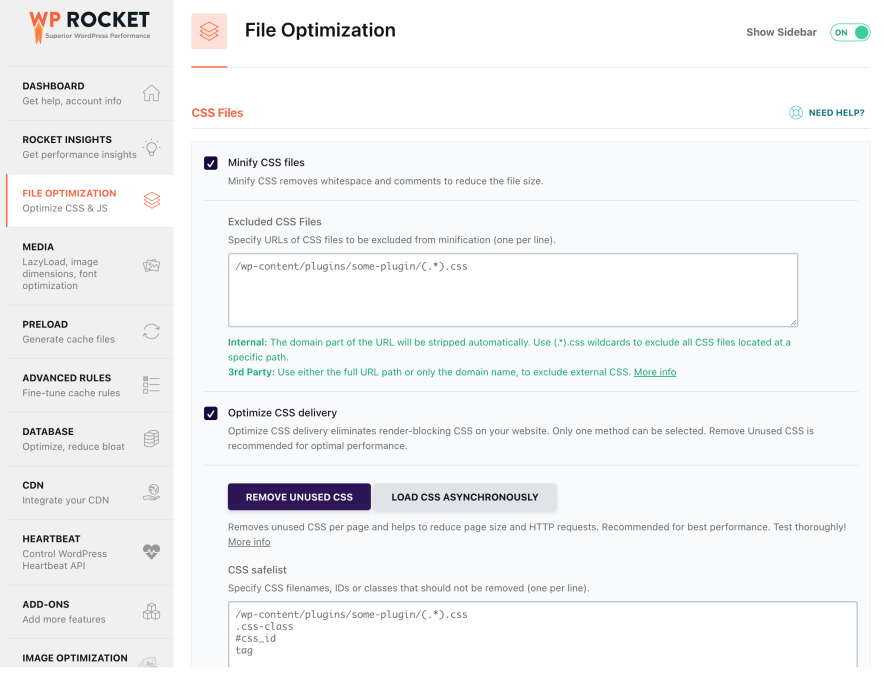
CSS Files:
- Minify CSS Files – Yes, enable it.
- Combine CSS Files – Yes, enable it.
- Optimize CSS Delivery – Yes, enable it.
- Remove Unused CSS – Yes, enable it.
Under Optimize CSS Delivery, you’ll find a box for fallback critical CSS, and similarly, you’ll find another box under CSS Safelist box under Remove Unused CSS.
Leave it empty, as it’s not needed in 99% of situations for normal usage.
Note: Please keep checking your site on another tab as you enable these options. Sometimes, they can break your site.
And don’t worry if the layout appears odd after you enable a particular option.
You can go back and disable that particular option, and that should restore the default layout of your site again.
JavaScript Files:
- Minify JavaScript Files – Yes, enable it
- Combine JavaScript Files – Yes, enable it. (Note: It will be turned off automatically if you turn on “Delay JavaScript Execution” in the next steps.)
- Load JavaScript Deferred – Yes, enable it
- Delay JavaScript Execution – Yes, enable it
Done till here? GREAT! You’ve already completed most of the major steps. Now, let’s move on to the remaining few settings.
Media:
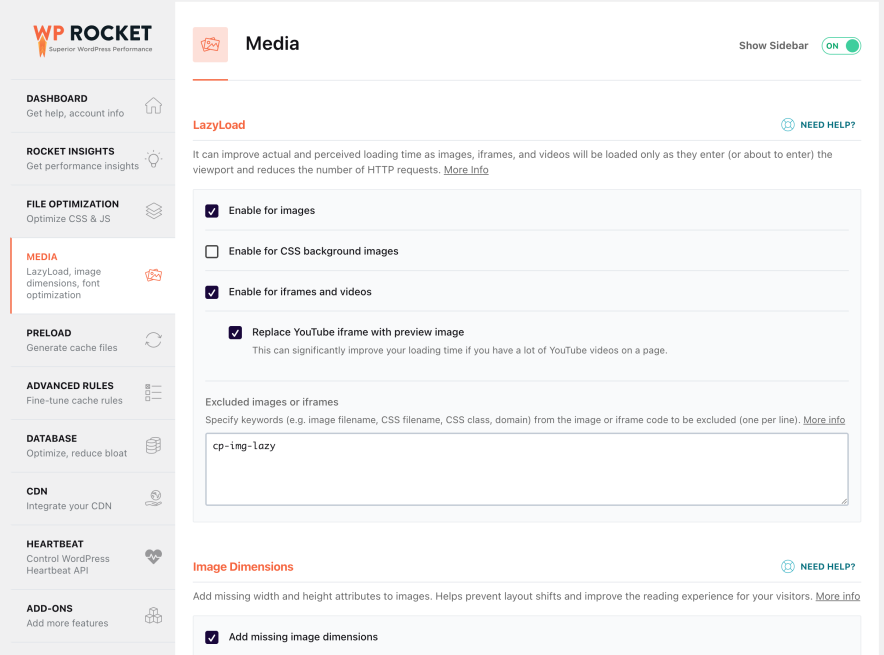
Lazyload:
- Enable for images – Yes, enable it.
- Enable for iframes and videos – Yes, enable it.
Image Dimensions:
- Add Missing Image Dimensions – Yes, enable it.
Embeds:
- Disable WordPress Embeds – Yes, turn it ON.
WebP Compatibility:
- Enable WebP caching – Yes, enable it.
Preload:
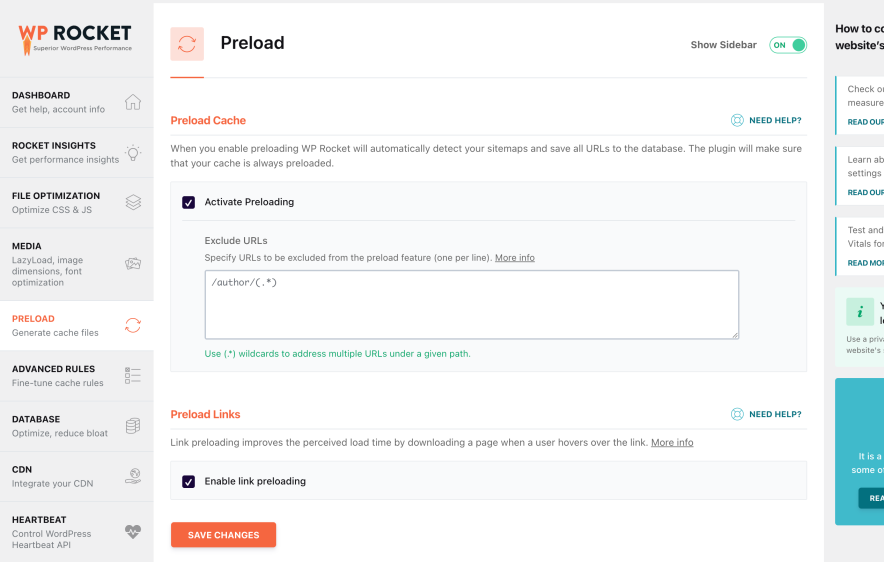
- Activate Preloading – Yes, enable it.
- Enable link preloading – Yes, enable it.
Advanced Rules:
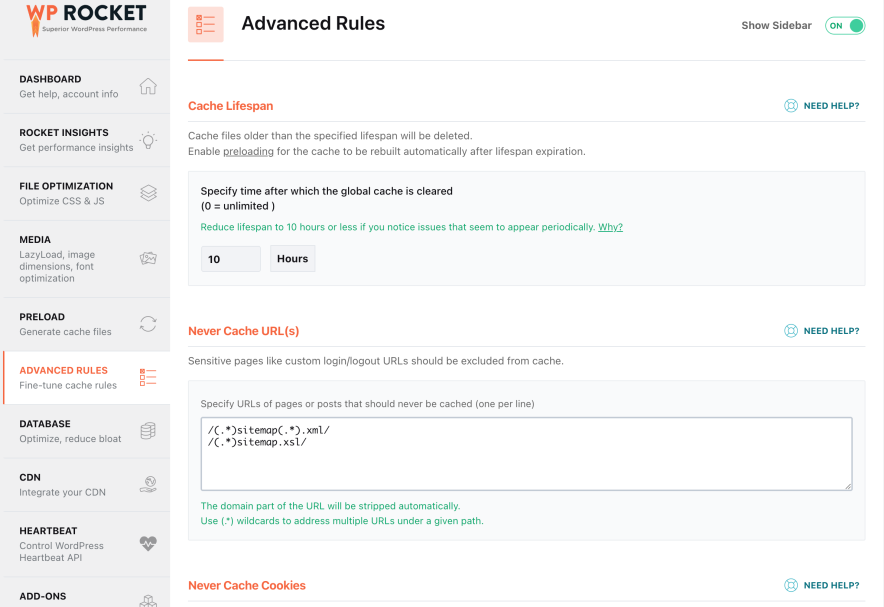
- Leave it as it is – not needed for normal usage (only required if you want to apply some advanced rules related to caching).
Database:
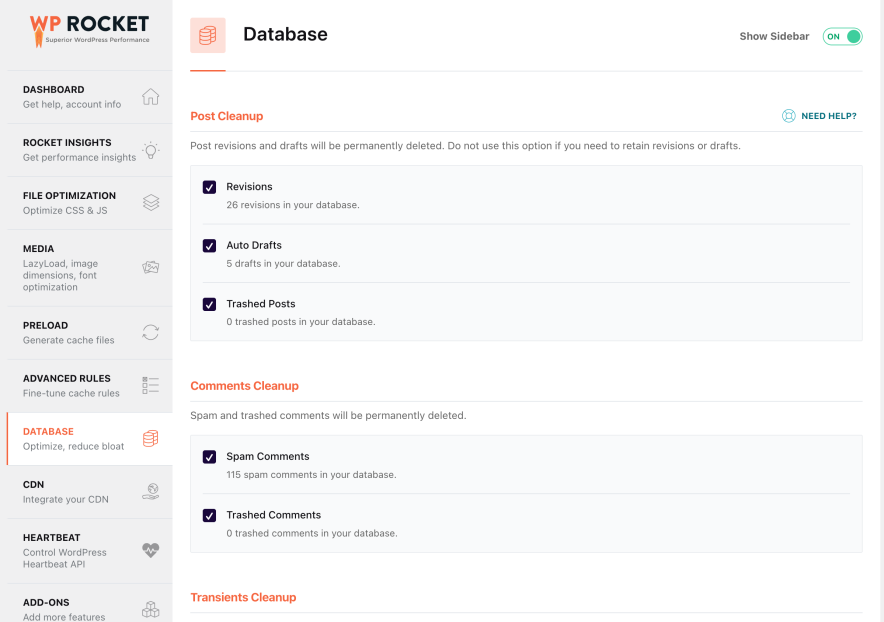
- Except for Revisions, Auto Drafts, and Trashed Posts, enable all other options in this section.
As a blogger, you’d often need to restore the revised versions of your blog posts, so don’t enable Revisions. Likewise, no need to enable auto drafts and trashed posts. Rest all options you can turn on.
- Schedule automatic cleanup – enable it and set it to weekly frequency (if you have an active site where you make updates daily, then select daily or select monthly if the site is not that active)
CDN:
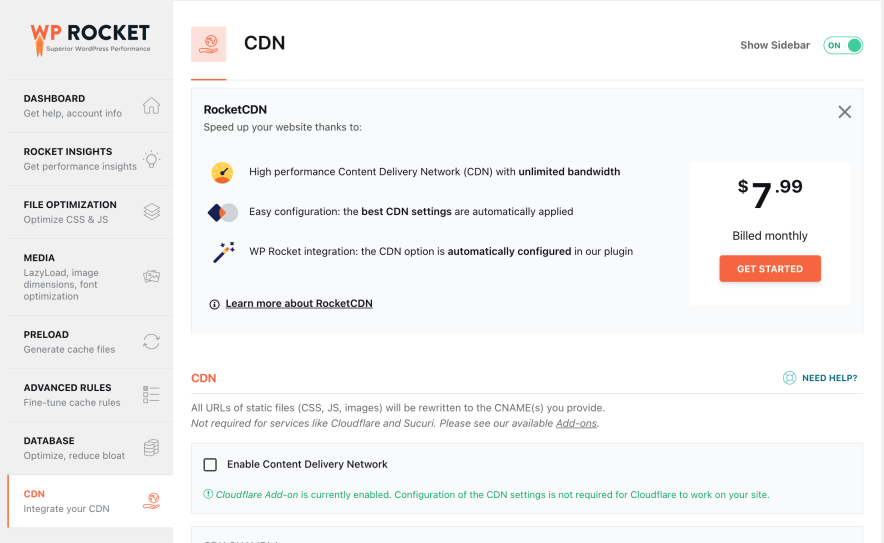
Integrate it with the CDN you use.
So, if you use Cloudflare or any other CDN, then you need to do this:
- Enable Content Delivery Network – Turn it ON.
- Then, add the CNAME of the CDN you’re using.
HeartBeat:

- Control heartbeat – Yes, enable it (helps in reducing server load).
- Leave all remaining three settings to “Reduce Activity,” which comes by default.

Finally, there are two more options: Add-on (which integrates other plugins like Cloudflare or a security plugin like Sucuri) and Image Optimization (which is used to install Imagify).
Read: 10 Essential WordPress Plugins for Your Blog
Read: Yoast SEO Premium vs Free: Detailed Review
FAQs:
Yes, WP Rocket is fully compatible with major page builders.
It is unlikely, but possible if you enable aggressive settings. Features like “Minify CSS” or “Combine JavaScript” can occasionally clash with specific themes.
Yes, a CDN (Content Delivery Network) and WP Rocket do two different things. WP Rocket speeds up how your server processes your site. A CDN speeds up the delivery of that data to users far away from your server. For the best results, I recommend using WP Rocket alongside a CDN like Cloudflare.



![WP Rocket Coupon & Promo Code Sept 2026 [20% OFF – WordPress Caching Plugin]](https://bloggerspassion.com/wp-content/uploads/2024/11/wp-rocket-coupon-300x162.png)



Hi Anil,
WP Rocket seems like the one in all option. Although I am using LiteSpeed Cache and one other optimization plugin. For now it has been working great but will make the shift to WP rocket once the budget allows.
Thanks for sharing this.
Regards
Vineet Saxena