



In my unbiased Divi review, I’m sharing my real, hands-on experience using the theme and the Divi Builder to build actual WordPress pages from scratch.
I tested Divi as a visual drag-and-drop page builder by evaluating its performance in real websites such as designing landing pages, structuring blog layouts, and customizing full-site templates.
Beyond the features, I understood how smooth the front-end editing experience is, how beginner-friendly it really is, and whether the design workflow slows down or helps me move faster.
Then I also compared Divi with other popular tools like Elementor and the Gutenberg block editor to evaluate where it stands in terms of flexibility, learning curve, and design control.

So, in my detailed review article, you’ll see:
- How the Divi page builder actually works in practice
- What the real design experience feels like (especially for blog and layout building)
- Whether Divi is truly beginner-friendly or more complex than it seems
- Who should use Divi and what are its alternatives
I’ll also break down its key features, speed & uptime performance, pros and limitations based on my experience.
Divi Summary: My Quick Opinion

Divi is a powerful all-in-one WordPress theme and visual page builder designed for users who want complete design freedom without relying on multiple plugins.
It combines a theme, drag-and-drop builder, and a large library of pre-built layouts into a single ecosystem.
From my experience, Divi is the best theme to build visually rich websites, portfolios, and landing pages where design flexibility needs to be better than simplicity.
Since it runs everything through the visual builder rather than a lightweight editor, you may find it heavy for basic tasks like writing blog posts or making quick content updates.
Overall, Divi is a strong option for users who prioritize design control, customization, and pre-built templates. It is not suitable to create simple content-focused websites.
Divi Theme – Quick Overview Table
| Aspect | Summary |
|---|---|
| Type | All-in-one WordPress theme + visual builder |
| Best for | Design-heavy websites, agencies, freelancers |
| Design flexibility | Very high with full visual control |
| Template library | Large collection of pre-made layouts and design packs |
| Learning curve | Moderate to steep for beginners |
| Blogging experience | Less efficient for quick writing and updates |
| Performance feel | Feature-rich but slightly heavy interface |
| Pricing model | Paid product with no free version |
My Detailed Divi Theme Review
Do you want to buy the Divi Theme? Read my honest review to discover its strengths and limitations, and whether it’s the right investment for your website.
Ease of Use: Is Divi Beginner-Friendly?
Yes, Divi is beginner-friendly. In my experience, it’s one of the easiest WordPress themes for non-technical users because the visual drag-and-drop builder lets me design pages and see changes instantly without touching code.
What makes Divi accessible is its large collection of pre-built templates and intuitive design controls. If you are a beginner, I’m sure that you can create a professional-looking website by customizing existing layouts rather than building everything from scratch.
However, Divi’s extensive customization options can make you feel overwhelmed during the first few days of use. Once you understand its sections, rows, and modules structure, the workflow becomes much more intuitive.
My Take: After working with multiple WordPress page builders, I found Divi easier to learn than many traditional theme customization methods. While there is a slight learning curve, beginners can comfortably build and manage a website without coding knowledge.
My Experience With Divi Theme & Page Builder
Let me walk you through exactly how it works, what you can expect as a beginner, and where it shines (or stumbles) in real-world use.
How to Install Divi on Your WordPress Site?
Let’s start with the basics: installing Divi.
- I just downloaded it from a Divi site after purchasing it.
- The Divi WordPress theme is a large (More than 15MB)
- I navigated to WordPress dashboard → Appearance → Themes → Add New → Upload Theme.
- Upload the ZIP file, install, and activate.
Once activated, I saw a very blank-looking site. Don’t worry, Divi hasn’t messed anything up; you’re just starting from a clean slate.
After installation, I saw these Divi options on the left WordPress sidebar.

Now moving forward into its detailed working!
How Divi Theme Work? (Divi Layout System)
During my testing, I found Divi’s visual editor easy to use, but it’s not as freeform as some modern page builders. New users must understand Divi’s section, row, and module hierarchy before they can build pages efficiently.
Once learned, however, the structure makes it easier to create clean and responsive layouts.
Divi follows a traditional structure that looks like this:
- Sections → the largest containers.
- Rows → inside sections, used to organize content horizontally.
- Columns → inside rows, for finer control.
- Modules → actual elements like text, images, buttons, etc.
To understand the Divi layout system, first look at a typical drag-and-drop builder, then check the Divi layout system.
This is how a drag-and-drop builder works:

Now this is how Divi Builder layout works when you are looking to add a module or element to the page:

If you’re like me and have previously worked with a drag-and-drop editor, then you might face some difficulty here.
Many people have mentioned this, and I agree. If you’re a beginner, it might take you some time to get used to Divi’s row-and-column layout for a smoother page-editing experience.
How to Use the Divi Builder? (Page Editing from Scratch)

When you go to create a new page and click “Use Divi Builder”, you’ll be presented with three options:
- Build From Scratch
- Choose a Pre-made Layout
- Clone an Existing Page
- Built with AI (Only if you have subscribed to Divi Pro)
I chose “Build From Scratch,” thinking it would be straightforward like Elementor or Beaver Builder. Instead, I was met with a wireframe view full of icons and plus signs. It felt like I was assembling a layout while wearing a blindfold.

Eventually, I found the “Build on the Front End” option, which opened a visual editor. This was more familiar because you see the page as you’re designing it. But even then, the experience wasn’t very intuitive.

Working With the Visual Editor (The Divi UI Experience & Page Building Process)
This is how the Visual Editor of Divi looks!
Before I could even begin anything, I noticed the plus icon in the UI, which prompted me to start by adding a row.

The design starts with adding a row, and after it, you’ll only be able to add page elements, including heading, images, etc.

Overall, the Divi editor feels more like a developer’s tool than something made for regular users. There’s no traditional toolbar, and icons float everywhere.
To edit anything, you need to hover over it and then click a small + icon, and finally use a pop-up window. Even simple tasks like adding an image inside a text module require multiple clicks and steps.
Divi Theme Speed: Is Divi Fast?
Divi has improved significantly in terms of performance over the past few years. Features like dynamic CSS, critical CSS generation, and optimized JavaScript loading have helped reduce page bloat and improve loading times.
That said, Divi isn’t the fastest WordPress builder on the market. Because it includes many design features and visual editing capabilities, it can be slightly heavier than Gutenberg or lightweight themes.
In my experience, Divi delivers solid performance when paired with quality hosting, caching, and image optimization. For most business websites, blogs, and portfolio sites, speed shouldn’t be a concern if they’re properly optimized.
Here is the speed score of one of my Divi-optimized blogs!
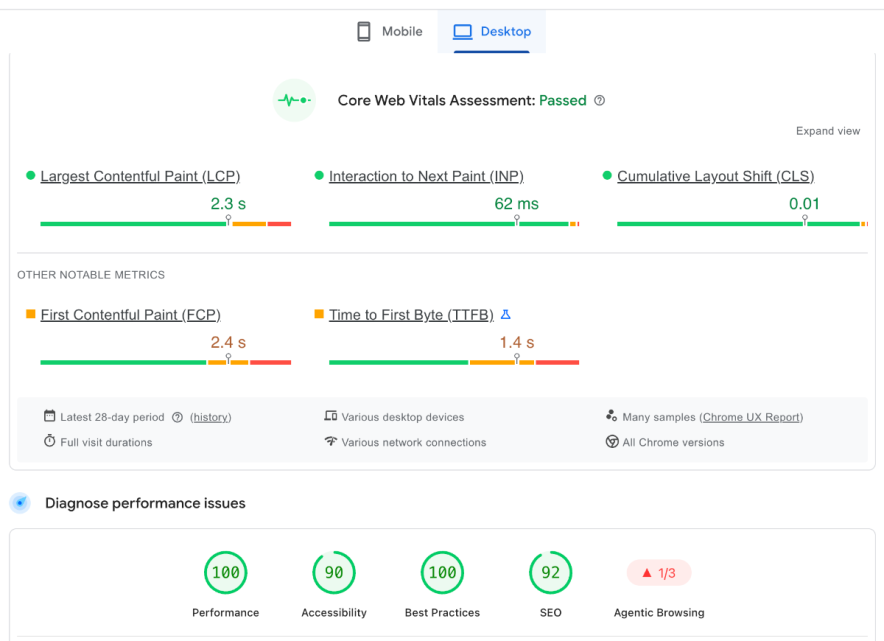
Divi Theme Speed Results
- Core Web Vitals – Passed
- Speed Performance – 100% (Mobile – 95%)
- LCP – 2.3s
- TTFB – 1.4s
My Verdict – Divi may not win every speed benchmark, but it offers a good balance between performance and design flexibility. If you want complete design control without sacrificing user experience, Divi is more than fast enough for most websites.
Divi SEO: Is It Good for Google Rankings?
Divi theme is SEO-friendly. It generates clean code, supports responsive design, and works well with popular SEO plugins like Yoast SEO and Rank Math.
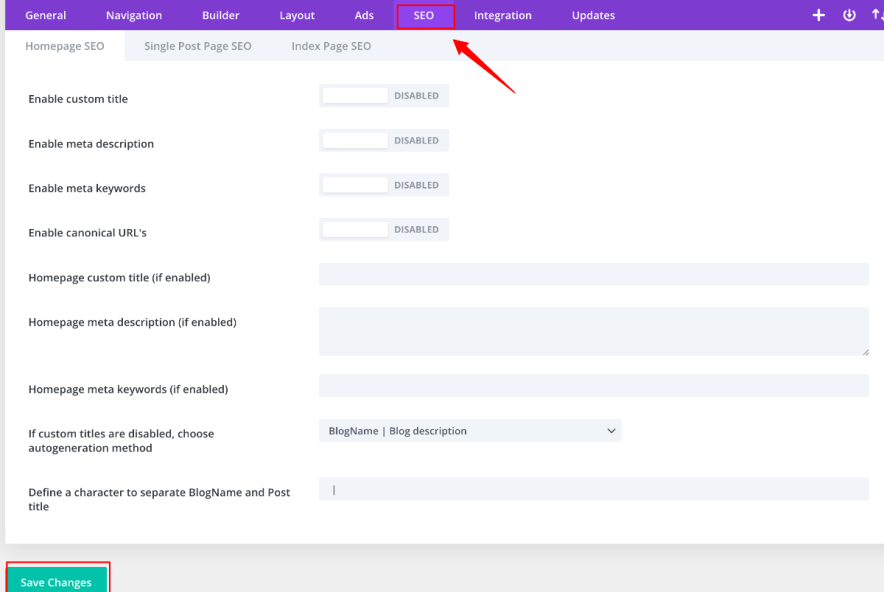
It includes built-in options for adding meta titles, descriptions, and basic on-page SEO settings through WordPress tools or plugins.
However, your search engine rankings will still depend on content quality, site speed, mobile optimization, and proper keyword usage rather than the theme alone.
My Viewpoint – Divi gives you a solid SEO foundation, but real results come from how well you optimize your blog posts and your site speed performance.
Divi for WooCommerce: Is It Good for Online Stores?
Divi works smoothly with WooCommerce and makes it easy to design an online store without coding. You can visually customize product pages, shop layouts, cart, and checkout pages using the Divi Builder, which is a big advantage for beginners and store owners who want full design control.
Setting up a web store is straightforward: install WooCommerce, add your products, and then use Divi’s modules to design how everything looks. You don’t need technical knowledge to create a professional-looking e-commerce website.
Divi WooCommerce Modules: Divi provides dedicated WooCommerce modules that let you build and customize product pages visually using the Divi Builder.
You can style product titles, images, pricing, descriptions, reviews, add-to-cart buttons, related products, upsells, and more, without writing custom CSS or editing WooCommerce templates. The modules use dynamic product data, making it easy to create consistent, fully customized eCommerce layouts.
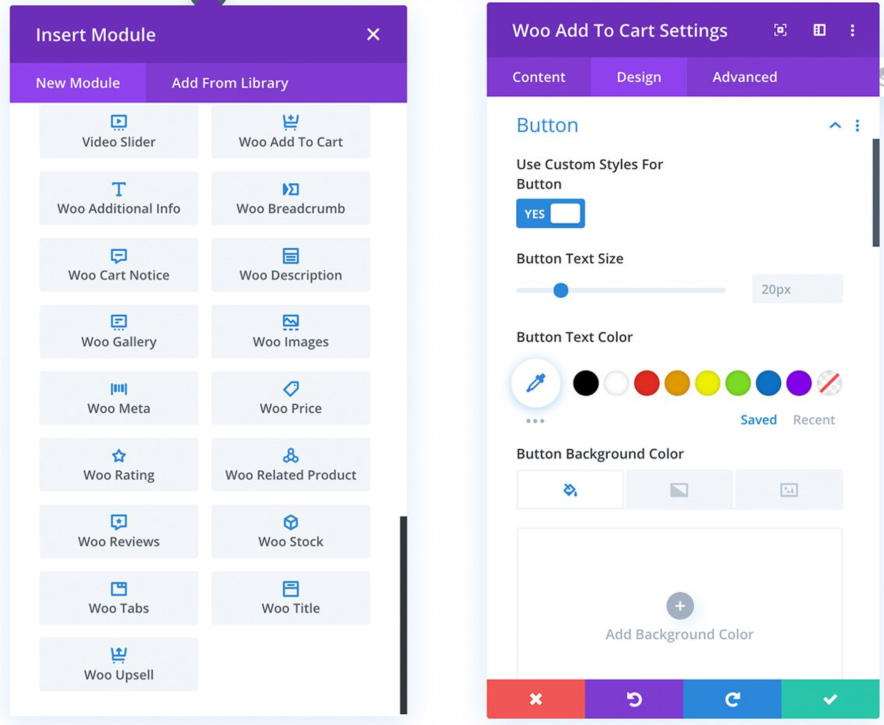
In my experience, Divi feels comfortable for small to medium-sized stores. The drag-and-drop editing makes it easy to adjust product grids, banners, and promotional sections. However, for very large e-commerce stores, you should optimize performance to keep your site fast.
My Verdict – Divi is a strong choice for WooCommerce users who want design freedom and visual control. It may not be the lightest solution, but it is one of the easiest ways to build a visually rich online store in WordPress.
6 Divi Theme Features I Greatly Admired
Divi has unique features that I really found useful for thoughtful site creation!
1. Prebuilt Divi Theme Templates & Layouts To Save Time
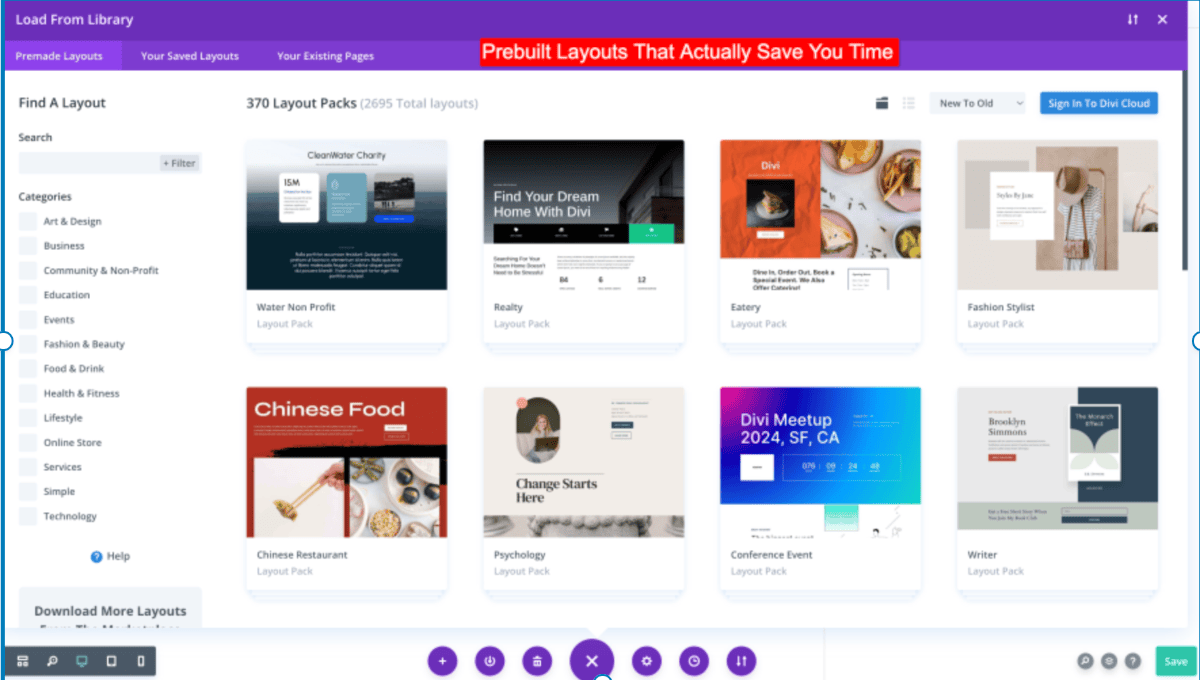
One of the biggest highlights for me is the huge number of prebuilt designs. It has 2,600+ layouts organized into 370+ layout packs. And yes, they’re beautifully made.
Whether you’re launching a blog, a local business site, or an e-commerce store, there’s probably a pack for it.
What I really liked while testing was how easy it is to get started. You just pick a layout, tweak a few sections, maybe swap in your own images, and boom, your site already looks half-decent. No need to start from scratch unless you really want to.
Divi also lets you save your own custom layouts, reuse existing pages, and even nest layouts within other templates. I found this super useful when building similar pages with slightly different content. It definitely speeds things up.
2. Modules for Everything
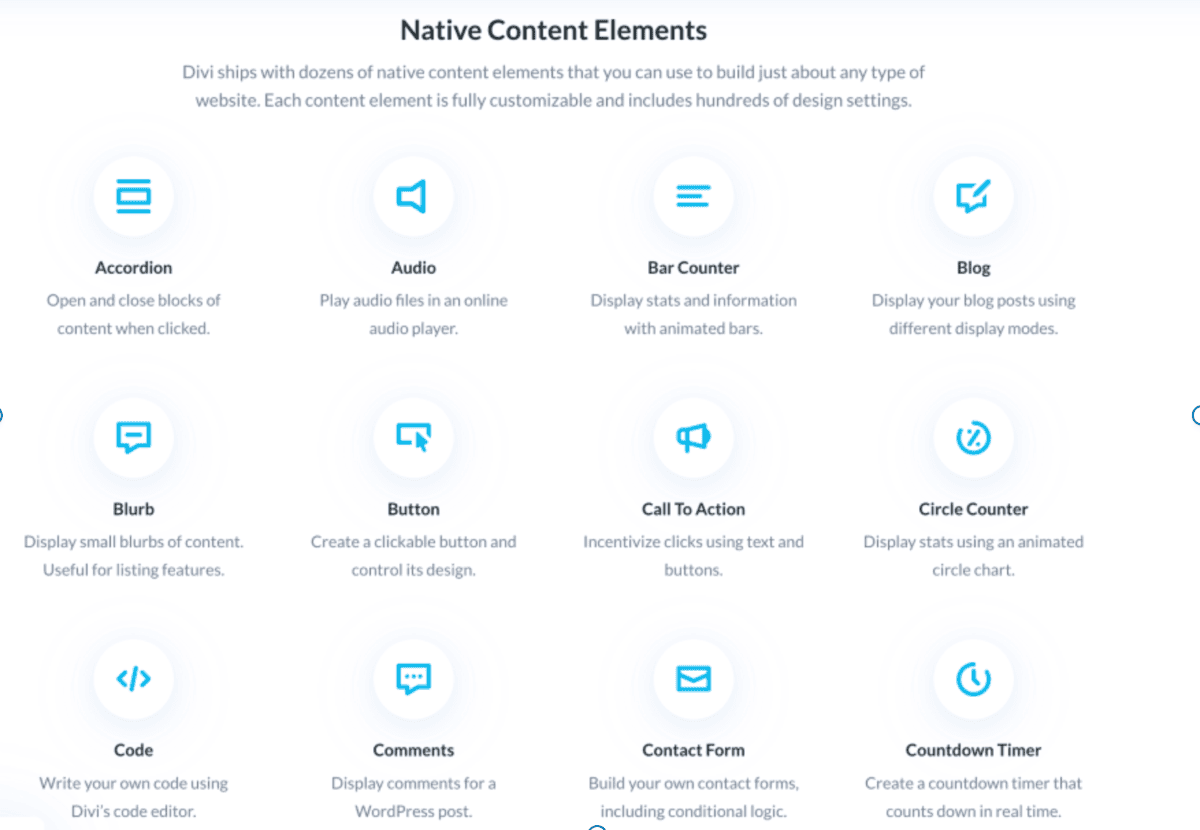
Divi gives you nearly 200+ modules out of the box (from text, images, and videos to contact forms, sliders, pricing tables, and WooCommerce widgets). Add to that another 40+ community-built ones, and if you still don’t find what you need, there’s a massive Divi Marketplace with thousands of third-party add-ons.
Check your required Divi module from here.
3. Effects, Animations & Full Customization
If you’re someone who loves to get deep into the design, Divi gives you full control. You can customize everything (from font sizes and gradients to 3D transforms, hover effects, and animation timing). I had fun testing out transitions, layering content, and making headers come to life as you scroll.
4. Built-In AI to Speed Things Up
This part surprised me: Divi now has AI tools built right in. I was able to generate images using text prompts and even draft site content like headings, blurbs, and CTAs in seconds. For anyone who struggles with writing copy or finding the right stock images, this is a serious time-saver.
Plus, Divi AI can translate your content into multiple languages, which is awesome for global websites.
5. Conditional Display & Dynamic Content
Allowing for infusing conditional logic into elements is a core feature of Divi, and literally, it helps Divi to stand tall in front of other WordPress page builders.
This feature is rare and only available in Divi.
You can set conditional logic for elements, or you can show or hide content based on user roles, time, location, or other rules.
It is perfect if you’re doing personalization or advanced WooCommerce stuff. You can also pull in dynamic content such as post titles, comment counts, author info, and more without hardcoding anything.
For bloggers, content marketers, and store owners, this kind of automation is a huge win.
6. Undo History is an Interesting Feature
Divi has a full editing history. Now, this might seem small, but it’s huge in real-world use.
If you mess something up (which we all do), you can go back through your exact edit timeline and restore any previous version. It’s more powerful than a simple undo button. It’s a lifesaver for me.
Divi Customer Support: Can You Rely on It?
Yes. In my research, Divi’s customer support is consistently one of the platform’s strongest selling points.
I have seen many users praise the support team for being knowledgeable, responsive, and willing to troubleshoot complex issues rather than sending generic help articles.
I also noticed that the long-time customers specifically mention that support agents often provide detailed explanations, screenshots, and practical solutions that help them fix problems quickly.

What I particularly like is that Divi offers 24/7 support through live chat, which is a huge advantage when you’re working on client projects or troubleshooting website issues outside normal business hours.
Divi Theme Pricing
Divi doesn’t offer a free version, which may disappoint some users. However, it comes with a 30-day money-back guarantee, so you can test it risk-free.

Divi offers two main pricing options:
- $89/year – Access to Divi, Divi Builder, Extra, Bloom, and Monarch.
- $249 lifetime – One-time payment with lifetime updates and support.
Both plans can be used on unlimited websites, which is one of Divi’s biggest advantages over competitors that charge per site.
From my experience, the lifetime plan offers the best value. I personally use the lifetime license, and if you’re building multiple websites or working with clients, it can pay for itself fairly quickly.

For advanced users, Elegant Themes offers Divi Pro ($277/year or $297 lifetime), which includes AI-powered tools, cloud storage, and workflow enhancements.
My Verdict – Divi isn’t the cheapest page builder if you only manage a single website. I wish that Elegant Themes would consider offering a free version or free trial instead of asking us to pay first.
However, the combination of unlimited site usage, lifetime licensing, Divi Official Discount Code, ongoing updates, and access to the entire Elegant Themes ecosystem makes Divi one of the best long-term values in the WordPress space.
Divi Theme Pros & Cons
Pros
- Combines theme + builder in one system
- Strong visual design control with drag-and-drop editing
- Large library of ready-made layouts and design packs
- Flexible customization options for every element
- Includes built-in tools like A/B testing and design presets
Cons
- No free version available for testing
- Can feel complex for beginners
- Blogging and simple content updates feel less streamlined
- The interface can feel crowded due to multiple design controls
Divi Alternatives: How Does Divi Compare to Elementor and Gutenberg?
Divi, Elementor, and Gutenberg, all these website builders help you build WordPress websites, but they target different types of users.
Divi focuses on an all-in-one visual design experience with lifetime pricing; Elementor emphasizes flexibility and a large ecosystem of add-ons; and Gutenberg is the lightweight, native WordPress editor designed for speed and simplicity.
| Feature | Divi | Elementor Pro | Gutenberg |
|---|---|---|---|
| Visual Drag-and-Drop Builder | Yes | Yes | Limited |
| Free Version | No | Yes | Yes (Built into WordPress) |
| Lifetime License | Yes | No | Free |
| Ease of Use | ⭐⭐⭐⭐ | ⭐⭐⭐⭐⭐ | ⭐⭐⭐ |
| Design Flexibility | ⭐⭐⭐⭐⭐ | ⭐⭐⭐⭐⭐ | ⭐⭐⭐ |
| Performance | ⭐⭐⭐⭐ | ⭐⭐⭐⭐ | ⭐⭐⭐⭐⭐ |
| Pre-Built Templates | Extensive Library | Large Library | Limited |
| AI Features | Available | Available | No |
| Best For | Freelancers, agencies, multi-site owners | Beginners, marketers, designers | Bloggers, content-focused websites |
If you’re looking for maximum design control without touching code, Divi is my preferred choice because of its lifetime pricing and unlimited website usage.
Elementor is easier to start; its free version and third-party ecosystem are the real benefits. If you prioritize speed, simplicity, and a lightweight website, then Gutenberg is the ideal choice.
For most business websites, I prefer Divi over Gutenberg for its superior design capabilities. To choose between Divi and Elementor, check out my in-depth comparison article.
FAQs
What exactly is Divi?
Divi is a visual WordPress theme and page builder developed by Elegant Themes. It lets you build entire websites with a drag-and-drop editor without coding. It comes as both a WordPress theme and a standalone builder plugin.
Can I use Divi on multiple websites?
Yep! One of Divi’s best perks is its licensing. Even the basic plan allows unlimited site usage. And if you grab the lifetime deal, you pay once and use it forever.
How is Divi different from Elementor or Gutenberg?
Divi is both a theme and a builder. Elementor is a plugin (you need a separate theme) and Gutenberg is WordPress’s default block editor. Divi offers more design flexibility and templates than Gutenberg, and more bundled features (like A/B testing) than Elementor. But Elementor is lighter and easier to use out of the box.
Does Divi work with other plugins and themes?
Yes. While Divi works best as a theme + builder combo, you can also use the Divi Builder plugin with any WordPress theme.
What’s the cost of Divi?
Divi has two main pricing options: $89/year or $249 for lifetime access. Both plans include all Elegant Themes products (Divi, Extra, Bloom, Monarch) and can be used on unlimited websites.
Is there a free version of Divi?
No, Divi doesn’t offer a free version. But it does come with a 30-day money-back guarantee
Final Words
After using WordPress for more than 10 years and testing several themes and page builders, I can say that Divi is one of the few tools I would happily recommend to my readers.
It isn’t a perfect theme at your earlier stage! The learning curve can feel a bit overwhelming at first, and I wish there were a free version to try.
But once you get comfortable with how Divi works, it becomes a powerful platform for building almost any type of website without coding.
What I personally like is the combination of design flexibility, unlimited website usage, and lifetime pricing. I saw that many tools lock key features behind recurring subscriptions, but the Divi theme has transparent pricing plans.
If you’re a blogger, small business owner, freelancer, or someone planning to build more than one website, I recommend Divi for its excellent long-term value.
Explore More:


![GeneratePress Review 2026 [Pros, Cons, Theme Features, Pricing & Verdict] – Why I Use it For My Site Design](https://bloggerspassion.com/wp-content/uploads/2022/05/generatepress-review-2022-300x157.jpg)


Leave a Comment
Your email address will not be published. Required fields are marked *