


Have you ever published a blog post, waited for Google to pick it up, and wondered why it still isn’t showing up in search results? How to get Google to index a page?
I know you have spent hours researching, writing, publishing your articles and waiting for those to appear in Google search results for your targeted keywords.
Until Google indexes your page, it won’t appear in search results. However, you can help Google discover your content and better understand your website.
In this blog post, I’ll show you how to get your content indexed by Google faster and how to use Google Search Console to request indexing.
I will also explain what to do when Google doesn’t index your pages. You should understand the common indexing problems and correct robots.txt settings,
Note – You can tell Google to crawl your content, but you can’t force it to index a page or guarantee how quickly it will happen. So, let’s look at what actually works.
Are you in a hurry? Check the illustration below to see how to index blog posts in Google step by step.

How does Google crawl and index your pages?
Have you ever wondered how often Google crawls a website?
Google constantly crawls billions of pages across the web.
- Crawling: Google bots visit your pages and fetch content like text, images, and videos.
- Indexing: Google analyzes that content and stores it in the Google Index, its main database.
If your pages are included in an XML sitemap or linked from other indexed pages, Google can discover and crawl them faster.
After indexing, Google decides when and where to rank your pages based on many signals, including content quality, relevance, links, and user signals.
These three stages are connected, but they don’t always happen together.
For example, Google finds your new blog post today but crawls it later. After crawling, it might decide not to index it. Even if your page gets indexed, there’s no guarantee it will rank on the first page of Google.
That’s why simply publishing an article or submitting it to Google Search Console isn’t always enough. You also need to make sure Google can access your page, understand its content, and find it useful.
If you want to understand the process in more detail, check out this guide to how Google Search works. When you update a page, Google may re-crawl it and update the index over time.
Here’s a simple illustration of how it works.
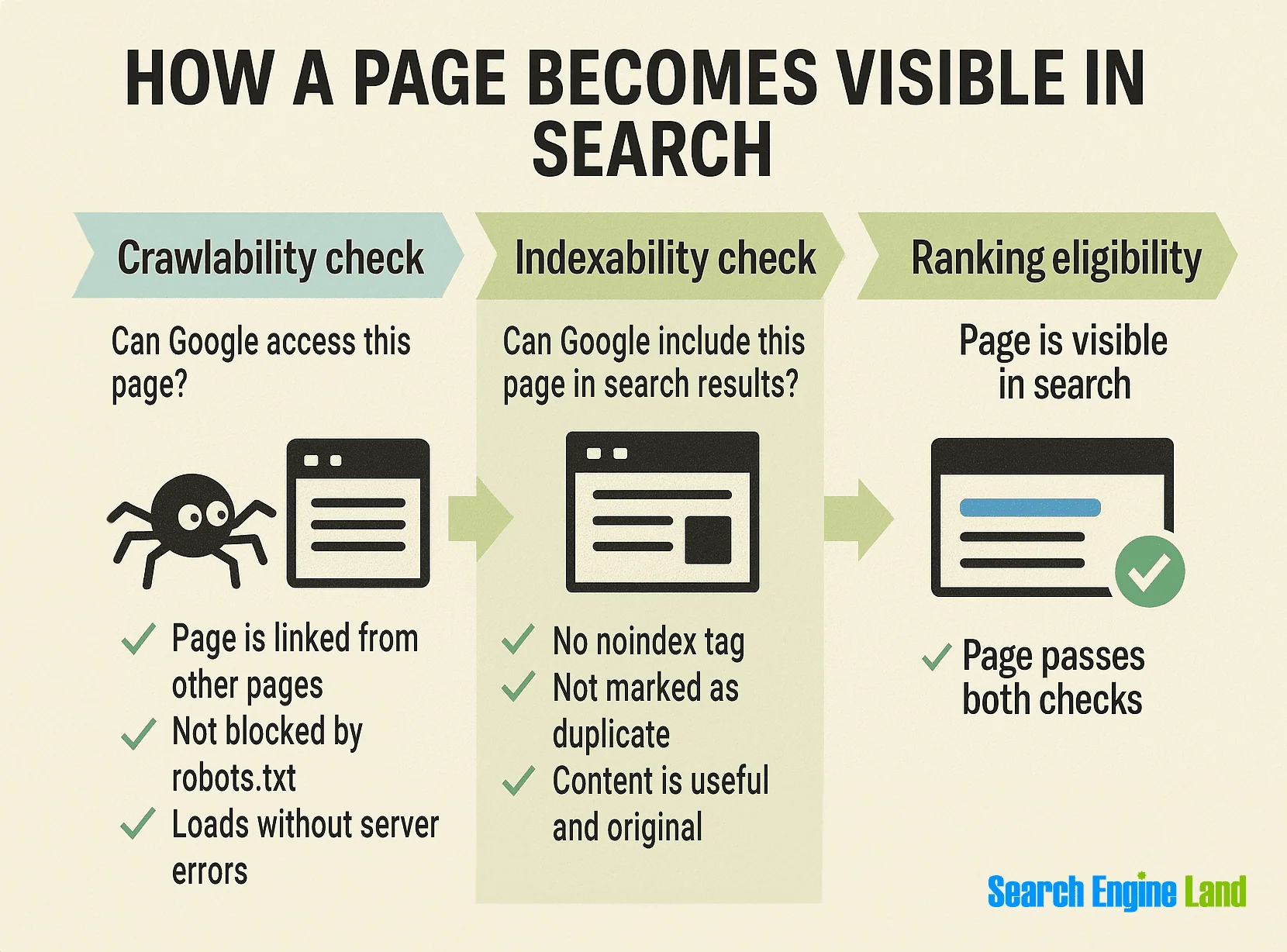
Note: To Index blog post in Google using this procedure, first you need to verify your site in Google Search Console (GSC). Check out the step-by-step guide below:
How to Get Google to Index Your Blog Faster (2027 Guide)
Indexing your site on Google is completely free. You don’t need to pay anything. However, doing it correctly for the first time can be a bit tricky.
Here’s a simple tutorial on how to submit your site to Google so it can start being indexed in search results.
1. Verify Your Site Ownership In Google Search Console (Required for Fast Indexing)
To get Google to index your new site, submit your URL through Google Search Console (GSC). It’s free and requires a Google account.
Step 1: Click here to visit Google Search Console. Once you click on the link, you’ll be asked to select a property type.
Here’s what it looks like;

As you can see above, you’ll find two options. One is to enter a domain name or URL prefix.
For the domain type, DNS (Domain Name Service) verification is required, whereas for the URL prefix, you can find multiple verification methods.
Step 2: I recommend using the URL prefix, as it allows you to verify your site’s ownership via multiple methods. Once you enter your site’s URL address, here’s what it shows.

As you can see above, it asks you to verify your ownership.
You can do it in multiple ways.
- By using your Google Analytics account
- Use your Google Tag Manager
- By associating a DNS record with Google
- Or by simply adding a meta tag to your site’s home page
Quick tip: If you’re using WordPress, install a plugin called RankMath SEO, as it allows you to quickly connect your website to Google Search Console so you can track how Google is indexing your website.
To verify using the Rank Math SEO plugin, you just need the HTML code from your Google Search Console which looks like this;

Copy the entire code.
Now, simply go to Rank Math plugin < General Settings < Webmaster Tools < Google Search Console
Here’s what it looks like;
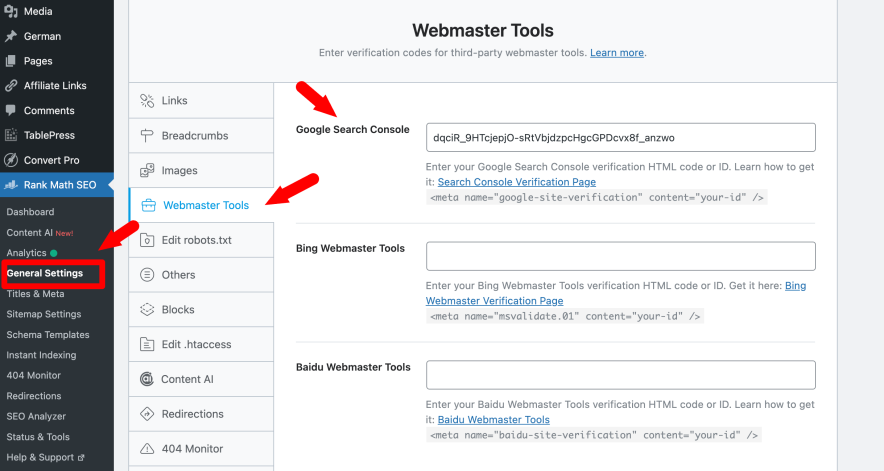
Paste the code in the Search Console field and click the “Authorize” button. That’s it, Google will verify your key and authorize your account.
Alternatively, you can also submit your site to Google using the following method.
Once you have an account with GSC, log in to it, and you’ll see a Search Console page where you can add a new site by clicking on “Add a property”.
Here’s what it looks like;

Click Add property from the search dropdown (you can add up to 1,000 properties in Google Search Console).
Verify domain ownership using the recommended method or any available alternate option.
Once verified, open the URL Inspection tool to submit your pages for indexing.

Enter the exact post or page URL you want to inspect.
Use the URL Inspection tool in Google Search Console to request indexing or re-fetch updated pages so Google can crawl them again.
You’ve asked Google to recrawl your page. Don’t expect your article to appear in Google immediately after clicking the button.
Sometimes it will take time to process your request, and you should understand that requesting indexing doesn’t guarantee that the page will be indexed.
You also don’t need to submit the same URL again. If you’ve already submitted it, give Google some time and focus on fixing any issues that might be preventing indexing.
2. Create an XML sitemap and submit it to Google
An XML sitemap contains a list of all the website’s URLs such as blog posts and pages. Every website should have an XML sitemap because it maps out how the website is structured and what the website includes.
Search engine crawlers can easily find your site contents if you’ve an XML sitemap because a sitemap makes it easy for the crawlers to see what’s on your website and easily index it.
Here are the 2 most important things you need to do (after creating a website or blog).
- Create an XML sitemap for your site
- Submit your site’s XML sitemap to Google
Let’s talk about each one of them so you can understand better.
Create your site’s XML sitemap
An XML sitemap helps Google find and index your pages faster.
You can create one using tools like Screaming Frog or XML Sitemap Generator. If you’re using WordPress, it’s even easier.
Install the Google XML Sitemaps plugin. It’s free, widely used, and automatically generates XML sitemaps for all your pages, posts, and custom URLs to help search engines efficiently index your site.
Here’s what it looks like;
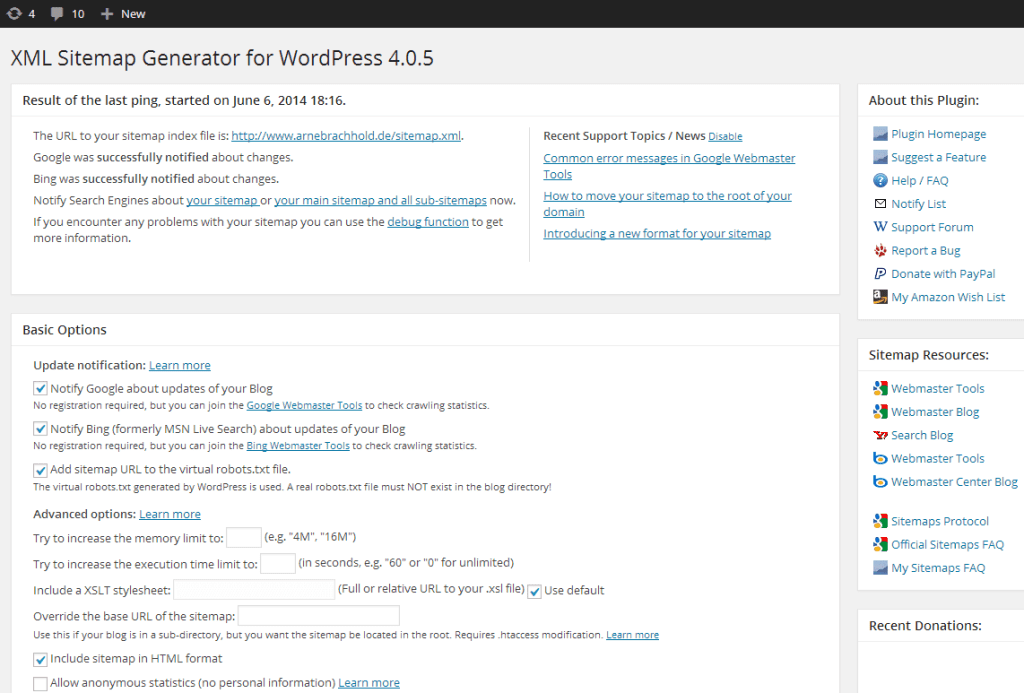
As you can see above, you don’t have to do anything extra as it works out of the box. Just install and activate the plugin.
Quick note: If you want, you can open the plugin configuration page, which is located under Settings > XML-Sitemap and customize settings like priorities. The plugin will automatically update your sitemap of you publish a post, so there is nothing more to do.
Submit your XML sitemap to Google
Once your XML sitemap is ready, submit it to Google Search Console. Go to Sitemaps, enter your sitemap URL, and click Submit. This helps Google discover and index your pages faster.

Does Submitting an XML Sitemap Guarantee Indexing?
No. This is something many website owners misunderstand.
An XML sitemap helps Google discover the important URLs on your website. It has a list of pages you want Google to crawl and index.
However, submitting a sitemap doesn’t mean Google will automatically index every URL on that list.
If you update an existing article, your sitemap includes a lastmod date. Make sure this date reflects a genuine, meaningful update rather than changing it just to make Google think the page is new.
3. Robots.txt: What Should You Know?
If Google isn’t indexing your blog posts, you should check your robots.txt file and your page’s indexing settings. Your robots.txt file tells search engine crawlers which URLs they should not crawl.
A noindex tag tells Google not to include a page in its search results when it crawls the page and reads that directive.
For example, a page may contain the following HTML tag:
<meta name="robots" content="noindex">If you want that page to appear in Google Search, make sure it doesn’t have an unwanted noindex tag. You should also check whether your robots.txt file accidentally blocks Googlebot from accessing the page.
If robots.txt blocks Google from crawling a page, then Google may not be able to read the page’s noindex command. The URL could still appear in search results without its full content.
So, don’t change your robots.txt file blindly. Check which rules are in place and make sure they match what you actually want Google to crawl.
Here’s a quick video on using the RankMath plugin to edit your robots.txt file easily.
4. Can Backlinks Help Google Index Your Content Faster?
Backlinks can help Google discover your content, especially when another relevant website links to a page that Google already knows about
But don’t assume that you need hundreds of backlinks before Google will index your blog post.
Link to your new article from relevant pages on your own website, include it in your sitemap, and make sure Google can crawl it.
You can also share your content with your email subscribers, participate in relevant communities, and reach out to publishers who might genuinely find your article useful.
What I don’t recommend is submitting your website to hundreds of unrelated directories or buying links just to speed up indexing.
These tactics don’t guarantee that Google will index your pages, and manipulative link-building practices can create SEO problems.
Focus on creating useful content and earning relevant links naturally. Backlinks can support discovery, but they aren’t a substitute for good technical SEO.
You can read more about this in Google’s Search spam policies.
What Are The Google Indexing Issues?
Have you submitted your URL to Google Search Console but still can’t find your article in search results.
Don’t panic. First, open Google Search Console and inspect the URL to see what status Google reports.
Here are a few common problems you might come across and what you can do about them.
1. Discovered – Currently Not Indexed
This means Google knows your URL exists but hasn’t indexed it yet. It doesn’t mean something is broken.
Check whether the page is included in your XML sitemap and linked from other relevant pages on your website.
Make sure your server is working properly and that the page provides useful information.
If you run a large website, you may also need to look at how Google is discovering and crawling your URLs.
2. Crawled – Currently Not Indexed
This status means Google has visited the page but hasn’t indexed it at that time. In this case, check beyond the technical settings.
Is your article substantially similar to another page on your website? Does it offer anything useful or original? Is the canonical URL correct? Does the content properly answer the question a reader is trying to solve?
Fix any issues you find, but remember that adding more words won’t guarantee indexing.
3. Google Has Selected a Different Canonical URL
Sometimes, Google finds similar content at multiple URLs and chooses one URL to represent that content in search results.
For example, your website might have several URLs showing substantially the same page.
Check the canonical tag on your page and make sure your internal links, redirects, and sitemap point to the preferred URL.
Google considers canonical tags as signals rather than absolute instructions, so it may still select a different URL.
4. Your Page Has a Noindex Tag
If Google reports that your page has a noindex directive, check whether you intentionally excluded the page from search results.
If you want the page indexed, remove the unwanted tag and make sure Google can crawl the page to see the change.
On WordPress, check your SEO plugin and search-engine visibility settings.
5. Your Page Returns an Error
Google will have trouble accessing your content if your server returns repeated 5xx errors or the URL leads to a missing page.
Check your hosting, server logs, redirects, and HTTP status codes. If a page has been permanently moved, redirect it to a suitable replacement.
If the page was intentionally removed and has no appropriate replacement, keeping the 404 response may be the right choice.
My advice: Don’t keep requesting indexing without checking the problem first. Find out what Google is reporting, fix the issue, and then monitor the URL again.
How to Check If Google Has Indexed Your Site?
Do you want to check if a particular site is listed in Google search results?
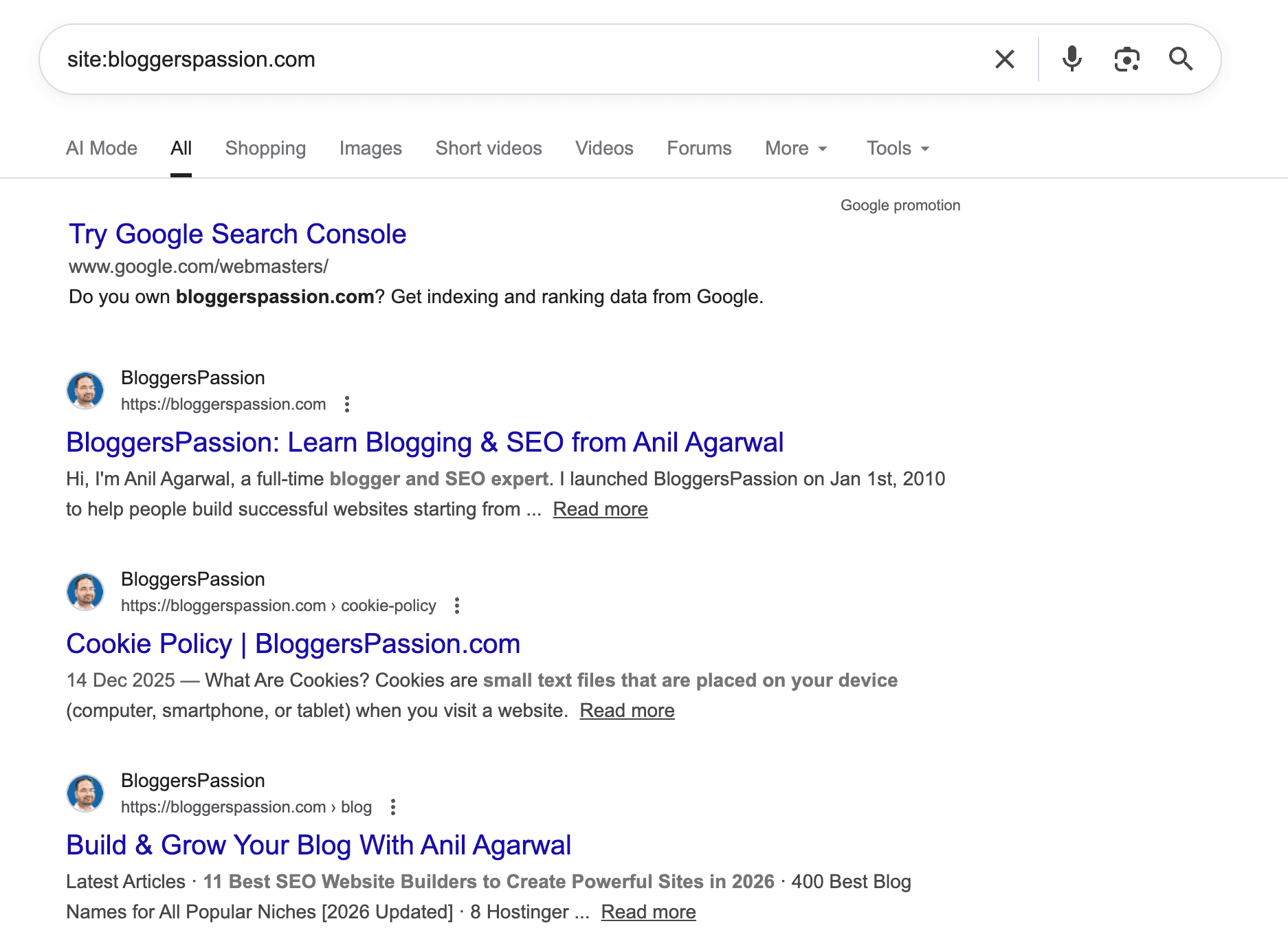
Just type “Site:domainname.com.”
For example, here’s what is displayed in Google for our site, BloggersPassion
Google Indexing Checklist for New Blog Posts
How to index a blog post in Google? Here is the checklist.
- Make sure the page is published and accessible to visitors.
- Check that the page returns an HTTP 200 status.
- Make sure the content provides useful, original information.
- Check that you haven’t accidentally added a noindex tag.
- Confirm that robots.txt doesn’t unintentionally block Googlebot.
- Check that the canonical URL is correct.
- Make sure the page is included in your XML sitemap.
- Add relevant internal links from other pages on your website.
- Check that important content is accessible when Google renders the page.
- Inspect the URL in Google Search Console.
- Fix any reported indexing problems and monitor the results.
These steps won’t guarantee instant indexing, but they will help you catch common issues that prevent Google from processing your content.
Final Thoughts on Indexing Your New Site on Google
Google’s crawlers are fast and efficient, but they still need clear signals.
Using Google Search Console, submitting an XML sitemap, building a few quality links, and adding internal links all help Google discover and index your site faster. Without a sitemap, Google may miss important pages.
Fast indexing is REALLY the foundation of better search rankings. If Google can’t index your pages, they can’t rank. Found this guide helpful? Share it with others. If you have questions, drop them in the comments.
FAQs: How to Index Blog Posts in Google (Fast)
Here are some frequently asked questions around how to get Google to index your site.
Probably due to poor internal linking, low-quality or duplicate content, crawl errors, or not submitting the URL in Google Search Console.
Check your URL in Google Search Console. Request indexing when appropriate, submit your XML sitemap, add relevant internal links, and fix any technical problems. These steps can help Google discover and process your content, but they don’t guarantee a specific indexing time.
Indexing allows your pages to appear in Google search results, which ultimately helps you get organic traffic, visibility, leads, and sales.
There’s no fixed timeline. Some pages will get indexed quickly, while others can take days or weeks, or may never be indexed in Google. The timing depends on Google’s systems and the value of your page and website.
Yes. Google Search Console is the easiest and fastest way to submit URLs, check indexing status, and fix crawl issues. It’s free.
Google may have crawled your page but decided not to index it at that time. Check for duplicate content, canonical issues, indexing restrictions, and whether the page offers useful, original information.
No. You can request indexing and fix problems that prevent Google from accessing your content, but Google makes the indexing decision.
Changing the date without making a meaningful update isn’t a reliable indexing strategy. You should focus on improving the content and keep the modification dates accurate.
No, I don’t recommend any unreliable tool. To understand Google Indexing, use Google Search Console.







Nice Article sir. URL inspection thing is new for me. After reading this post. Now i am going to add manually these pages that not showing on Google and also hide there page that not need on Google using robots.tx right ?
Thanks sir. :)